
People
Worker Preferences
Client profile → Overview5 steps
Written by Fahid Safdar, Founder & Product, Rostery · Checked
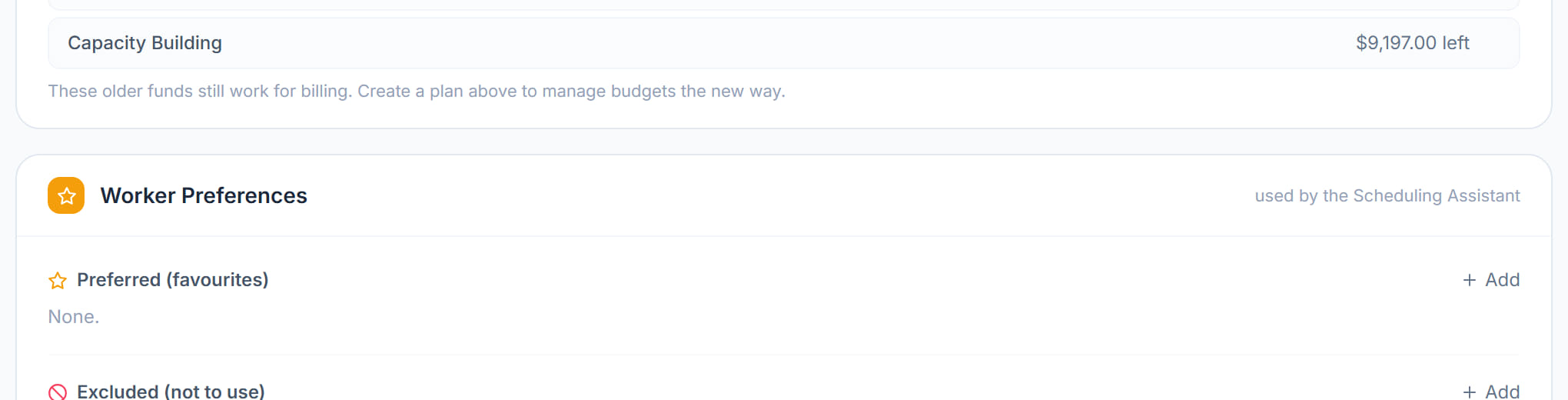
Who this participant wants, and who they do not. It is not a note — Rostery uses it when staffing, so recording a preference here changes what the scheduler suggests.
Step by step
- 1
Open the participant and scroll to Worker Preferences.

- 2
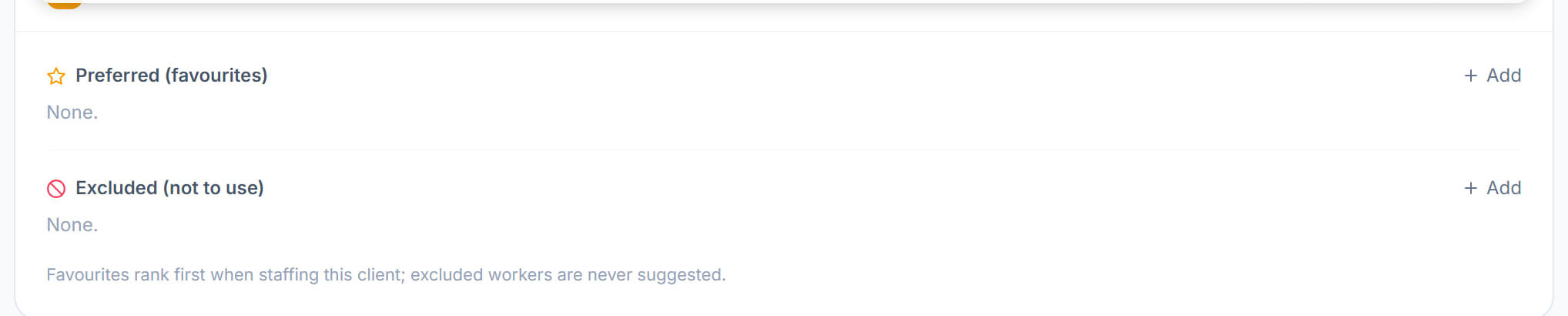
Click + Add beside Preferred (favourites) and choose the workers this participant asks for.
- 3
Click + Add beside Excluded (not to use) for anyone who should not be sent.
- 4
Save. As the panel itself says: favourites rank first when staffing this client; excluded workers are never suggested.
- 5
Check it when a participant complains about who is turning up — an empty list is a common reason the same unwanted worker keeps being offered.
The screen
Did this answer your question?
If not, talk to us — we answer from Australia, in business hours.