
People
Contracts
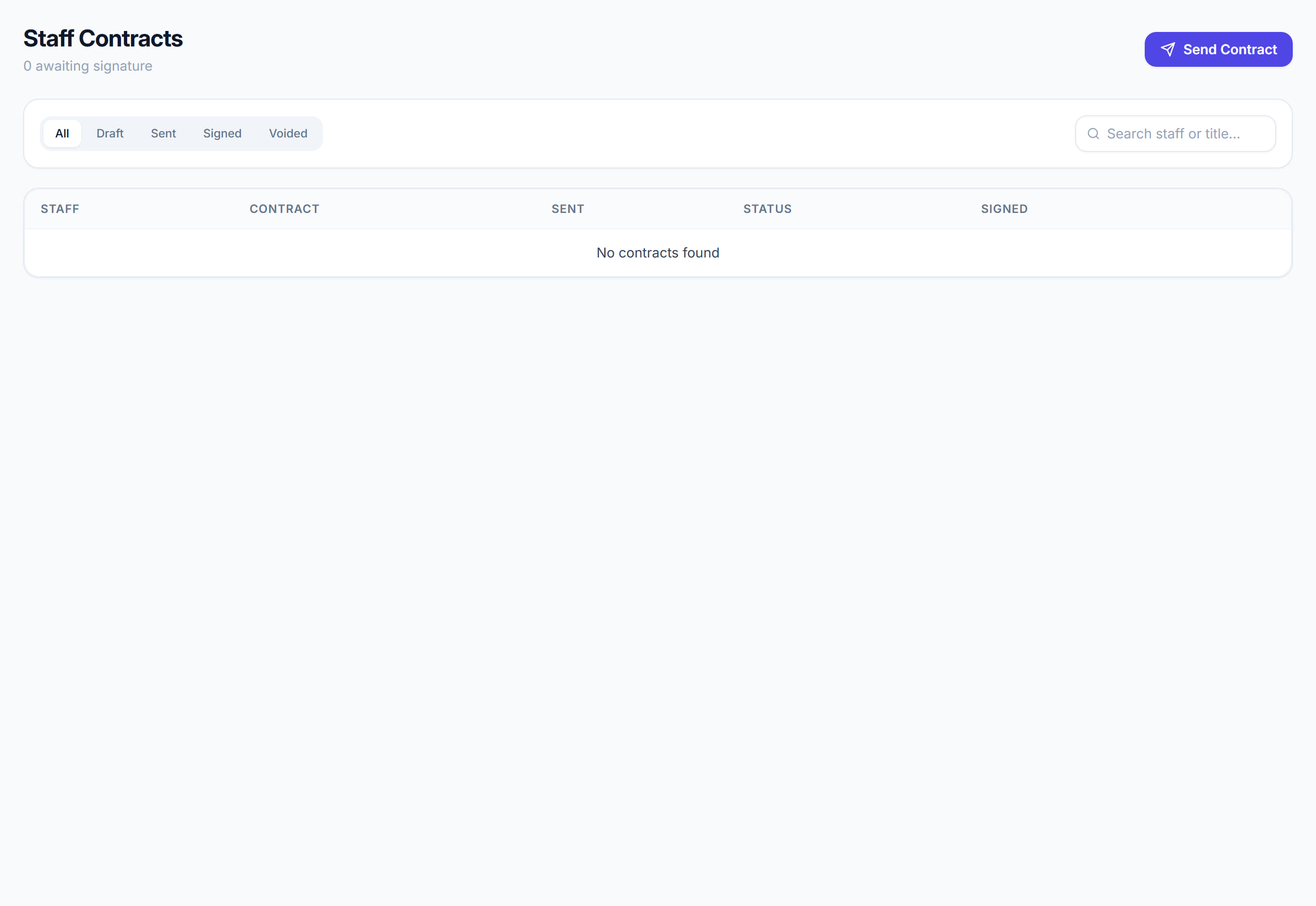
/staff/contracts9 stepsStaff Contracts is where you send employment contracts to workers and track who has signed. Office staff and administrators write each contract from a template, fill in the worker's details, send it, chase signatures and void contracts that were sent in error.
Step by step
- 1
Open Staff Contracts to see every contract, with the tabs All, Awaiting signature, Signed, Draft and Void above the list.
- 2
Click Send contract. Choose the Staff member and a Template, or Start from scratch, and check the Title before you go on.

- 3
Edit the Contract text if needed. Use Insert field to add placeholders such as the employee's name, job title or start date.
- 4
Switch to Preview to see the contract as the worker will. Click Fill in to replace the placeholders Rostery can fill from their record.
- 5
Click Send contract. The worker is emailed that a contract is waiting, and it shows in the list as Awaiting signature.
- 6
Choose Resend reminder from the row's menu to email the worker again while their contract is still waiting for a signature.
- 7
To sign with the worker beside you, choose Sign in person from the menu. They type their full name and tick the agreement.
- 8
Click View to read the contract and its History: when it was sent, when and from what IP address it was signed, or why it was voided.
- 9
Choose Void contract to cancel one that is wrong, enter a Reason for voiding, then send a corrected contract.
The screen
Did this answer your question?
If not, talk to us — we answer from Australia, in business hours.