
People
Work Days and Availability
Which days this worker normally works, as a simple Monday-to-Sunday row, and — on its own tab — the detailed availability Rostery uses when it suggests people for shifts.
Step by step
- 1
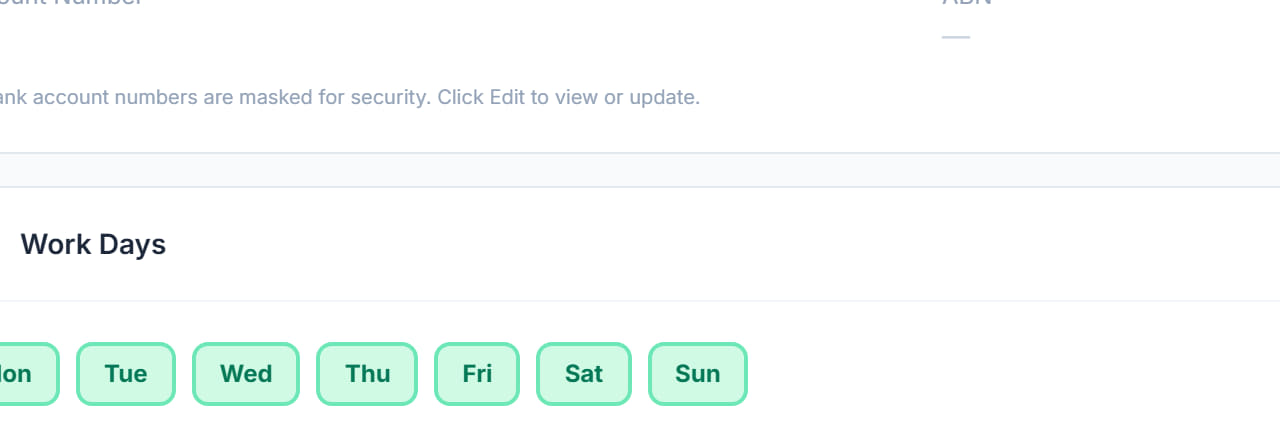
Open the worker and scroll to Work Days.

- 2
Click Edit and turn on the days they normally work. The highlighted days are the ones they are available for.
- 3
Save. This is the broad pattern, useful for reading a team at a glance.
- 4
For the detail, click the Availability tab at the top of the profile.
- 5
Set the times they can work on each day, and mark anything they cannot do.
- 6
Save Availability.
- 7
From then on the scheduler warns when a shift falls outside it, and the worker stops being offered shifts they cannot take.
The screen
Did this answer your question?
If not, talk to us — we answer from Australia, in business hours.