
People
Staff Teams
/staff/teams7 stepsStaff Teams groups workers into named teams, such as a house, a region or a coordinator's group, alongside the clients they support. It opens the Teams page, where office staff and administrators add workers to teams and see who is in each one.
Step by step
- 1
Open Teams from the sidebar. The Staff Teams address opens the same page, where each team lists its staff and its clients.
- 2
Click New team, enter a Name and an optional Description, pick a Colour for its dot, and click Create team.
- 3
Click Members on the team's row. Type a name in Add staff and click the match to add that worker to the team.
- 4
Add as many workers as you need. The search also matches email addresses, and each match shows the person's role.
- 5
Click Save members to keep your changes. If you close the drawer first, Rostery asks before it discards them.
- 6
Check the Staff column on the list. It shows up to five faces and a head count for each team.
- 7
Open a worker's profile to see the Teams card, which lists every team they are in, with a Manage link back to this page.
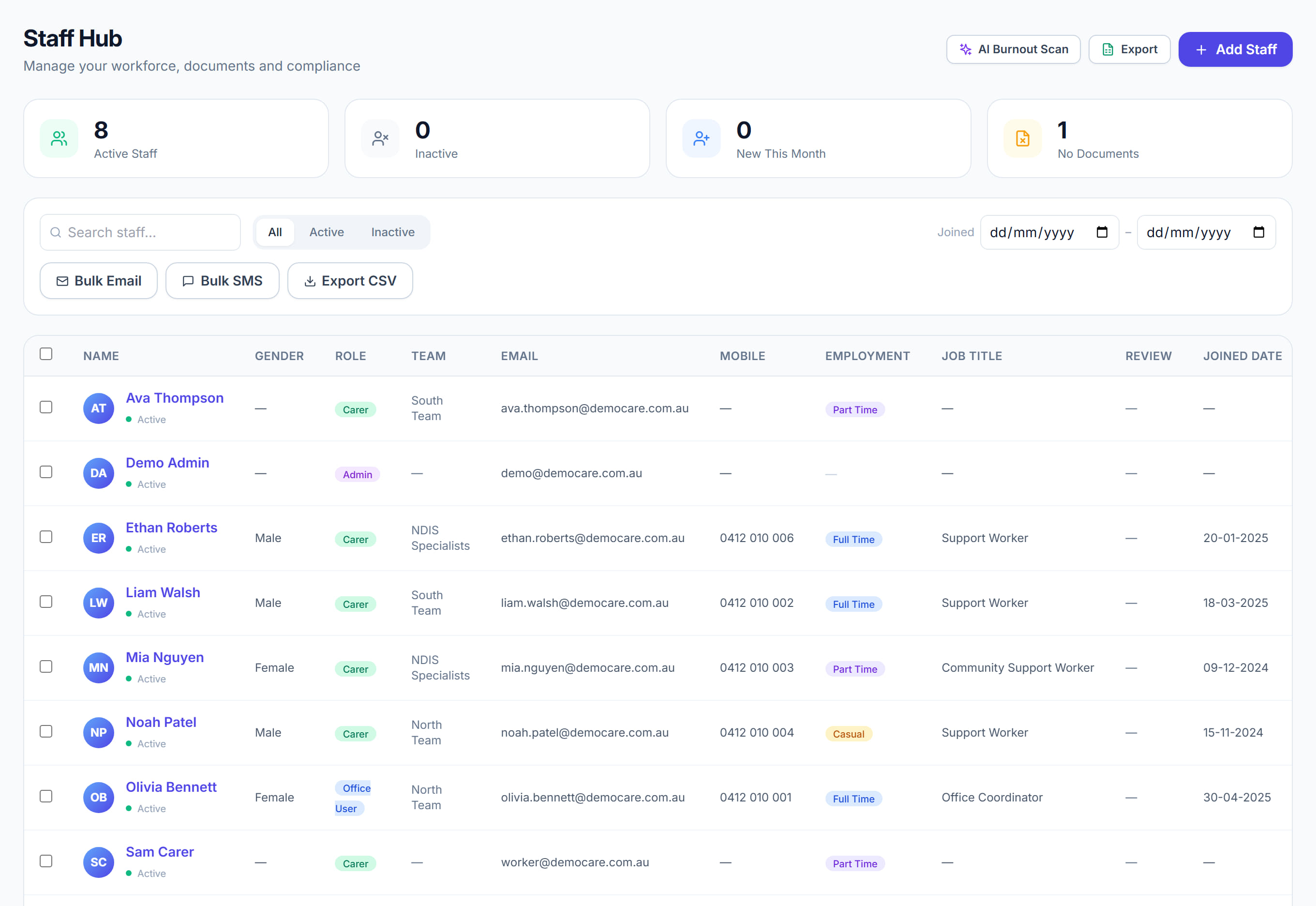
The screen
Did this answer your question?
If not, talk to us — we answer from Australia, in business hours.