
People
Recent Shifts and Documents panels
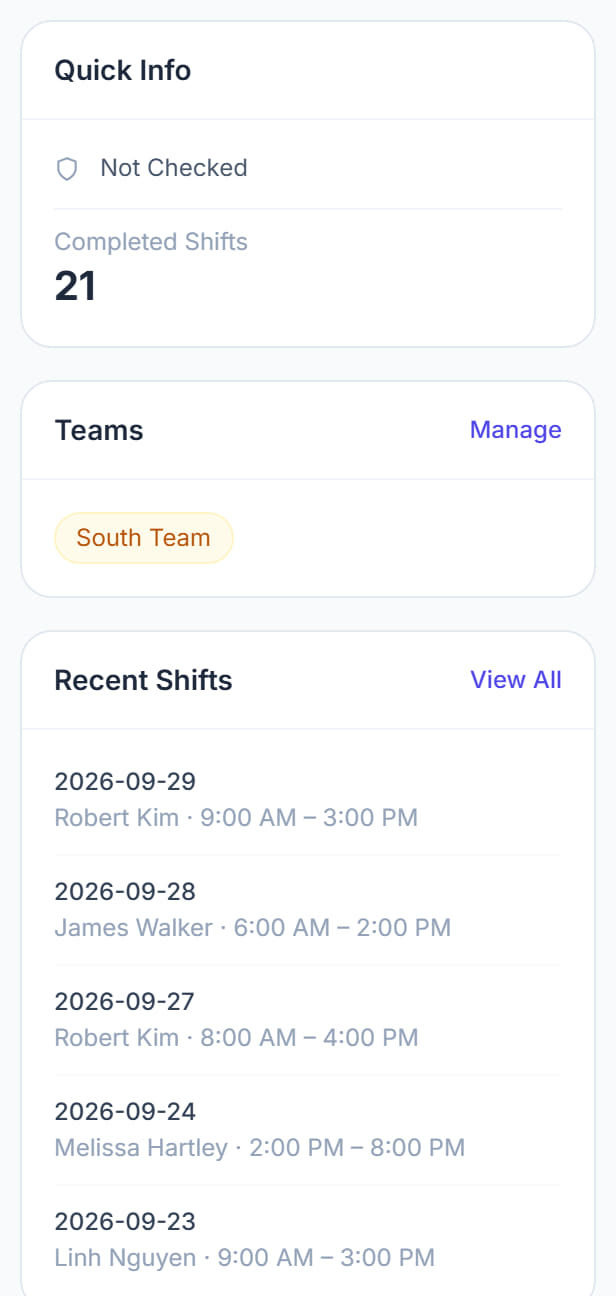
Two panels on the right of the Overview that answer the two questions asked about a worker most often: what have they been doing, and is their paperwork in order.
Step by step
- 1
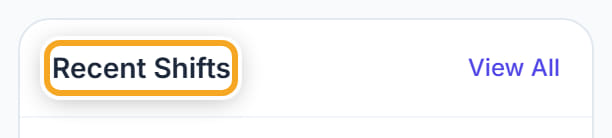
Open the worker and look at Recent Shifts on the right.
- 2
Read the last few shifts with their date, the participant and the times.
- 3
Click View All to see the full history on the Employee Shifts tab.

- 4
Look at the Documents panel underneath for what has been uploaded.
- 5
Click View All to open the Documents tab, where you can upload and set expiry dates.
- 6
"No documents uploaded" on a worker who is already taking shifts is worth acting on — it means there is no evidence behind their qualifications.
The screen
Did this answer your question?
If not, talk to us — we answer from Australia, in business hours.