
People
Contacts, teams and referral stakeholders
Who to ring, who works with this participant, and who referred them. Three small panels on the right of the Overview that answer most of the questions that arrive by phone.
Step by step
- 1
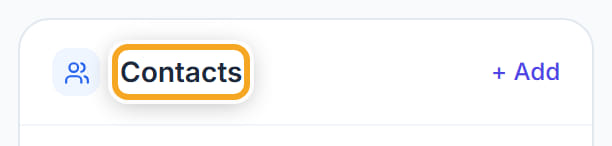
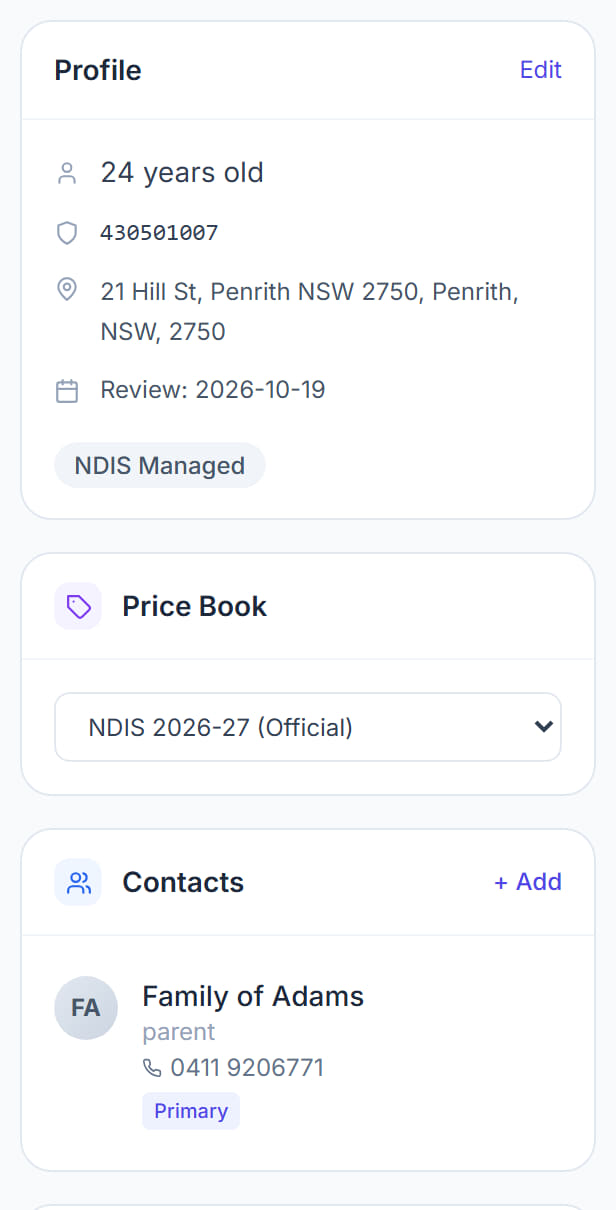
Open the participant and look at the Contacts panel on the right.
- 2
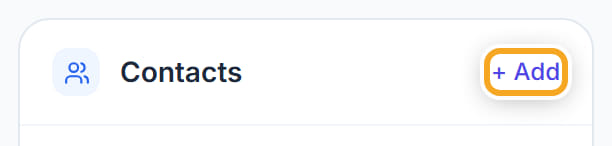
Click + Add to record a contact — their name, relationship and number.
- 3
Mark one as Primary. That is the number shown at the top of the profile, and the mobile an approval request is sent to.
- 4
Use Teams to put the participant with a team. Click Manage, or + Assign to a team.
- 5
A team is a filter across the whole app: it narrows the scheduler and the reports to that group of participants and workers.
- 6
Use Referral Stakeholders for who referred them and who else is formally involved — a support coordinator, a plan manager, a clinician.
- 7
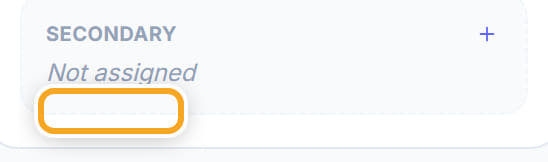
Set a Primary and a Secondary stakeholder where there are two.
The screen
Did this answer your question?
If not, talk to us — we answer from Australia, in business hours.