
People
Client Teams
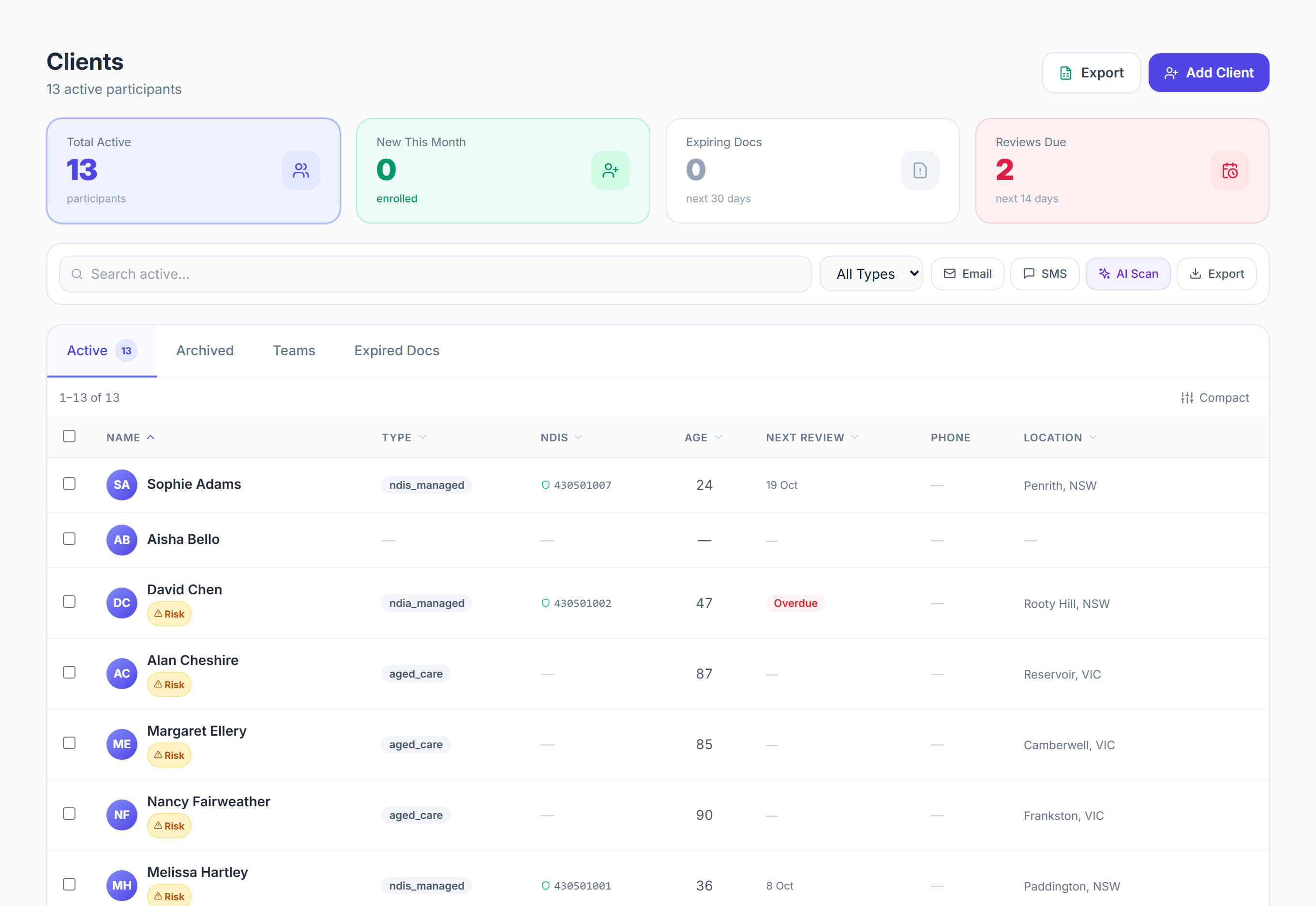
/clients/teams6 stepsClient Teams is the Teams tab on the client list. It shows the teams your organisation has set up, such as a house, a region or a coordinator's caseload, and how many clients belong to each. Office staff use it to find and manage client groupings.
Step by step
- 1
Open All Clients and select the Teams tab. Each card shows a team's name, its description and how many clients belong to it.
- 2
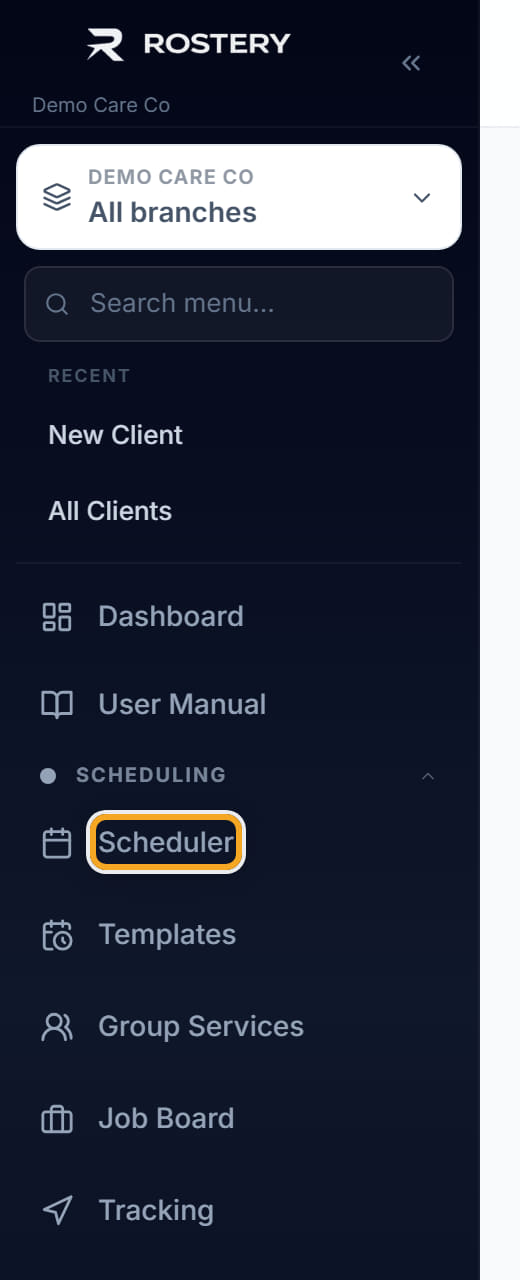
Use the team as a guide when you roster on the Scheduler, since it lists the workers grouped with these clients. Teams do not filter the Scheduler itself.
- 3
Click a team card, or Open Teams when none exist yet, to go to the Teams page where teams are created and changed.
- 4
On the Teams page, click Members on the team's row, then type a name in Add clients and click the match to add that client.
- 5
Remove a client with the cross beside their name, then click Save members. Nothing changes until you save.
- 6
Open a client's profile to see their Teams card. It lists the teams they belong to, or offers Assign a team when there are none.
The screen
Did this answer your question?
If not, talk to us — we answer from Australia, in business hours.