
Admin & Settings
Service Types
What you deliver, and what each one is worth. A service type ties the work to a price book item, which is what makes a shift bill at the right rate — and how it is charged on a weekday, a Saturday, a Sunday and a public holiday.
Step by step
- 1
Open Settings and click Service Types.

- 2
Click New Service Type.

- 3
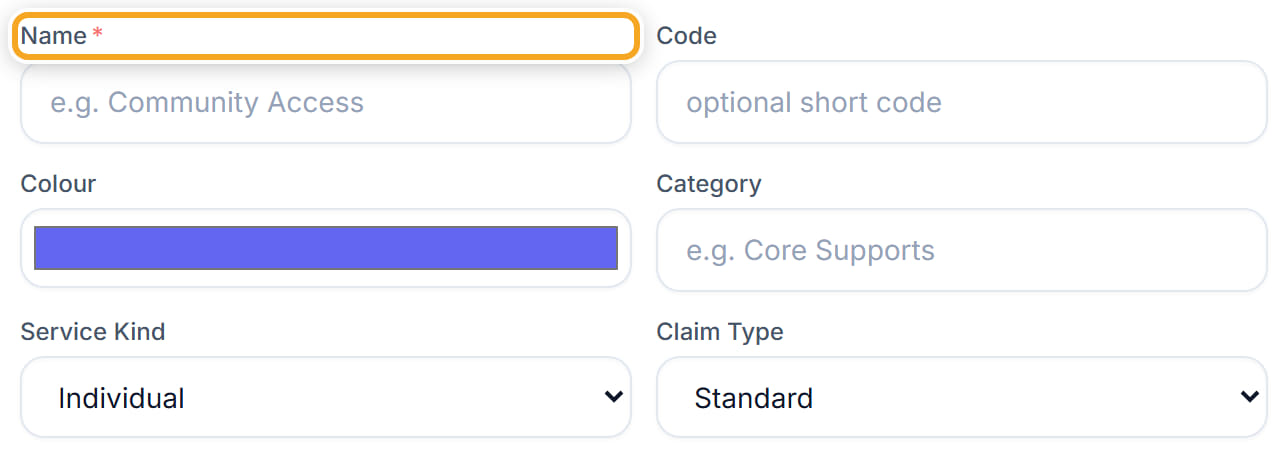
Name it in the words your team uses on the roster.
- 4
Attach the price book item it is charged from. This is the part that matters — a service with no item behind it bills at zero.
- 5
Set the rate for each day type. A day type left empty charges nothing for shifts on that day, which is the usual reason a Sunday shift bills $0.
- 6
Attach a kilometre item if this service involves travel that is charged.
- 7
Tick Active so it appears when somebody builds a shift.
- 8
Click Add.
Did this answer your question?
If not, talk to us — we answer from Australia, in business hours.