
Admin & Settings
Roles and Permissions
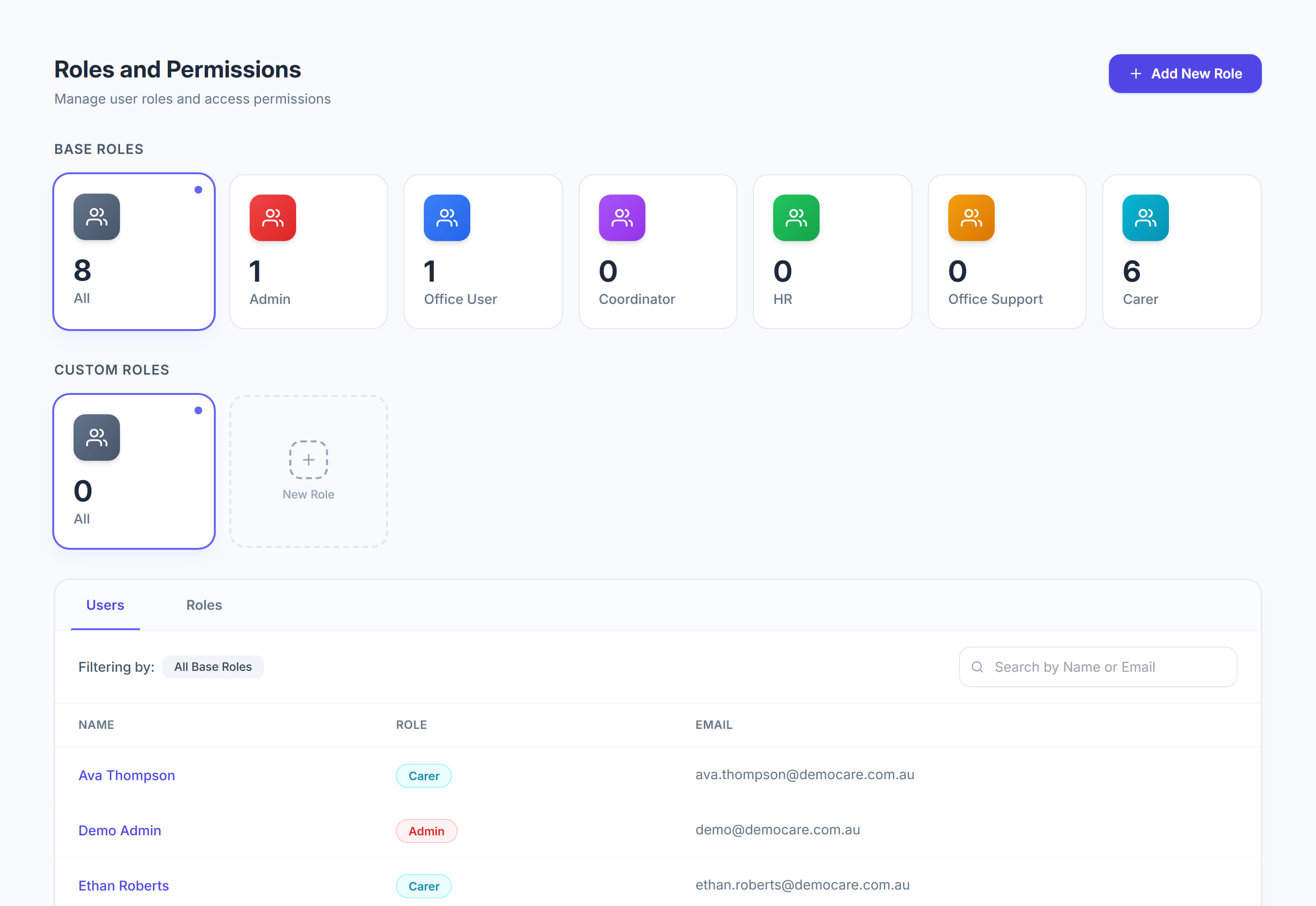
/settings/roles6 stepsWho can see and do what. Two tabs: Users lists the people with access, Roles defines what each role is allowed to reach. It is the screen that keeps money and personal information away from people who do not need them.
Step by step
- 1
Open Settings, then Roles and Permissions.

- 2
On the Users tab, read who has access and what role each person holds.

- 3
Switch to the Roles tab to see what a role can reach.

- 4
Click Add New Role to build one of your own — a team leader who can roster but not see pay, for example.

- 5
Tick only what that role genuinely needs. It is easier to add a permission later than to explain why somebody could see something.
- 6
Save, then set the role on each person from the Users tab.
The screen
Did this answer your question?
If not, talk to us — we answer from Australia, in business hours.