
Admin & Settings
Automations
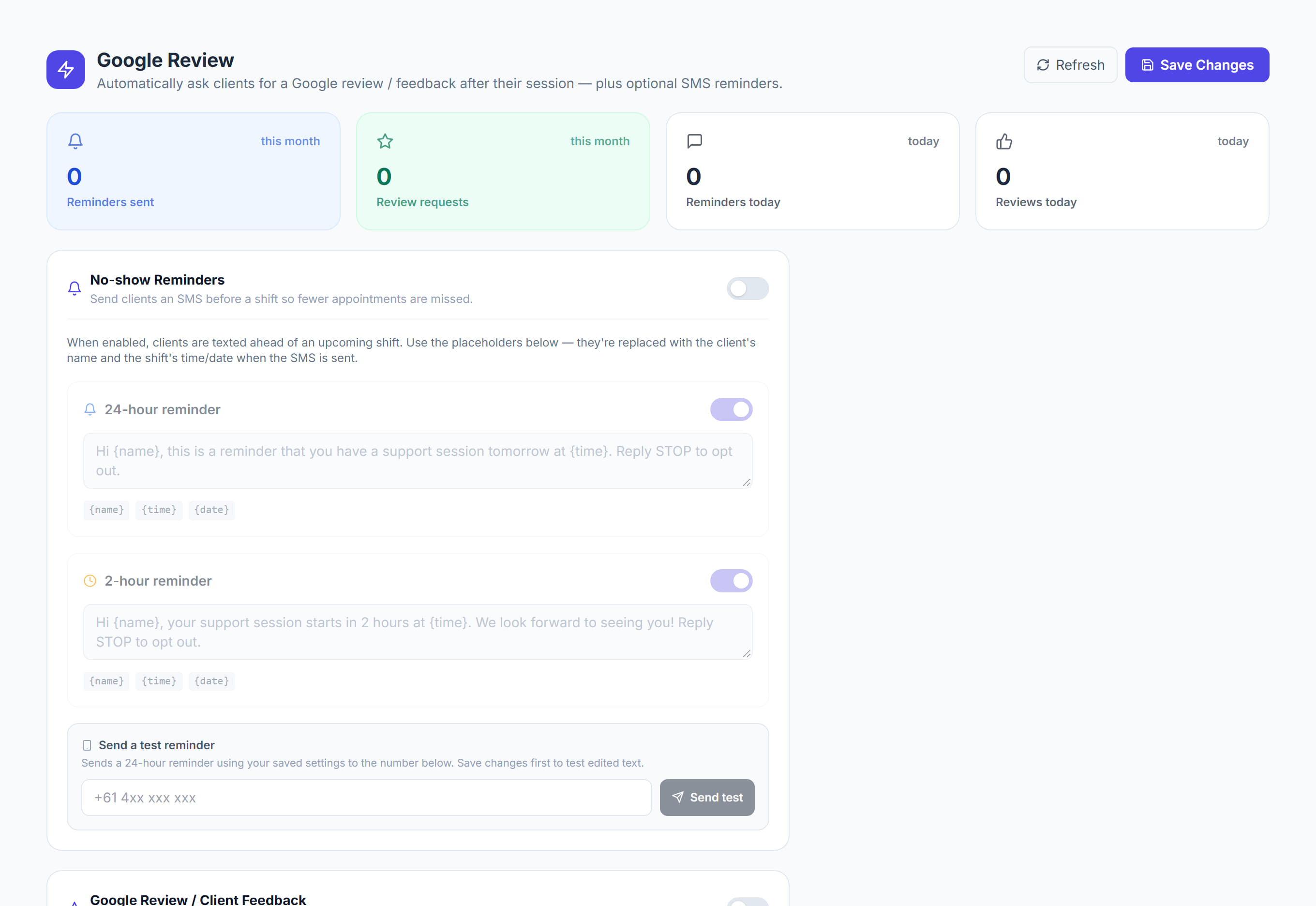
/automations7 stepsReminders & reviews sends text messages to clients on your behalf: a reminder before an upcoming shift so fewer are missed, and a Google review request after a completed one. Administrators and office staff set the messages and timing and see what has been sent.
Step by step
- 1
Turn on No-show reminders, then switch on the 24-hour reminder, the 2-hour reminder, or both.
- 2
Check what each reminder says before you rely on it. Use Insert to add {name}, {time} and {date}, which are filled in for each client.
- 3
Turn on Google review requests, paste your Google review link, and set Wait after the shift (hours) to choose when it goes.
- 4
Write the review Message, putting {url} where the link should go and {name} where the client's name should appear.
- 5
Click Save changes. The Unsaved changes bar stays at the bottom of the page until you save or click Discard.
- 6
Enter your own mobile under Send a test reminder or Send a test review request, and click Send test to see the message.
- 7
Watch the counts at the top and Recent activity below. Each message shows the client, type and number, and whether it was Sent, Skipped or Failed.
The screen
Did this answer your question?
If not, talk to us — we answer from Australia, in business hours.