
Admin & Settings
AI Receptionist
/settings/ai-receptionist8 stepsA phone and chat receptionist that answers in your organisation’s voice, using what you tell it here. It also holds the keys for the services behind it — telephony, voice and the language models — so nothing has to be configured on a server.
Step by step
- 1
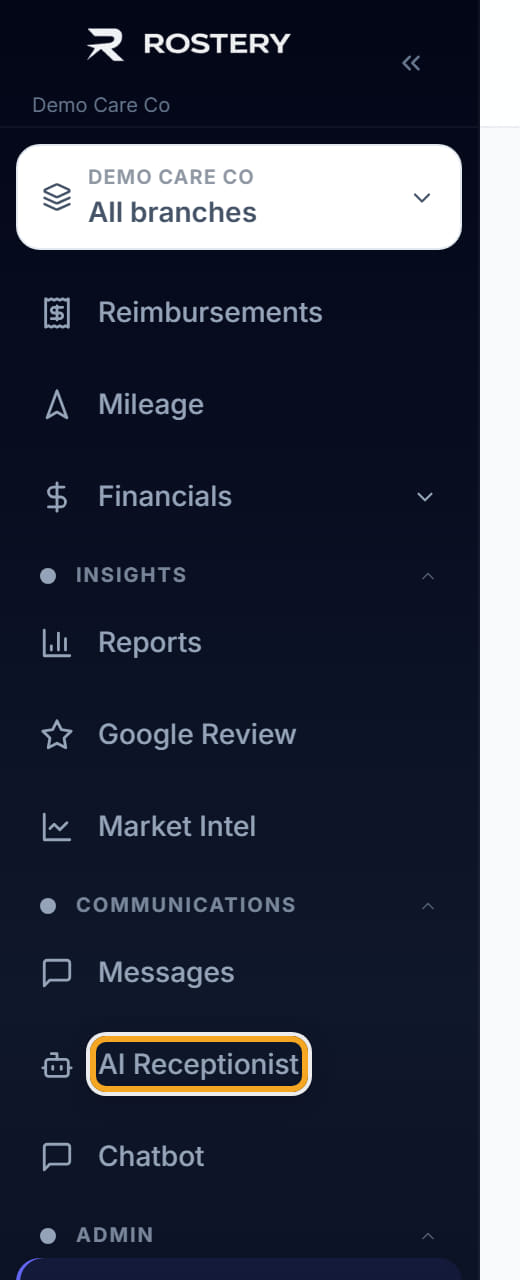
Open Settings, then AI Receptionist.
- 2
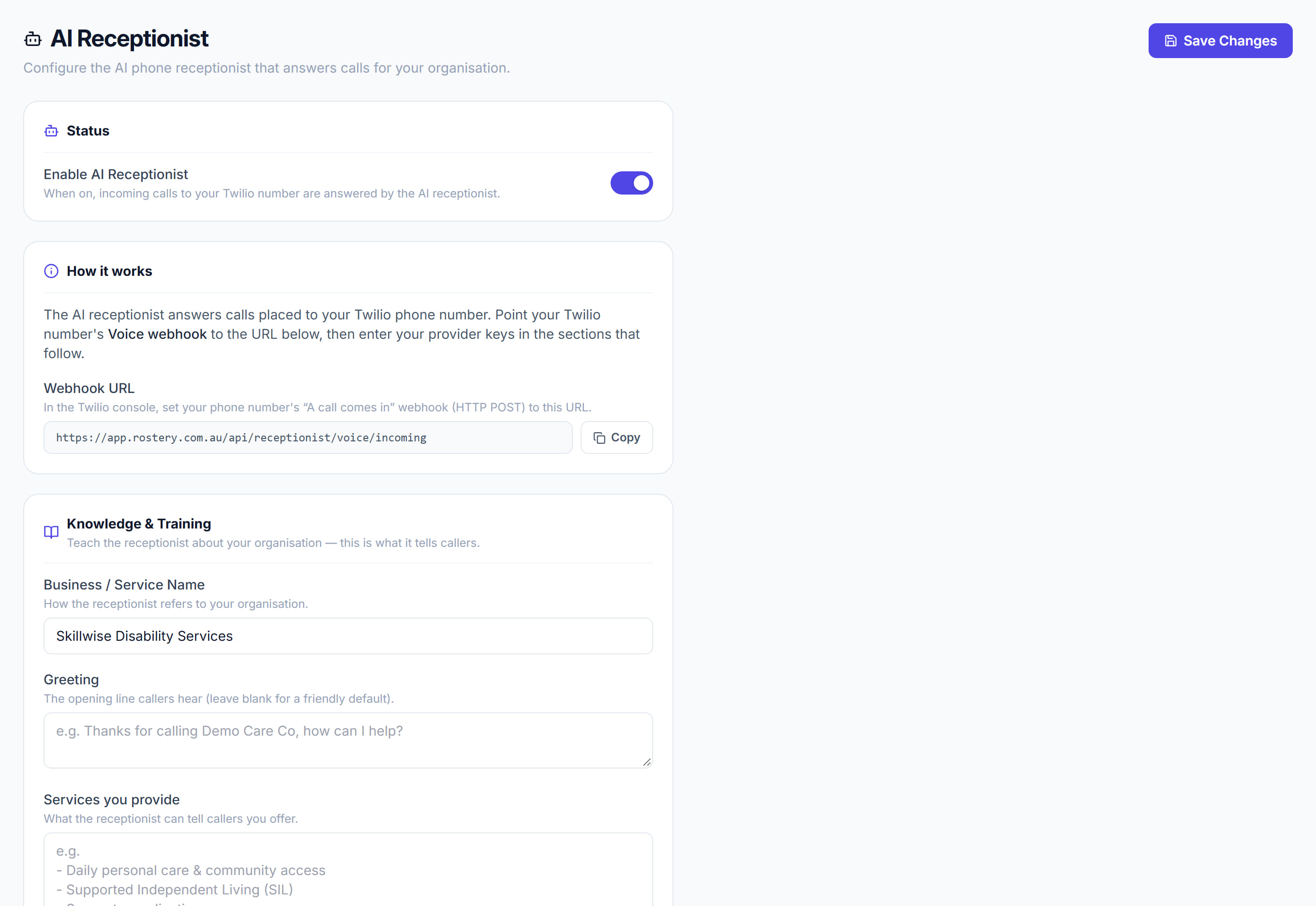
Check the Status at the top and read How it works.

- 3
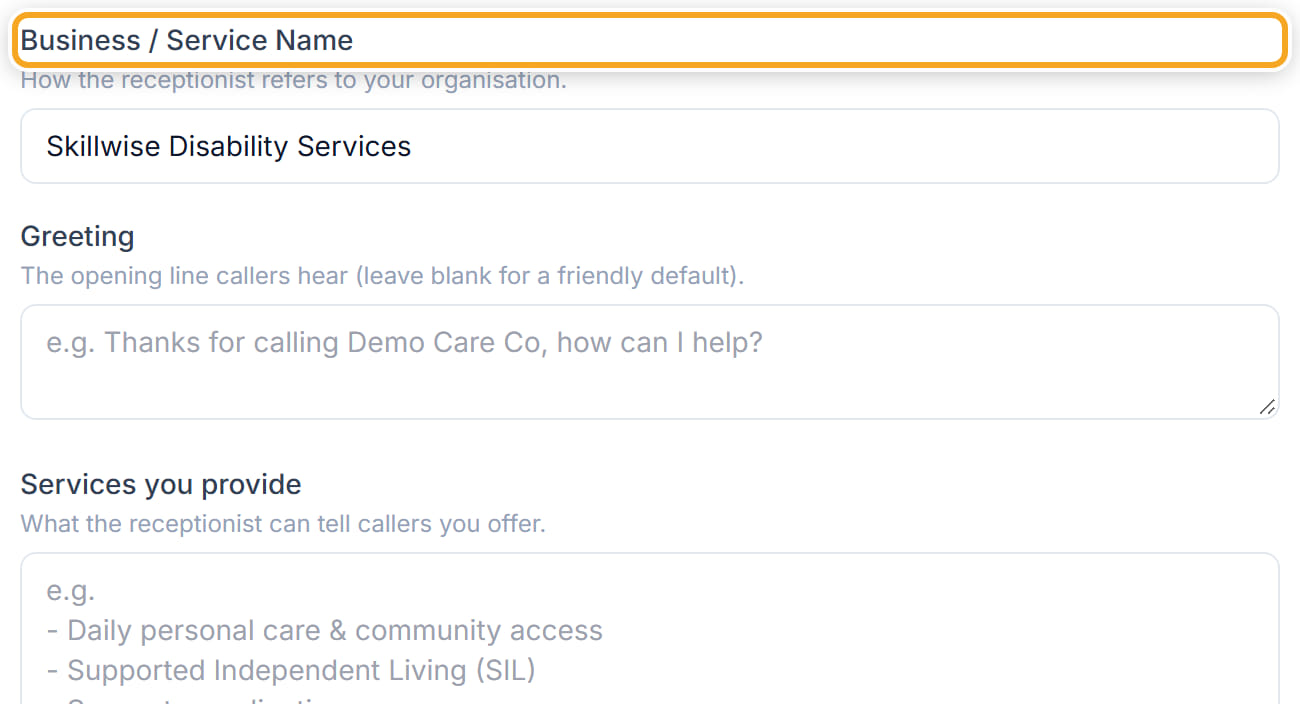
Under Knowledge & Training, fill in the Business / Service Name, the Greeting callers hear, the Services you provide, Pricing information, Operating hours, Areas served, Languages and your Intake / referral process.
- 4
Use "Anything else the receptionist should know" for the things that do not fit a field. This is what stops it inventing an answer.
- 5
Under Telephony, enter the Twilio Account SID, Auth Token and Phone Number, and a Transfer Number for calls that should reach a person.
- 6
Under Voice, enter the ElevenLabs API Key and Voice ID, and the Groq, Deepgram and Anthropic keys.
- 7
Set the Voice Mode.
- 8
Click Save Changes. Copy the Webhook URL and paste it into your telephony provider so calls reach Rostery.

The screen
Did this answer your question?
If not, talk to us — we answer from Australia, in business hours.