
Admin & Settings
Qualification Match
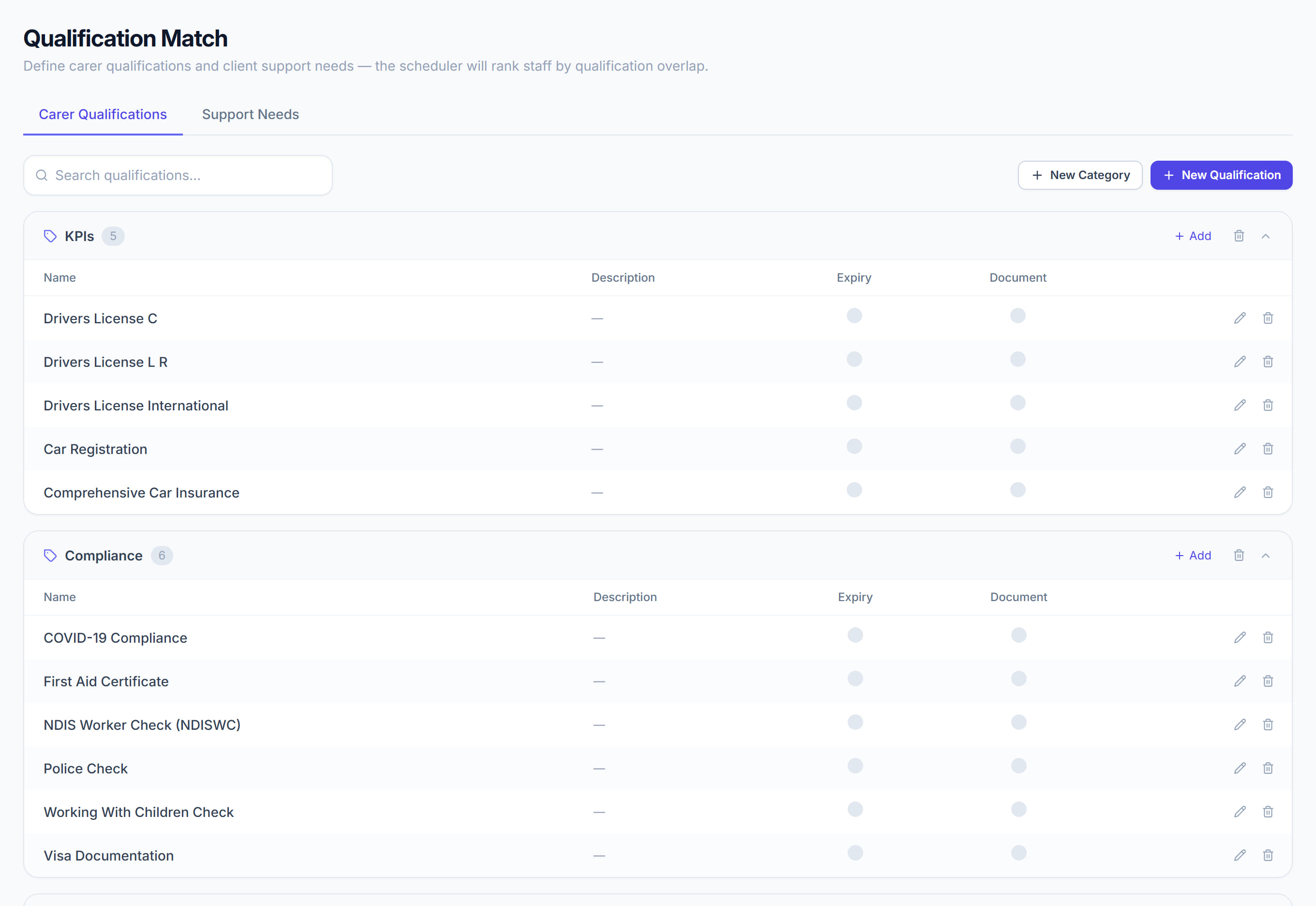
/settings/smart-match6 stepsThe link between what a participant needs and what a worker holds. Two lists — Carer Qualifications and Support Needs — and the mapping between them is what lets Rostery rank workers by suitability rather than by who is free.
Step by step
- 1
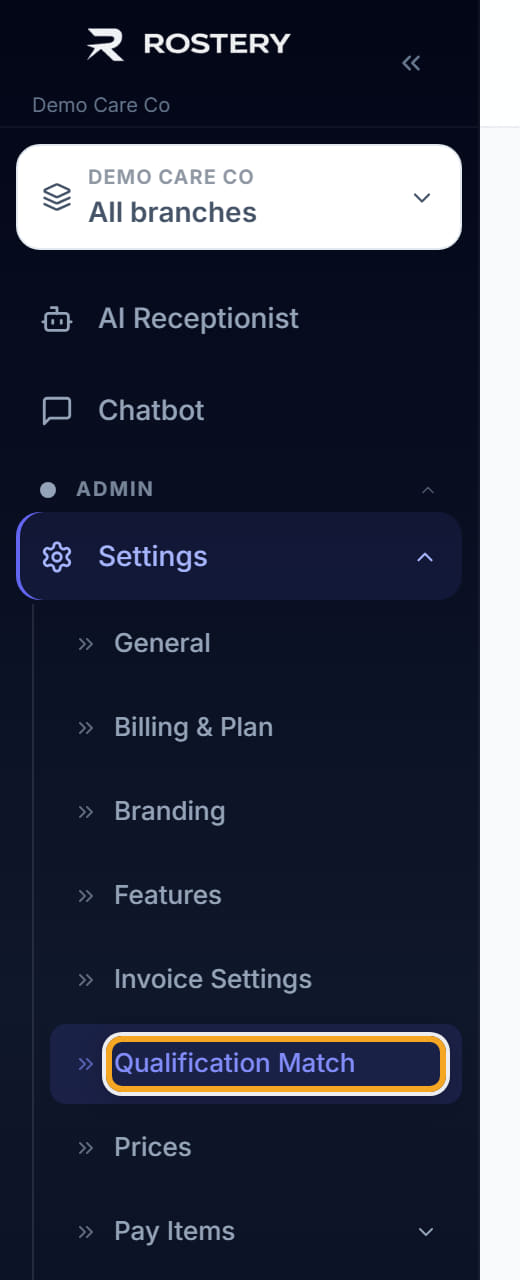
Open Settings, then Qualification Match.
- 2
On Carer Qualifications, click New Category and then New Qualification to build the list your workers hold.

- 3
Switch to Support Needs and add the needs your participants have.

- 4
Map each support need to the qualifications that meet it.
- 5
Save.
- 6
Record the qualifications on each worker, and the support needs on each participant — the mapping does nothing until both sides are filled in.
The screen
Did this answer your question?
If not, talk to us — we answer from Australia, in business hours.