
Admin & Settings
Facilities
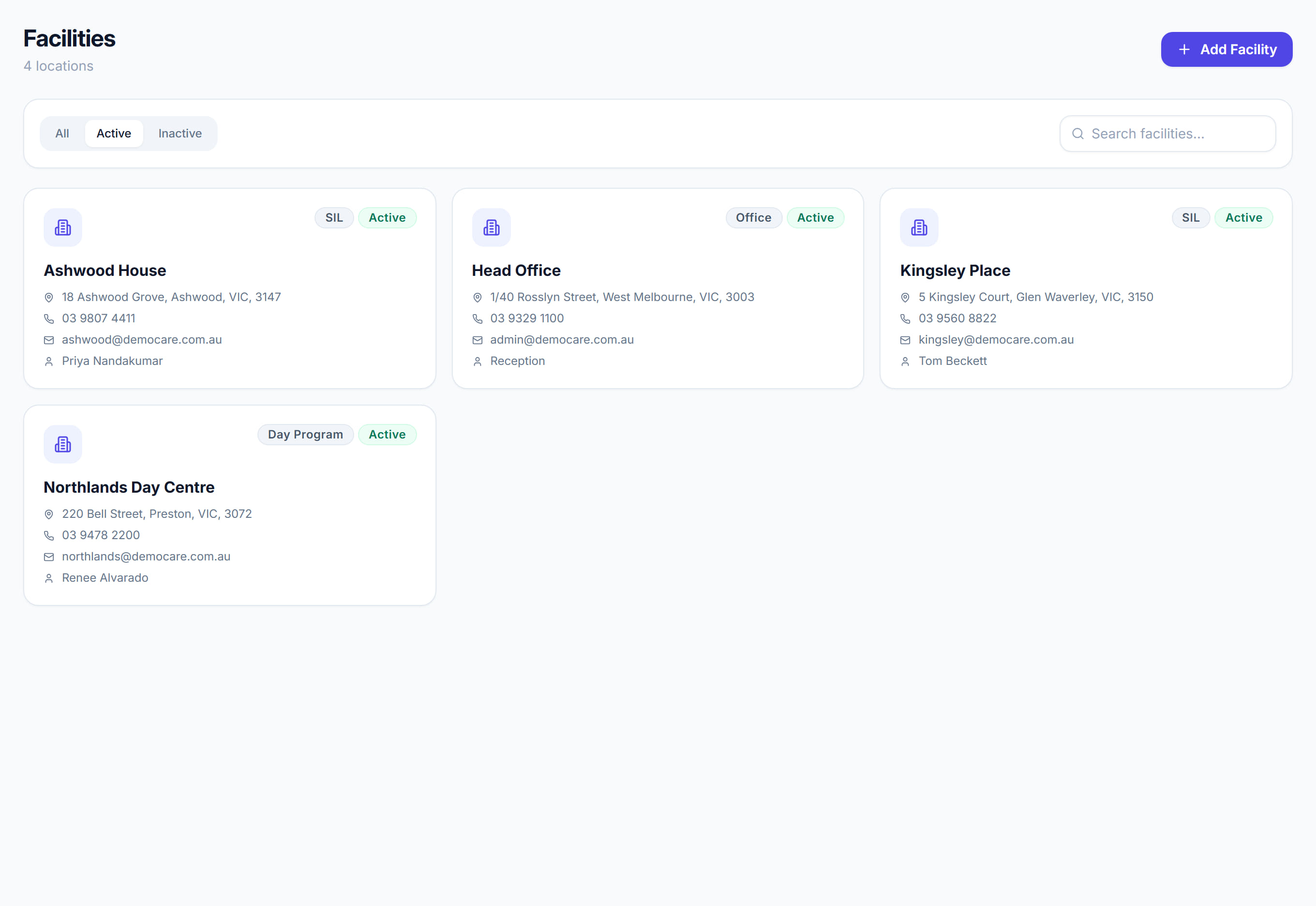
/facilities7 stepsFacilities lists the sites where your team works, such as day programs, group homes and respite houses, with their address and contact details. Administrators and office staff add sites here, then link shifts to them in the Scheduler.
Step by step
- 1
Click Add facility and enter the Facility name. Choose a Type, such as Day Program, Group Home or Respite.
- 2
Start typing the Street address and pick the match, which fills in the Suburb, State and Postcode. Check them before you save.
- 3
Add the Phone, Email and Contact name for the site, plus any Notes staff should know, then click Add facility.
- 4
Link a shift to the site in the Scheduler: open the shift, click More options, and choose the site under Facility.
- 5
Switch the Scheduler to its Facilities view to see shifts laid out by site instead of by worker.
- 6
Click a facility's name to edit it. To retire a site, turn off Active and click Save changes rather than removing it.
- 7
Use the All, Active and Inactive tabs and the search box to find a site by name, suburb, type or contact.
The screen
Did this answer your question?
If not, talk to us — we answer from Australia, in business hours.