
Plan Management
Statements
/plan-management?view=statements8 stepsProduces a participant statement: a branded PDF on your letterhead showing the plan budget and the invoices in a period you choose. Plan managers use it for one-off requests. When automatic statements are on, last month's statement also emails to each participant on the 1st.
Step by step
- 1
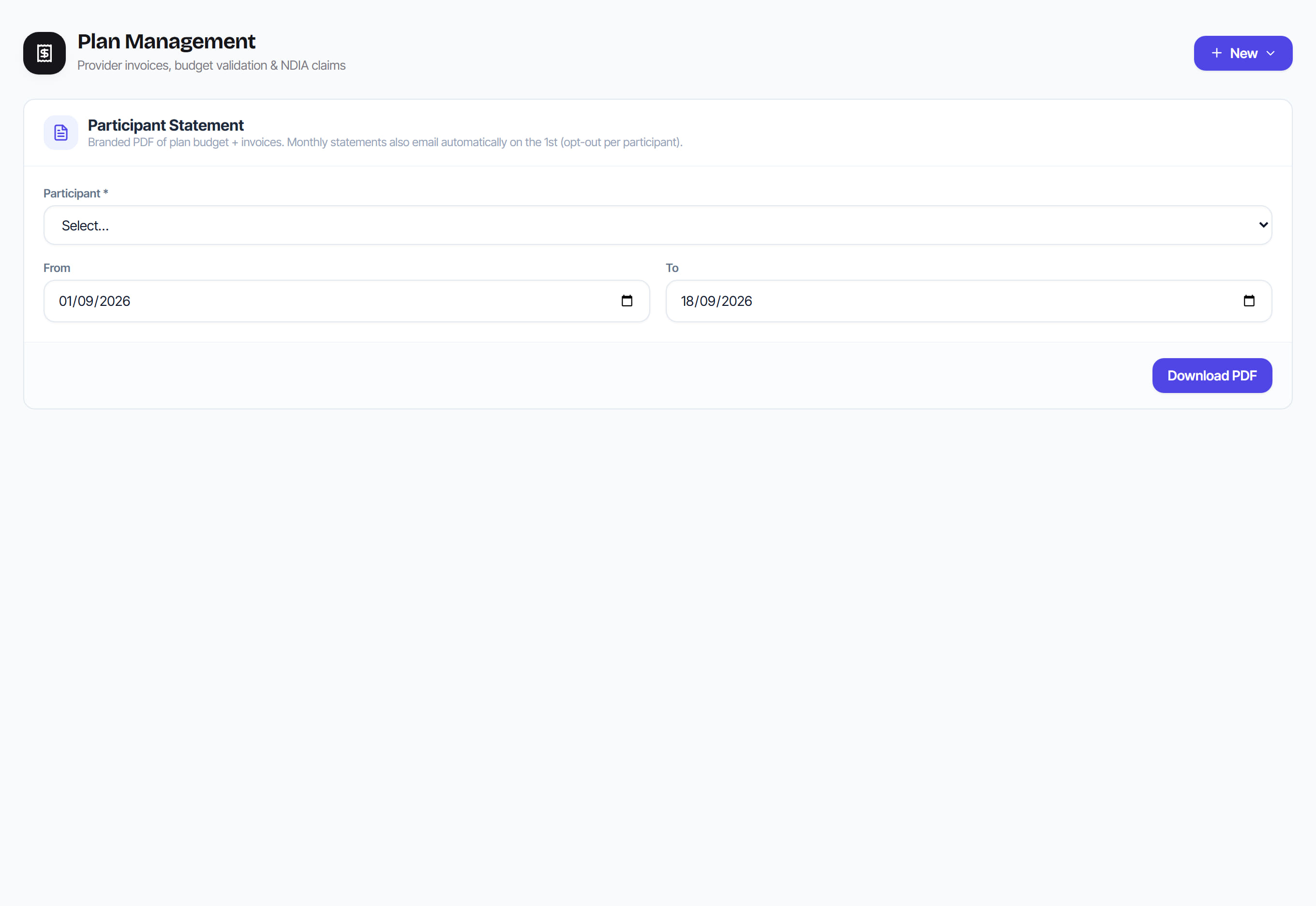
Choose the participant from the Participant list. The panel beside the form shows their NDIS number, email, amount invoiced to date and the period you have set.
- 2
Pick a quick period: This month, Last month, This quarter or Financial year to date. You can also set any From and To dates yourself.
- 3
Select Download PDF. The statement is generated on your letterhead and saved to your computer, and a record of it appears under Downloads.
- 4
Send the PDF to the participant or their nominee yourself. Downloading it here does not email it to anyone.
- 5
If the panel says No email on file, add an email on the participant's profile. Without one, the monthly statement cannot be sent automatically.
- 6
To send statements every month, go to Settings, open Automation and turn on Email monthly statements automatically. Each participant with an email then receives last month's statement on the 1st.
- 7
Set Statement opt-out on a participant's profile to skip them, or Postal statement to post a paper copy instead of emailing it.
- 8
Check Registers, then Statements, to see participants with no statement for a month, bounced emails and paper statements still to print.
The screen
Did this answer your question?
If not, talk to us — we answer from Australia, in business hours.