
Plan Management
Invoice Entry
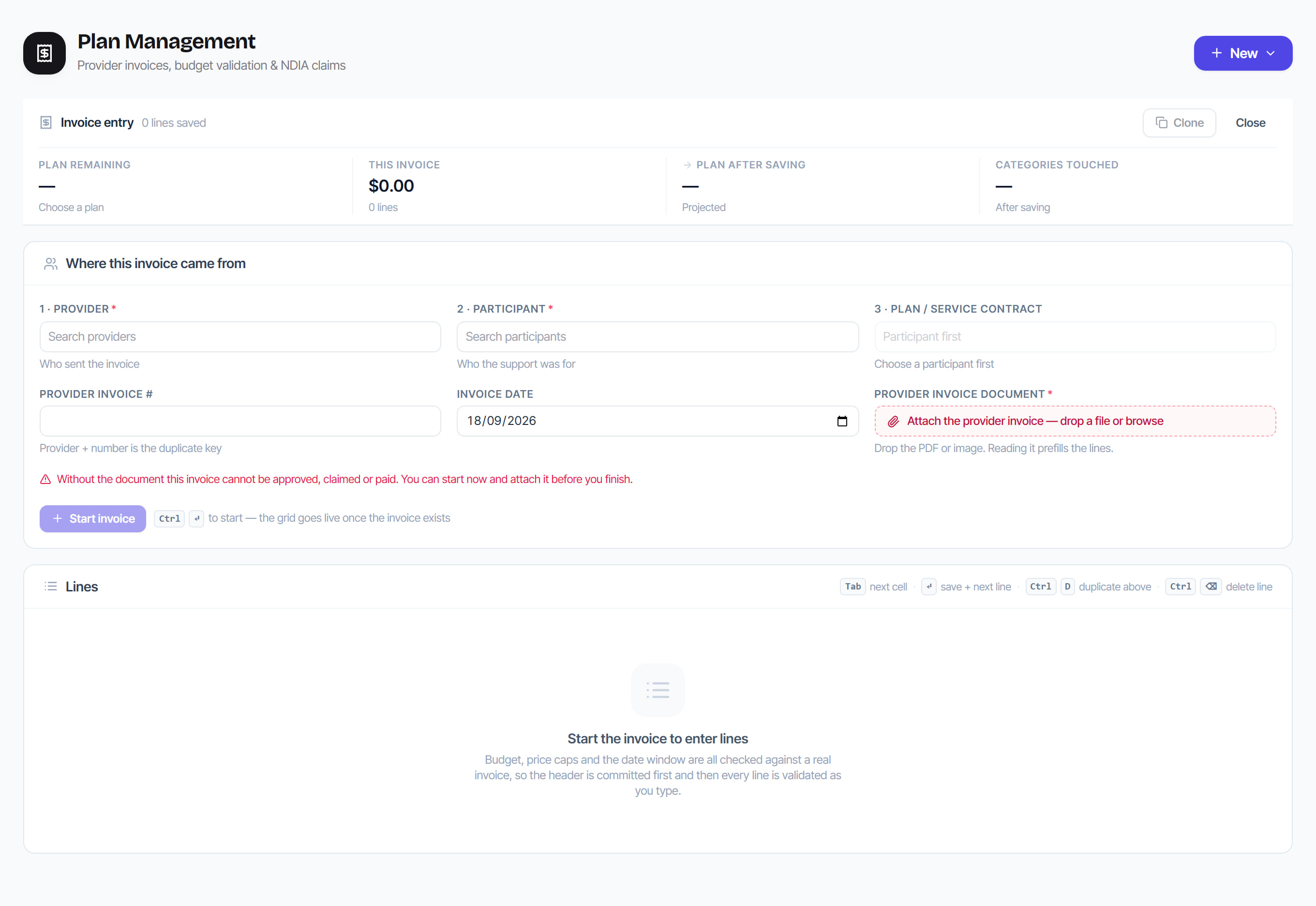
/plan-management?view=entry9 stepsThe New Invoice screen, where a provider's invoice is keyed into Rostery. Plan managers use it to pick the provider, participant and plan, attach the invoice document and enter each line, with the budget, NDIS price limits and service dates checked as you type.
Step by step
- 1
Open New Invoice and choose the provider under 1 · Provider, then the participant under 2 · Participant. The provider's ABN and the participant's NDIS number show under each field.
- 2
Choose the plan under 3 · Plan / service contract. It is optional, but without it no budget can be checked, so pick it whenever the participant has a plan.
- 3
Enter the Provider invoice # and Invoice date. The provider and number together are the duplicate key, so a matching invoice already on record is shown before you go on.
- 4
Drop the provider's PDF or image on Provider invoice document. Select the sparkle button to read it and prefill the lines, then confirm every line it filled.
- 5
Select Start invoice, or press Ctrl+Enter. The line grid only goes live once the invoice exists, because budget, price limits and dates are checked against it.
- 6
Enter one line per support: Support item, Category, Service date, Measure, Qty / hours, Unit price, GST and Claim type. Leave Claim type blank for an ordinary direct service.
- 7
Work from the keyboard: Tab moves to the next cell, Enter saves the line and opens the next, Ctrl+D copies the line above and Ctrl+Backspace deletes a line.
- 8
Watch the budget figures in the toolbar and any red messages. A unit price over the price limit blocks approval, and an invoice over budget is held rather than claimed.
- 9
Select Finish and check. Rostery saves any draft lines, runs every check and lists the results under All checks. Then choose Open invoice, Next from this provider or New.
The screen
Did this answer your question?
If not, talk to us — we answer from Australia, in business hours.