
Plan Management
PM Settings
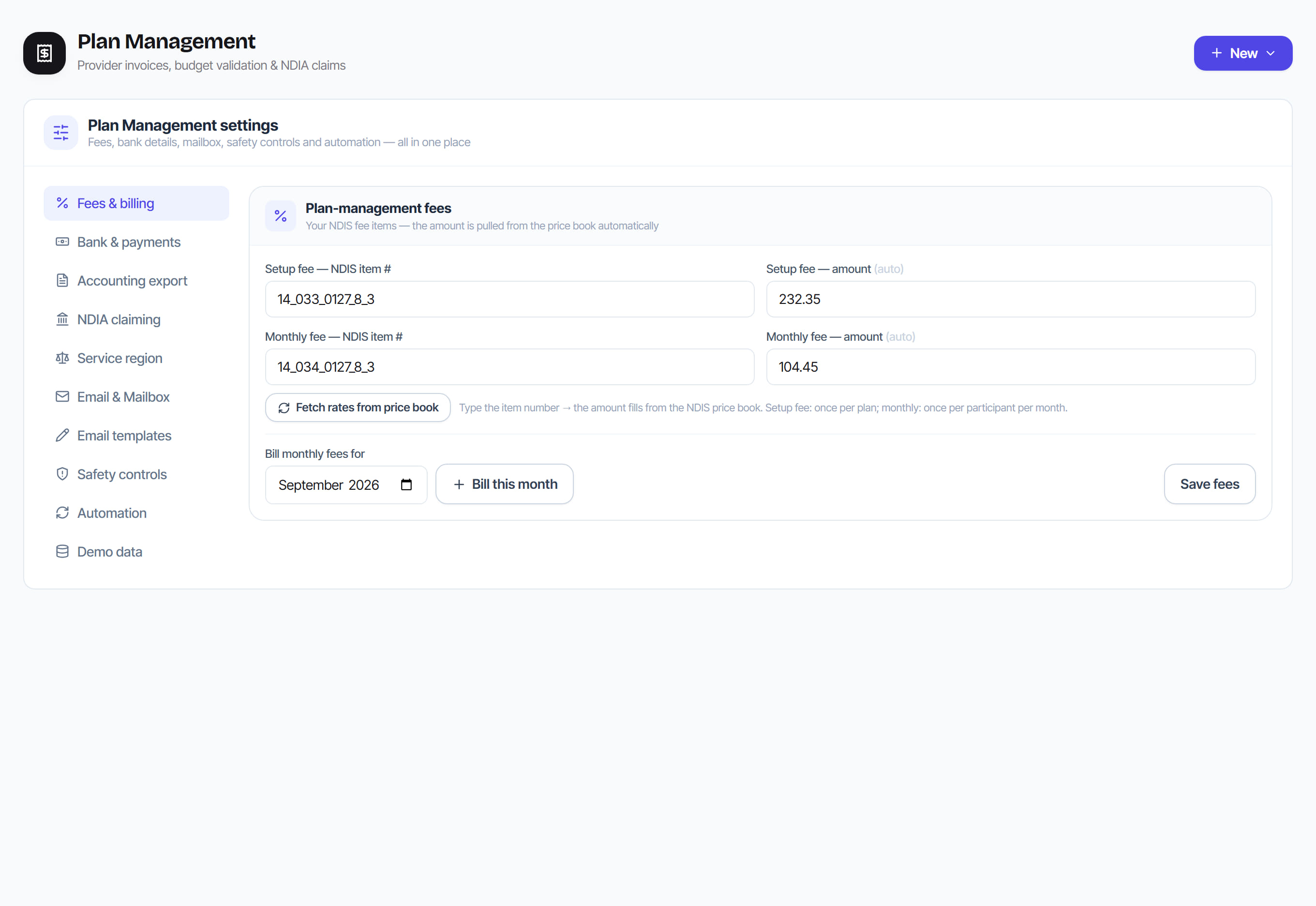
/plan-management?view=settings9 stepsPlan management settings in one place: fees, bank details for ABA files, accounting export, NDIA claiming, service region, mailbox, email templates, safety controls and automation. Administrators set these up before the first claim or payment run and revisit them when fees or bank details change.
Step by step
- 1
On the Fees & billing tab, enter the setup fee and monthly fee NDIS item numbers. The amounts fill from the NDIS price book, then select Save fees.

- 2
To raise fees now, pick a month under Bill monthly fees for and select Bill this month. The setup fee is billed once per plan, the monthly fee once per participant each month.
- 3
On NDIA claiming, enter your NDIS registration number, the Organisation ID that goes on every claim file, and leave How claims are lodged on Claim file. Select Save NDIA settings.
- 4
On Bank & payments, enter your APCA or Direct-Entry user ID, bank, remitter name, BSB and account number, then select Save bank details. ABA files are built from these.
- 5
On Accounting export, choose Xero, MYOB or QuickBooks, the default GST treatment and your account codes, then select Save accounting.
- 6
On Service region, choose National, Remote or Very remote. This applies the NDIS remote loading when lines are checked against the price limit, and saves straight away.
- 7
On Email & Mailbox, connect the mailbox providers send invoices to. Turn on Auto-create draft invoices from provider emails to draft invoices when participant and provider both match.
- 8
On Email templates, edit the wording of the automatic emails using placeholders such as {{provider}}, {{participant}}, {{invoice_number}} and {{total}}.
- 9
On Safety controls, turn on the Two-person rule and Require 2-factor sign-in to pay. On Automation, choose which monthly statements, fees and approval requests run by themselves.
The screen
Did this answer your question?
If not, talk to us — we answer from Australia, in business hours.