
Plan Management
Powerview
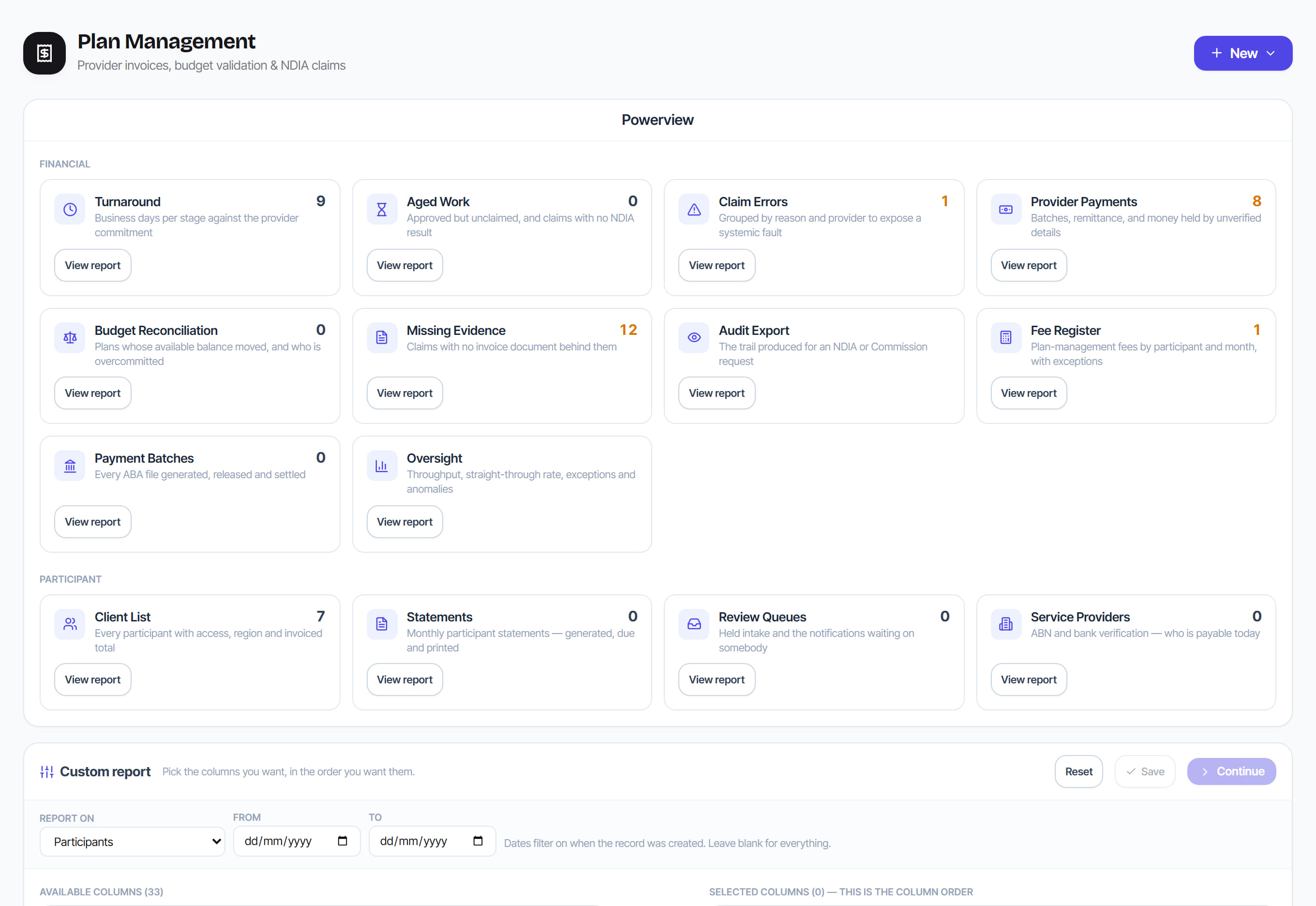
/plan-management?view=powerview8 stepsEvery plan-management report in one place, as a board of tiles with live counts, plus a custom report builder for your own exports. Plan managers and finance staff use it to jump to the report they need and to pull chosen columns into a CSV file.
Step by step
- 1
Scan the tiles, grouped into Financial and Participant. Tiles with a count show it beside the title, in amber when there is work to act on.
- 2
Select View report on a tile to open that report, register or screen, such as Turnaround, Claim Errors, Fee Register or Review Queues.
- 3
To build your own export, go to Custom report and choose what to Report on: Participants, Invoices or Service Providers.
- 4
Set From and To if you need a period. The dates filter on when the record was created, so leave them blank to include everything.
- 5
Select columns under Available Columns and select Add. Use Remove and the up and down arrows to set the order, because Selected Columns is the column order.
- 6
Select Continue to run the report. The row count shows above the results, and the first 200 rows preview on screen.
- 7
Select Export CSV to download every row the report returned, not just the 200 rows in the on-screen preview.
- 8
Select Save and give the report a name to keep its columns and dates. Saved reports appear under Saved, where you can reload one or delete it with its X.
The screen
Did this answer your question?
If not, talk to us — we answer from Australia, in business hours.