
Plan Management
Review Queues
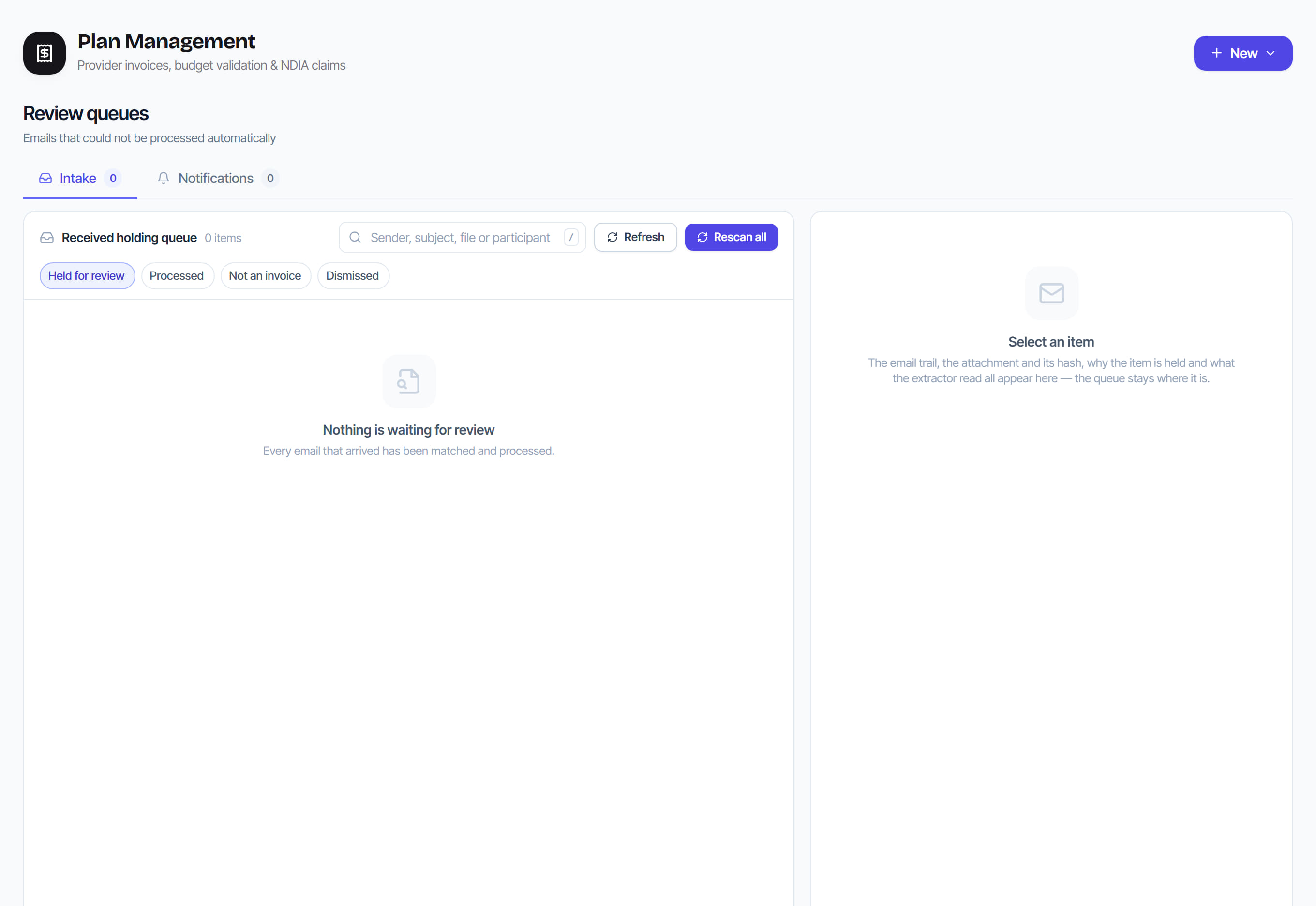
/plan-management?view=queues8 stepsTwo work lists behind one screen. Intake holds provider emails Rostery could not process on its own, and Notifications holds tasks with a response target. Plan managers work through them in order, fixing the cause named on each item rather than hunting through the register.
Step by step
- 1
Open Review Queues and choose the Intake tab for emails that could not be processed automatically, or the Notifications tab for tasks with a response target.
- 2
On Intake, filter by state, such as Held for review or Not an invoice, or by hold reason, such as Participant not in system or Same name.
- 3
Open an item to see Why it is held and the next step that clears it, along with the email trail, the attachment and what was extracted from it.
- 4
Select Link this participant on a suggestion, or Link another participant to search by name or NDIS number. Confirm the NDIS number first when two people share a name.
- 5
Select Rescan once the cause is fixed, for example after adding the participant. Rescan all rechecks every held item and tells you how many now match.
- 6
If the email is a statement, remittance, marketing or a query, select Not an invoice and note why. The email is kept either way.
- 7
On Notifications, filter by Open, Resolved or All, by owner and by target, such as Overdue or Due today. Open a task and select Open to go to the linked record.
- 8
Assign the task to someone if needed, write a Resolution note describing what was done and select Resolve. Tick several tasks to resolve them together with one note.
The screen
Did this answer your question?
If not, talk to us — we answer from Australia, in business hours.