
Plan Management
PM Dashboard
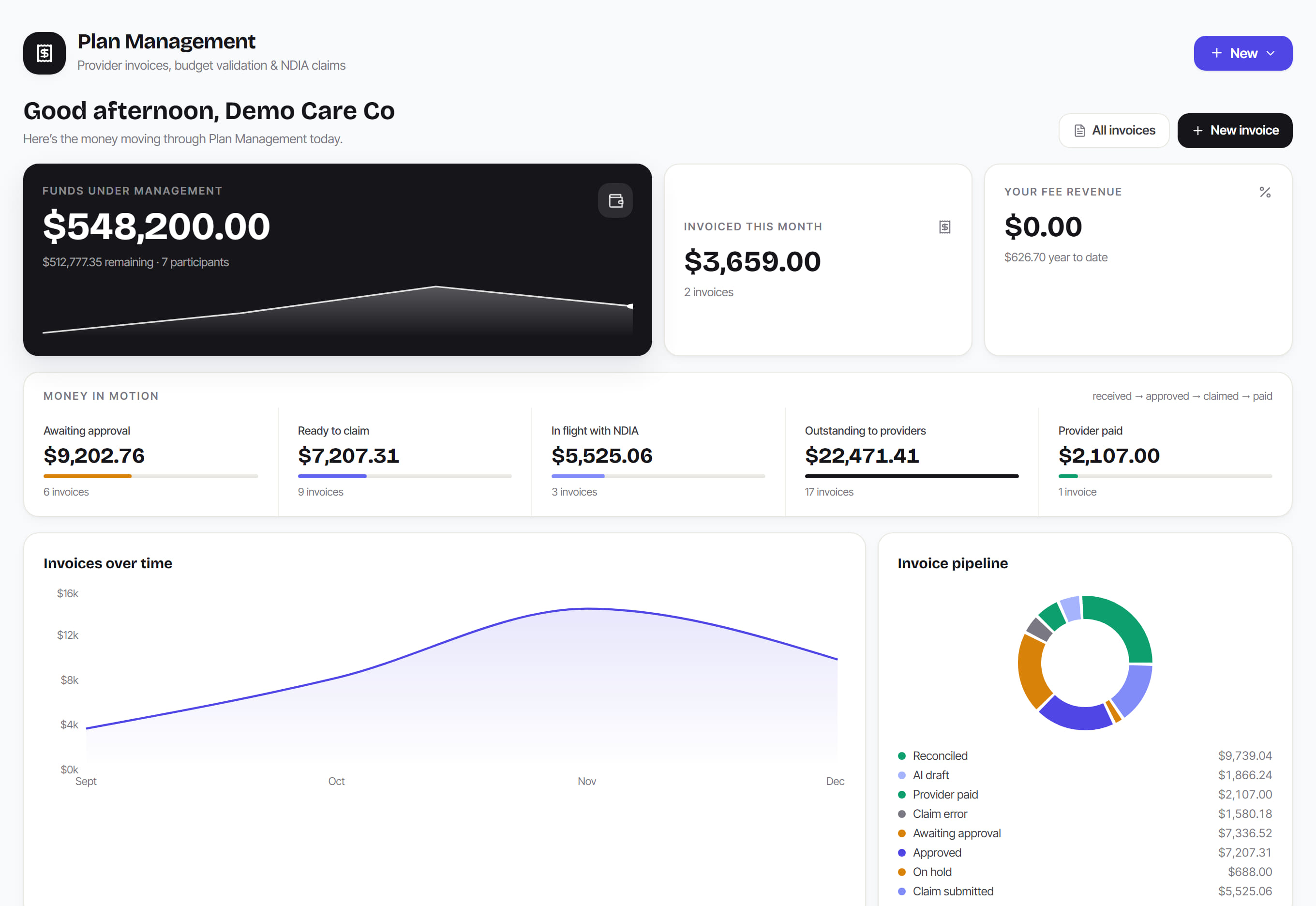
/plan-management8 stepsThe front page of plan management. It shows what needs a decision today, where money sits between receiving an invoice and paying the provider, and how smoothly the work is flowing. Plan managers and finance staff start here each day, then open the queue with work in it.
Step by step
- 1
Start with Needs your attention. Each row names work that is waiting, such as invoices awaiting approval or approved invoices ready to claim, and the action that clears it.
- 2
Select the action on a row, such as Review, Claim, Resolve or Open, to go straight to the screen where that work is done.
- 3
Read Money in motion to see the value at each stage: Awaiting approval, Ready to claim, In flight with NDIA, Outstanding to providers and Provider paid. Select a stage to open it.
- 4
Use the Invoices by status shortcuts under Money in motion to open the invoice register filtered to one status, such as AI draft, Claim error or On hold.
- 5
Check the three headline figures: Funds under management, Invoiced this month with the change on last month, and Your fee revenue this month with the year to date.
- 6
Review the health row: Avg turnaround from received to paid, the Straight-through rate, invoices aging over 7 and 14 days, Rejected claims and Recon exceptions.
- 7
Select an invoice under Recent invoices to open it, or select View all for the full register. Invoices over time charts the last six months.
- 8
Use New at the top of the page to add an invoice, upload an invoice PDF for AI to read, or add a participant or provider.
The screen
Did this answer your question?
If not, talk to us — we answer from Australia, in business hours.