
Plan Management
Downloads
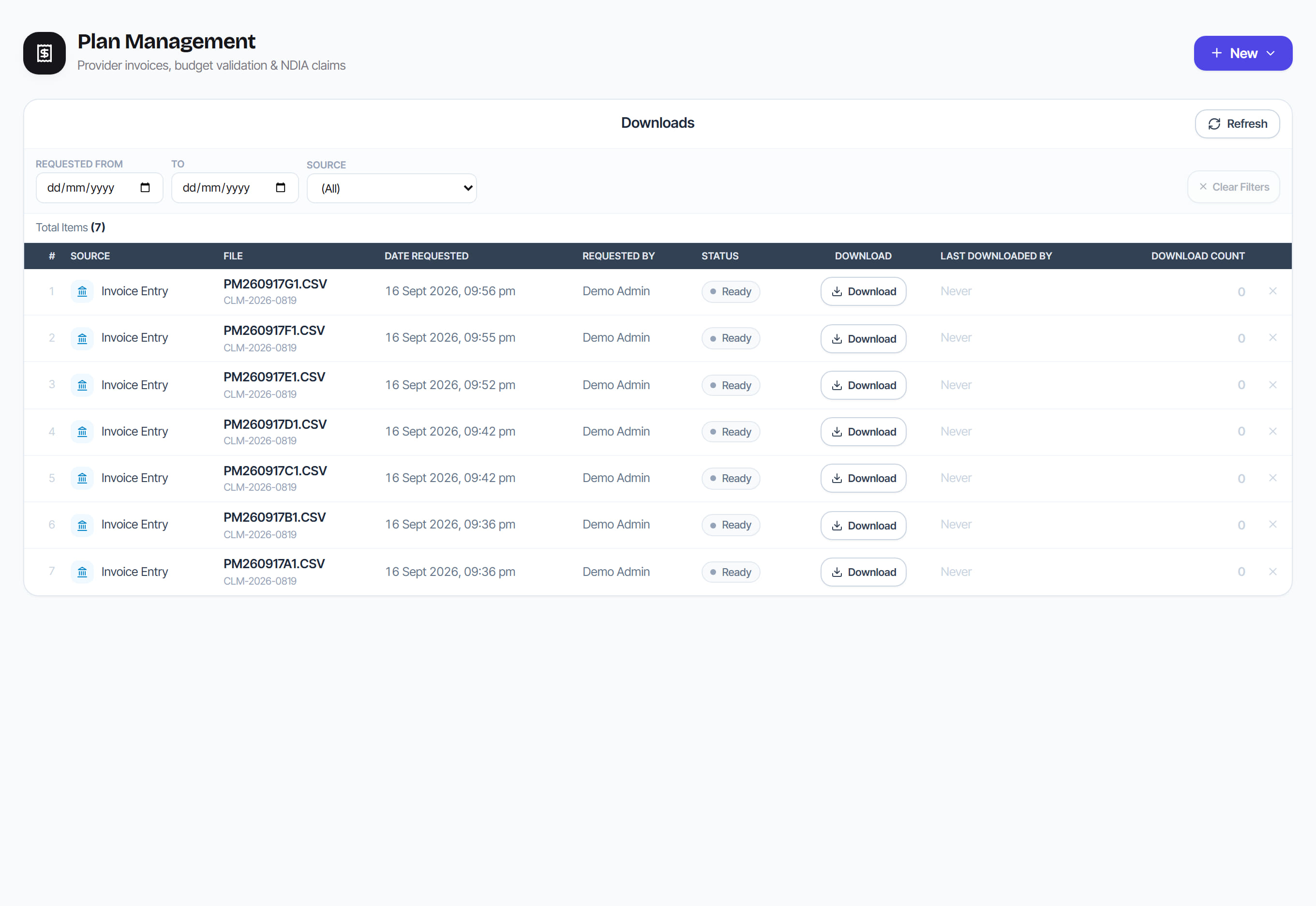
/plan-management?view=downloads7 stepsA log of every file plan management has generated: NDIS claim files, ABA bank files, accounting exports, statements and remittances. Finance staff use it to see who produced each file and who took it, and to download claim and bank files again exactly as they were made.
Step by step
- 1
Open Downloads to see every generated file, newest first, with its Source, File name, Date Requested and Requested By.
- 2
Narrow the list with the Requested From and To dates, or pick one Source. Select Clear Filters to see everything again.
- 3
Read the Status column. A file shows Ready until someone downloads it, and Downloaded after that.
- 4
Select Download to take a claim file or ABA file again. It is served exactly as it was generated, not rebuilt from today's data.
- 5
Rows marked Record only, such as statements, are a record that a file was produced. Rostery keeps no copy to download for them.
- 6
Before uploading a bank file, check Last Downloaded By and Download Count. An ABA file taken more than once shows an amber warning.
- 7
Select the X on a row to remove it from this list. Only the list entry goes, and no claim or payment batch is deleted.
The screen
Did this answer your question?
If not, talk to us — we answer from Australia, in business hours.