
Plan Management
PM Reports
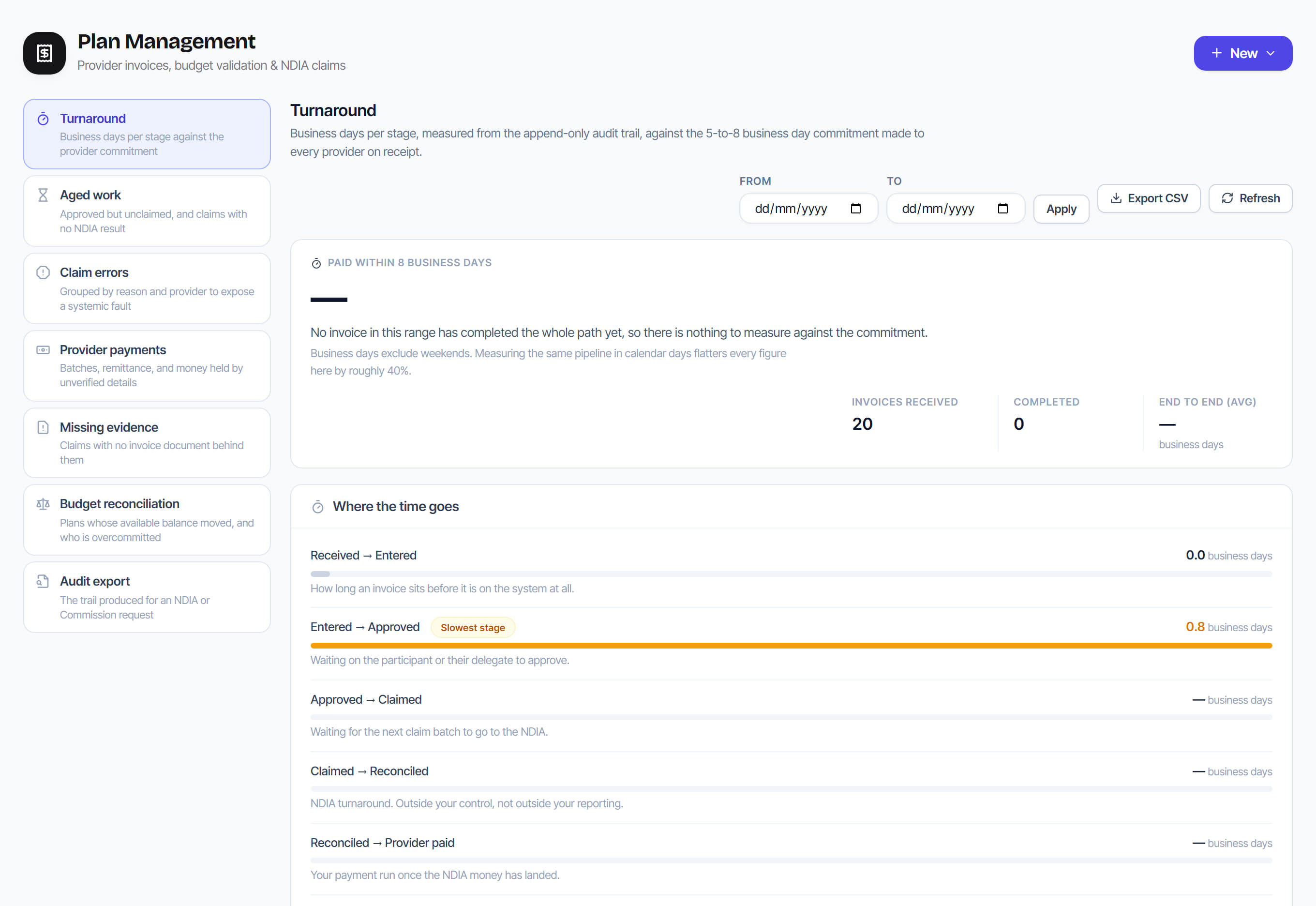
/plan-management?view=pm-reports&report=turnaround8 stepsThe operational reports for plan management, measured from the audit trail: turnaround, aged work, claim errors, provider payments, missing evidence, budget reconciliation and the audit export. Plan managers and finance staff use them to find stalled or risky work and to answer NDIA or Commission requests.
Step by step
- 1
Choose a report from the list on the left, such as Turnaround or Aged work. On Turnaround, set the From and To dates and select Apply.
- 2
Select Export CSV to download the rows the report is showing, so the file always matches what is on screen.

- 3
Read Turnaround in business days. It shows the share of invoices paid within the provider commitment, the average end to end, and where the time goes at each stage.
- 4
Open Aged work to see approved invoices not yet claimed and claims still awaiting an NDIA result. Both are money waiting to move.
- 5
Open Claim errors to see rejected or held invoices grouped by reason and by provider, which shows whether a fault is systemic, and how re-claims turned out.
- 6
Open Provider payments to see payments held by unverified provider details, batches awaiting the bank and payments whose remittance has not been sent.
- 7
Open Missing evidence for invoices with no document behind them, and Budget reconciliation for plans whose available balance moved or are now overcommitted.
- 8
Use Audit export for an NDIA or Commission request. Choose a participant, provider, invoice ID or date range, select Run to preview, then Download CSV for the full trail.
The screen
Did this answer your question?
If not, talk to us — we answer from Australia, in business hours.