
Finance & Payroll
Travel & Transport
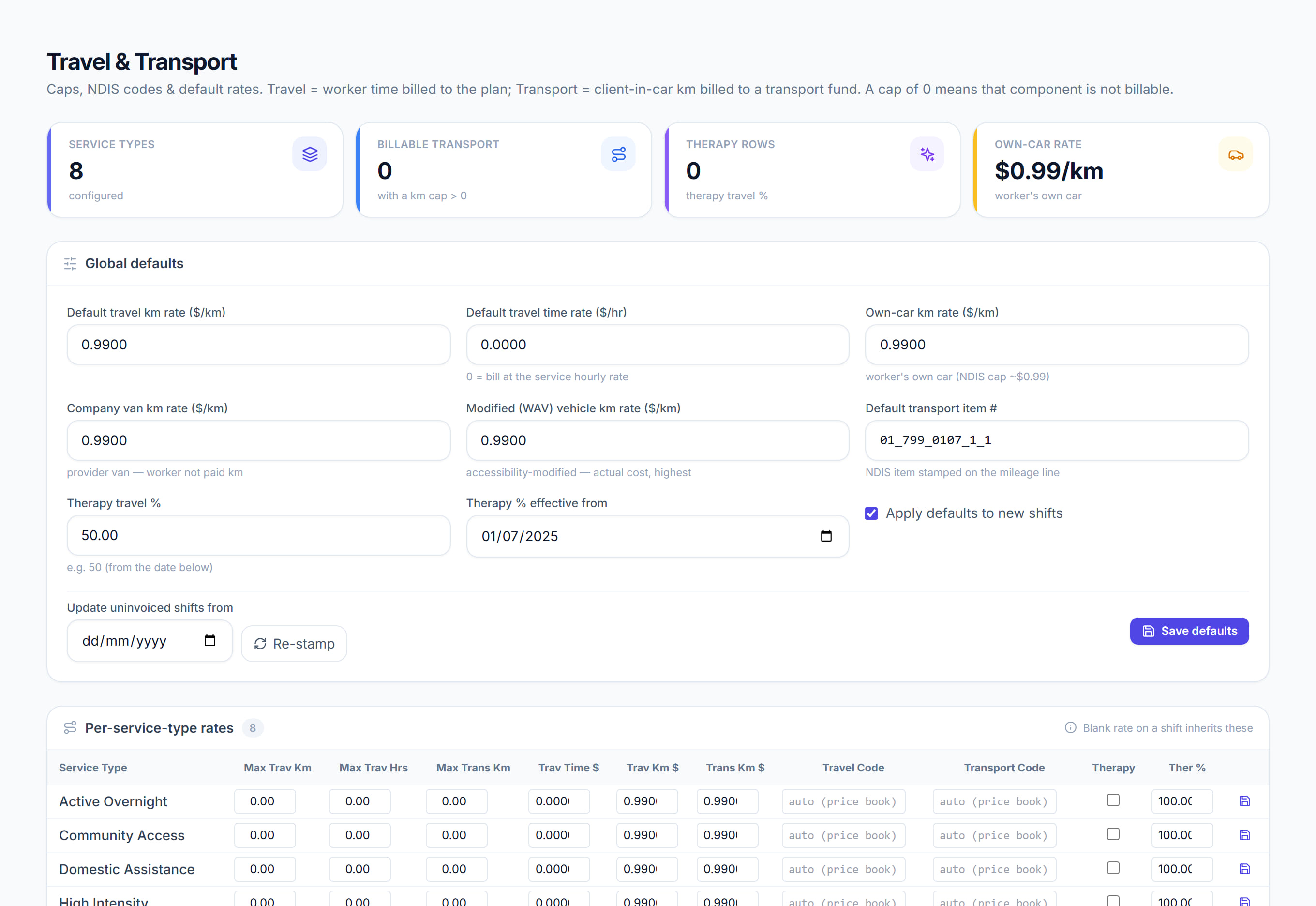
/financials/travel-transport7 stepsThe caps, NDIS codes and default rates for billing travel and transport. Travel is worker time billed to the plan, and transport is kilometres with the client in the car. Finance staff set these once and update them when prices change.
Step by step
- 1
From the Financials dashboard, open Travel and transport under Set-up. The tiles show Service types, Billable transport, Therapy service types and Client km rate, own car.
- 2
Under Global defaults, set the per-kilometre rates: Default travel km rate, and the Client km rate for own car, company van and modified vehicle, plus the Default travel time rate.
- 3
Set the Default transport item number, which is the NDIS item stamped on mileage lines, and the Therapy travel % with its effective date if you deliver therapy.
- 4
Turn on Apply defaults to new shifts if new shifts should pick up these rates, then click Save defaults.
- 5
In Per-service-type rates, decide what is billable to the participant for each service type by setting Max travel km, Max travel hours and Max transport km.
- 6
Enter travel and transport rates and codes for any service type that differs. Leave a code blank to use the price book's transport item, and save each row.
- 7
To apply new rates to shifts already booked, choose a date in Update uninvoiced shifts from and click Re-stamp. Invoiced shifts are never changed.
The screen
Did this answer your question?
If not, talk to us — we answer from Australia, in business hours.