
Finance & Payroll
Client Rates
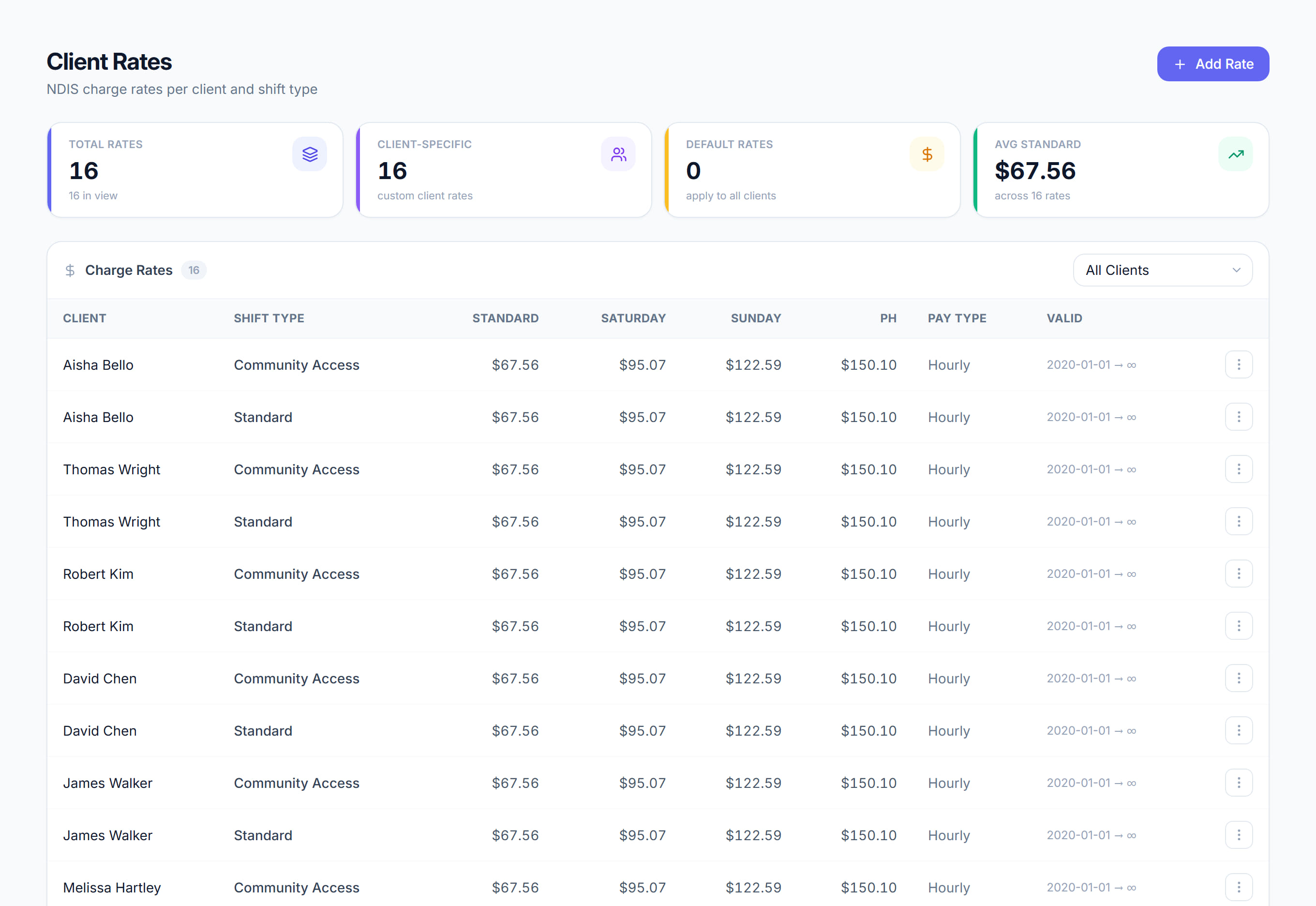
/financials/client-rates7 stepsThe charge rates Rostery uses to work out revenue and margin on each shift in the financial reports. Finance staff set them per client and shift type. They do not price invoices, which always come from price books.
Step by step
- 1
From the Financials dashboard, open Client rates under Set-up. Set the Standard, Saturday, Sunday and Public holiday rates for each client and shift type.

- 2
Fix any missing rate. A shift without a client rate shows as a missing rate on the Financials dashboard, and its profit may be understated in the reports.
- 3
To add a rate, click Add rate, choose the Client and Shift type, enter the four day rates and click Save rate.
- 4
Leave Client set to Default (all clients) to create a rate that applies whenever a client has no rate of their own for that shift type.
- 5
Choose Per hour or Flat rate under Charged, and use Valid from and Valid to when a rate should only apply for a set time.
- 6
To fill rates quickly, click Sync from price books. It creates or updates each client's rates from their assigned price book, and overwrites rates you entered by hand.
- 7
Use the All clients list above the table to see one client's rates. Edit rate and Delete rate are in the menu at the end of each row.
The screen
Did this answer your question?
If not, talk to us — we answer from Australia, in business hours.