
Finance & Payroll
Client Funding
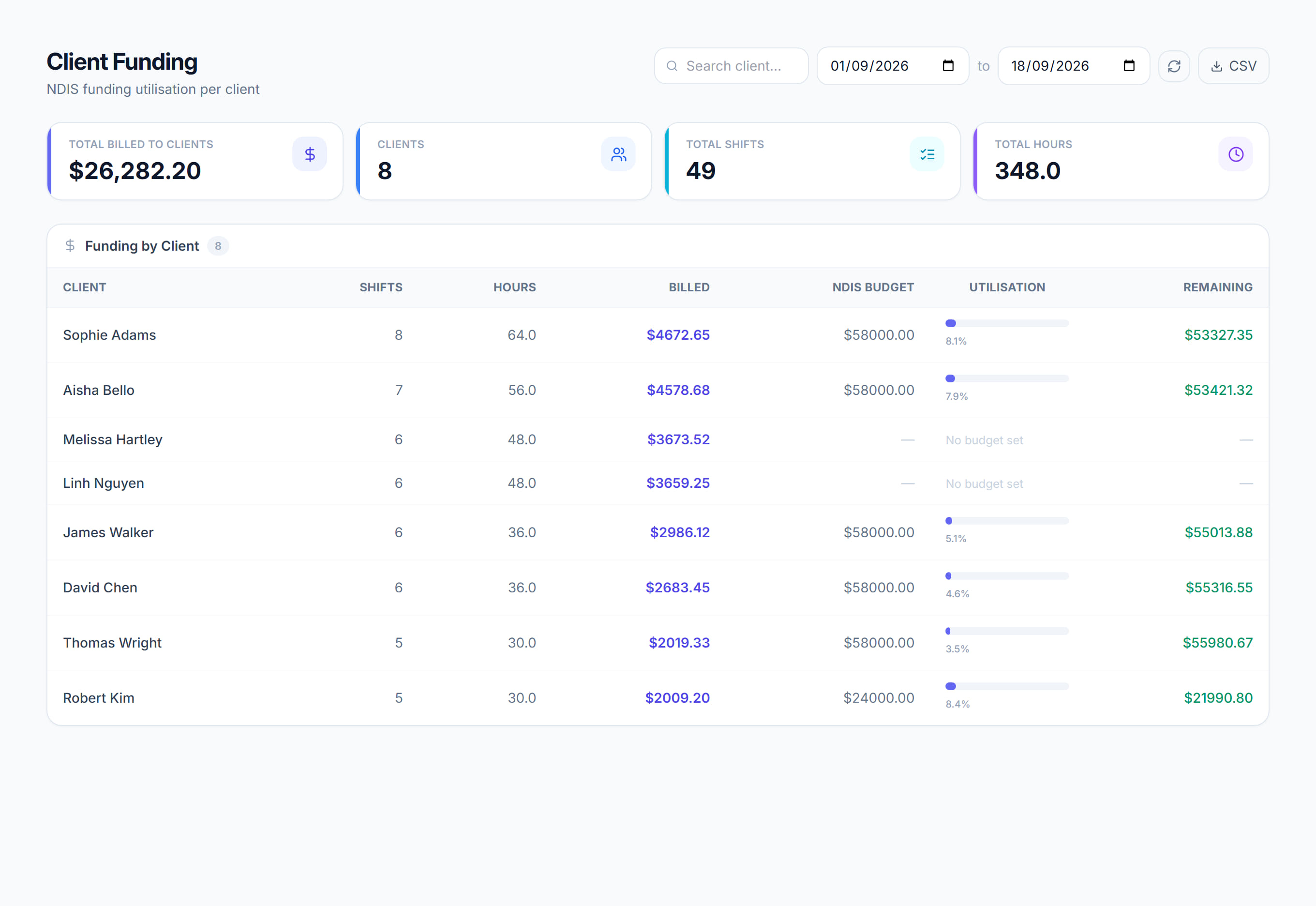
/financials/reports/client-funding7 stepsWhat each client was billed from approved shifts in a date range, measured against their current NDIS budget. Finance staff and coordinators use it to spot plans that are close to running out, or already over budget, in time to act.
Step by step
- 1
Open Financials, then Reports, then Client Funding, and set the From and To dates. Billed amounts come only from shifts with an approved timesheet in that range.
- 2
Type in the Search box to find one client by name, or leave it empty to see everyone billed in the range.
- 3
Read each row: Shifts, Hours, Billed, NDIS budget, Utilisation and Remaining. The budget is the client's current funding plan, or their active funds if they have no plan.
- 4
Look for amber bars, meaning more than 90 percent used, and red bars marked over budget. The Clients tile shows how many clients are over budget.
- 5
Where a row says No budget set, add a funding plan on the client's profile so the report has a budget to measure against.
- 6
Book a plan review, or talk with the participant, before a budget runs out rather than after.
- 7
Click Export CSV to download the rows, including Utilisation % and Remaining, for a coordinator or plan manager.
The screen
Did this answer your question?
If not, talk to us — we answer from Australia, in business hours.