
Finance & Payroll
Kilometre Report
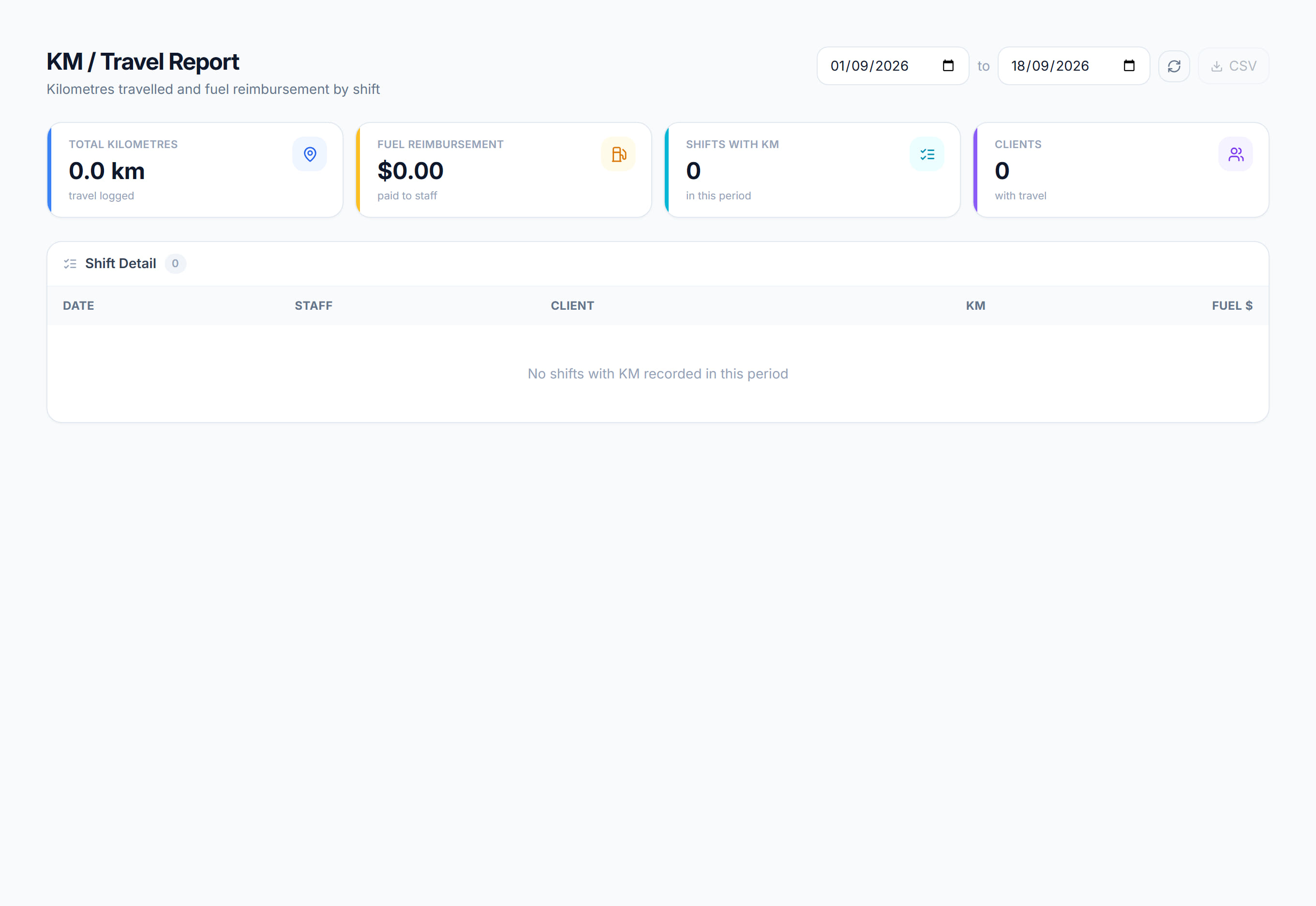
/financials/reports/km7 stepsKilometres travelled on approved shifts and the fuel reimbursement paid to staff for them, by client and by shift. Finance staff use it to check travel costs, see which participants drive them, and find trips that look too long.
Step by step
- 1
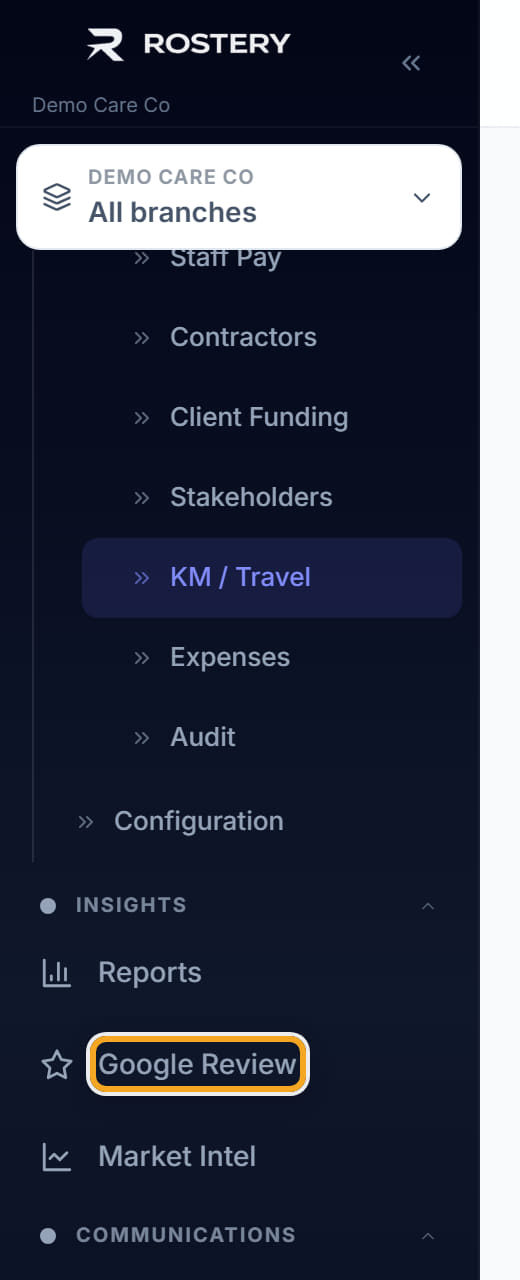
Open Financials, then Reports, then KM / Travel, and review the period. Set the From and To dates; only approved shifts with kilometres recorded are included.
- 2
Read the Kilometres, Fuel reimbursement, Shifts with km and Clients with travel tiles. Fuel reimbursement is what was paid to staff for those kilometres.
- 3
Use Kilometres by client and Summary by client to see which participants account for most of the travel, and what it cost in fuel reimbursement.
- 4
Scan Shift detail, listed by Date, Staff, Client, Kilometres and Fuel reimbursement, for any figure that looks too high for the shift.
- 5
Check outliers against the trips behind them on the Mileage page, where each trip shows its route, purpose and status.
- 6
If an amber notice says Kilometres differ from the summary, check the shifts in the range before you rely on the totals.
- 7
Click Export CSV to download the shift detail, with the date, staff, client, kilometres and fuel amount for each shift.
The screen
Did this answer your question?
If not, talk to us — we answer from Australia, in business hours.