
Finance & Payroll
Mileage
/mileage8 stepsThe log of every trip your workers record, whether logged in the mobile app or calculated as travel on Timesheets. Office staff use it to check distances, pre-approve or reject kilometres, and export an ATO-style log of what each worker is owed.
Step by step
- 1
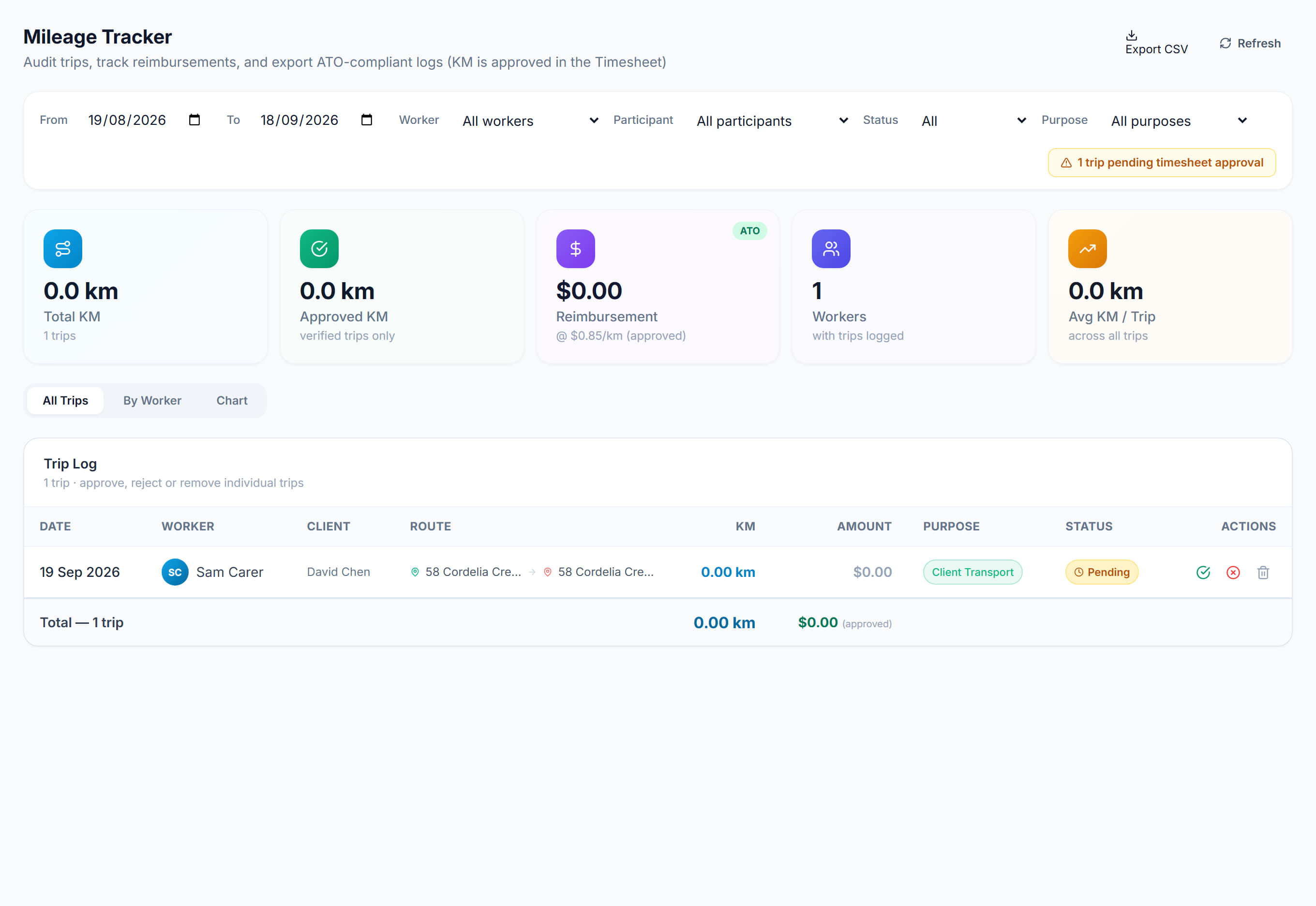
Open Mileage from the sidebar and review the trips logged for the period. Each row shows the Date, Worker, Client, Route, KM, Amount, Purpose and Status.
- 2
Set Status to Pending to see what still needs a decision, then approve the kilometres that should be reimbursed and charged with the tick in the Actions column.

- 3
Narrow the list with the From and To dates and the Worker, Participant and Purpose filters. Purposes are Work travel, Client transport, Between clients, Training / meeting and Other.
- 4
Reject a trip that should not be paid with the cross, and add an optional reason. The reason shows under the trip's status in the log.
- 5
Use Reset to pending to take back an approval or rejection, or Delete trip to remove a trip and its kilometres for good.
- 6
Check the Total km, Approved km, Reimbursement and Workers tiles. Reimbursement is the kilometres on trips not rejected, excluding commutes, multiplied by your per-kilometre rate.
- 7
Switch to By worker to see each worker's trips, approved and pending kilometres and reimbursement, or to Chart for kilometres per day and by purpose.
- 8
Click Export CSV to download the trip log, with dates, addresses, kilometres, reimbursement, purpose and status, for your records or for payroll.
The screen
Did this answer your question?
If not, talk to us — we answer from Australia, in business hours.