
Finance & Payroll
Reimbursements
/reimbursements7 stepsOut-of-pocket expense claims from staff, usually sent from the mobile app with a photo of the receipt. Office staff review each claim, approve or reject it, export approved claims for payroll, and mark them paid once the money has gone out.
Step by step
- 1
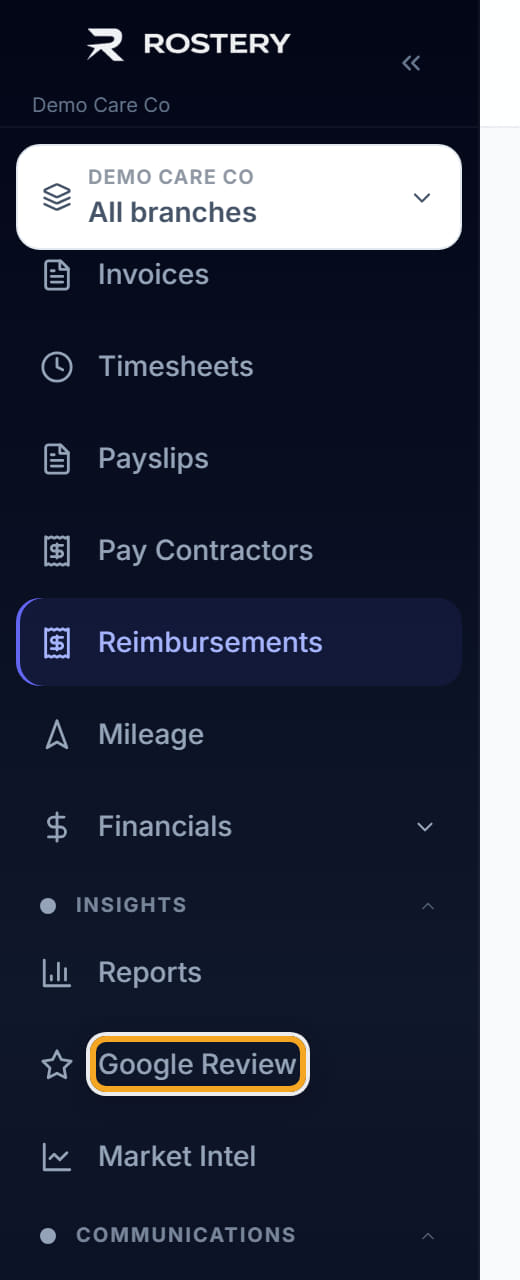
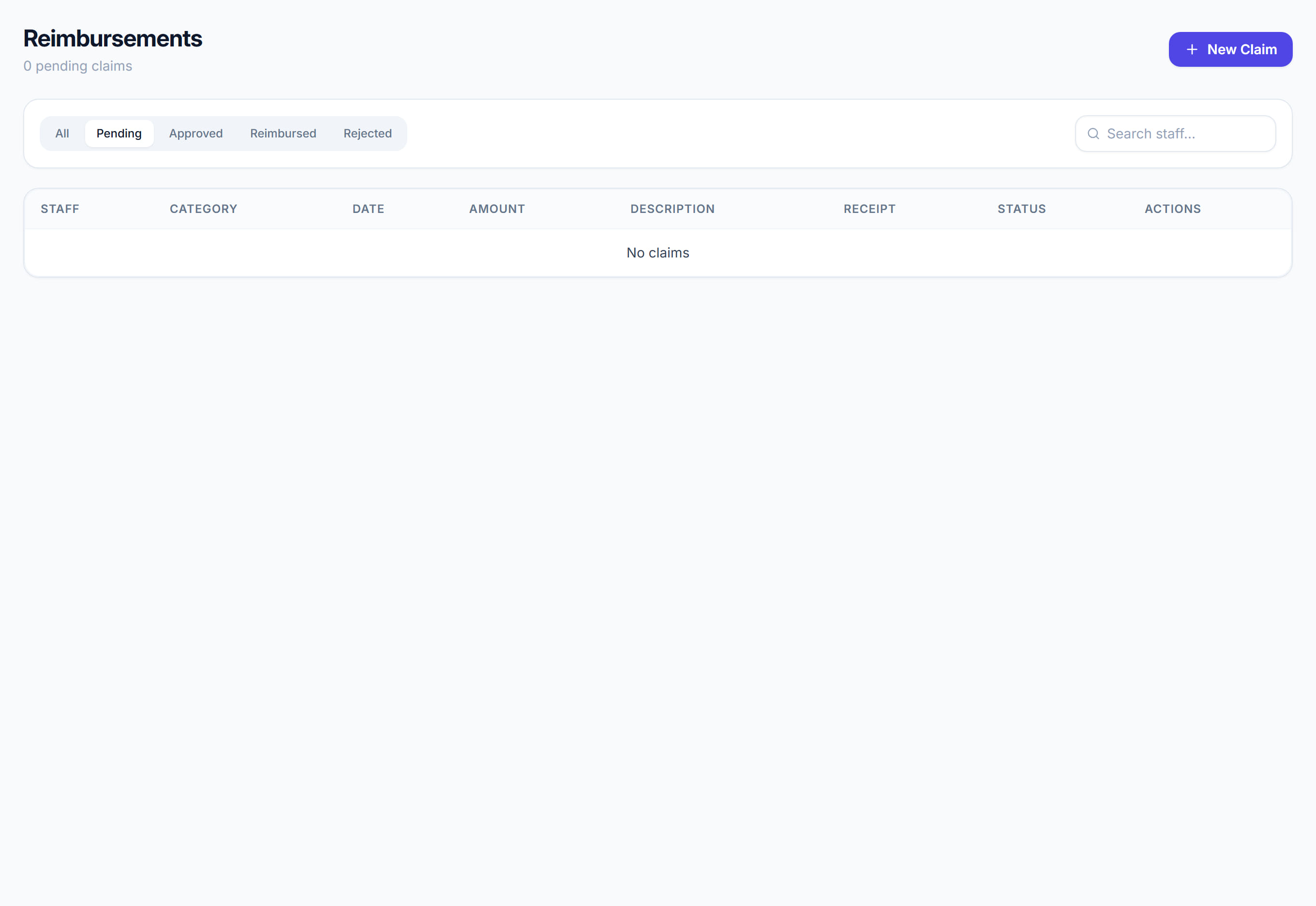
Open Reimbursements from the sidebar and review each claim on the Pending tab. Click View in the Receipt column to check the receipt against the Amount and Category.
- 2
Approve the claims that are right. They move to the Approved tab, shown as Approved, not paid, ready to be paid to the staff member.

- 3
Reject a claim that should not be paid, and give a reason such as no receipt or not a work expense. The reason shows under the claim's status.
- 4
Tick several claims to approve, reject or export them together. The figures above the list show the total Pending and the total Approved, not paid.
- 5
Before a pay run, open Export and choose CSV for payroll, approved, not paid. Use that file to pay the claims through your usual payroll or banking.
- 6
Once the money has been paid, click Mark paid on each claim, or tick several and mark them together. They move to the Reimbursed tab.
- 7
To add a claim for someone, click New claim, choose who it is for under Claim for, then enter the Amount, Date, Category, Description and receipt.
The screen
Did this answer your question?
If not, talk to us — we answer from Australia, in business hours.