
Aged Care
Services
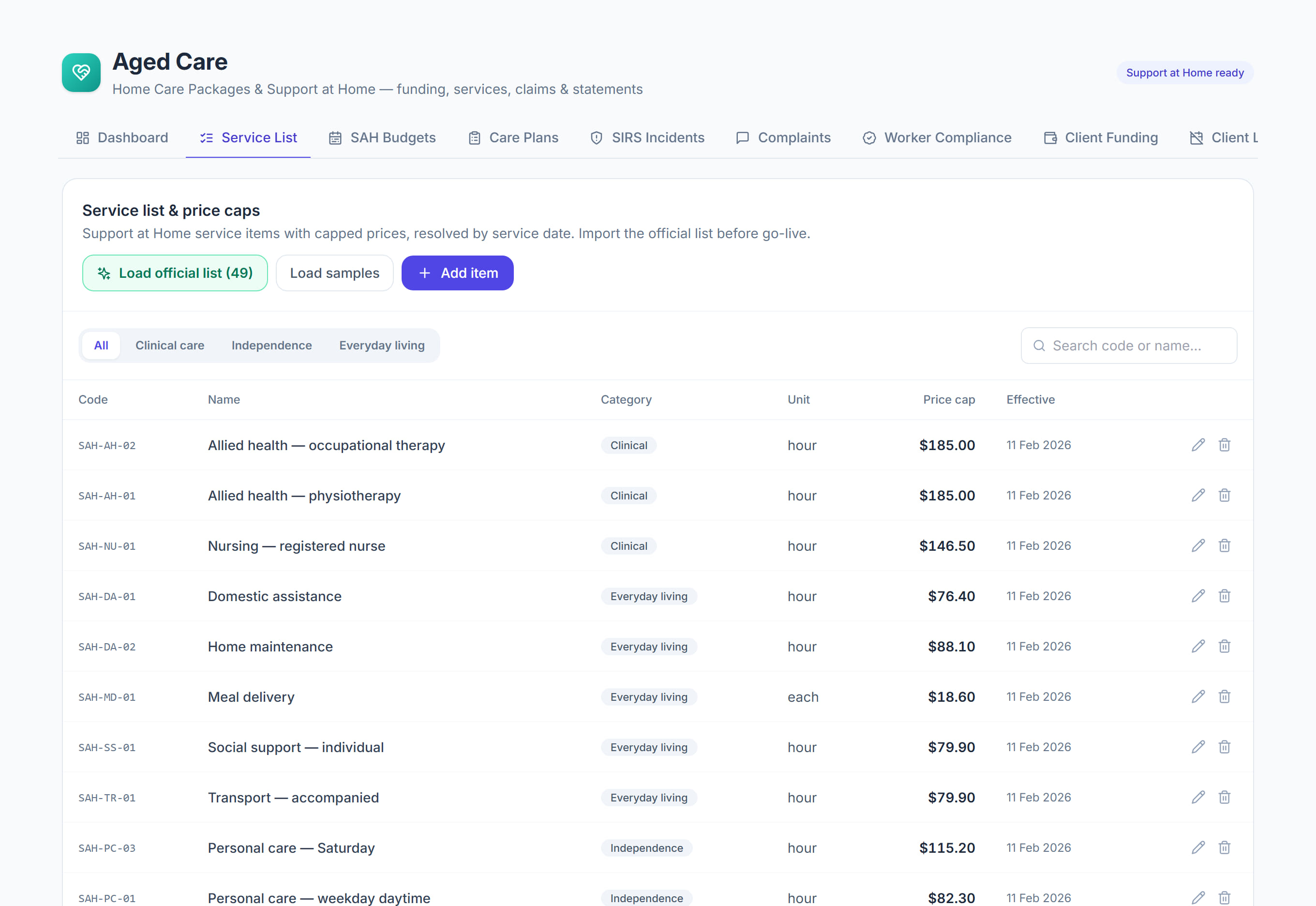
/aged-care?tab=services8 stepsThe Service list holds the Support at Home service items you deliver and bill, each with its code, category, unit, the Services Australia service it is claimed as, and your price. Administrators set it up before go-live and keep prices current.
Step by step
- 1
Open Aged Care, then Service list under Setup. If the list is empty, select Load official list (49) to add the department's Support at Home service codes.
- 2
Check the Claimed as column for every item you deliver. An item marked Not linked: cannot be claimed never reaches a claim file, so open it and choose the Services Australia service.
- 3
Open any item marked Suggested. Open to confirm and check the linked service is right, because a wrong service code makes the portal reject the claim line.
- 4
Enter Your published price on every service you offer, then select Save item. Visits are billed at this price, so an item with no price is not billed.
- 5
Set the Category to Clinical, Independence or Everyday living. The category decides how much the participant contributes, and clinical care has no participant contribution.
- 6
Select Add item for a service of your own, with a code, name, unit and effective dates. It becomes available to roster and bill straight away.
- 7
Under Price transparency, select Publish price list and link to the public page from your website. Select Export for My Aged Care to download your prices as a CSV file.
- 8
Compare Your price with the Common price column, the rate you charged most often in the two-month period, and publish those figures in the My Aged Care portal by the date shown.
The screen
Did this answer your question?
If not, talk to us — we answer from Australia, in business hours.