
Aged Care
DEX
/aged-care?tab=dex7 stepsDEX reporting builds the Data Exchange file for your CHSP clients, cases and sessions. CHSP reports monthly, by the 14th of the following month, so administrators build the file here and upload it in the DEX portal.
Step by step
- 1
Build the DEX extract for the period. Under 4. Build the file, set From and To or choose Last month, then select Build DEX file.

- 2
Check the validation in the result: anyone listed as Left out until fixed, and any service Not included because it is not mapped.
- 3
If Build DEX file is not available, go to 1. Your DEX files and upload the Reference data file and the Organisation activity and outlets file from the DEX portal.
- 4
Under 2. Map your CHSP services, choose the Outlet activity and DEX service type for each service, fill in any fields it asks for, then select Save.
- 5
Under 3. Participants, select Fix on anyone marked Needs, and add missing details such as country of birth, language, disability and accommodation type. Then select Save.
- 6
Build the file again once everything shows Ready, then select Download XML to save it.
- 7
Upload the file in the DEX portal under Uploads, which needs the Organisation Administrator role, then check the upload report there.
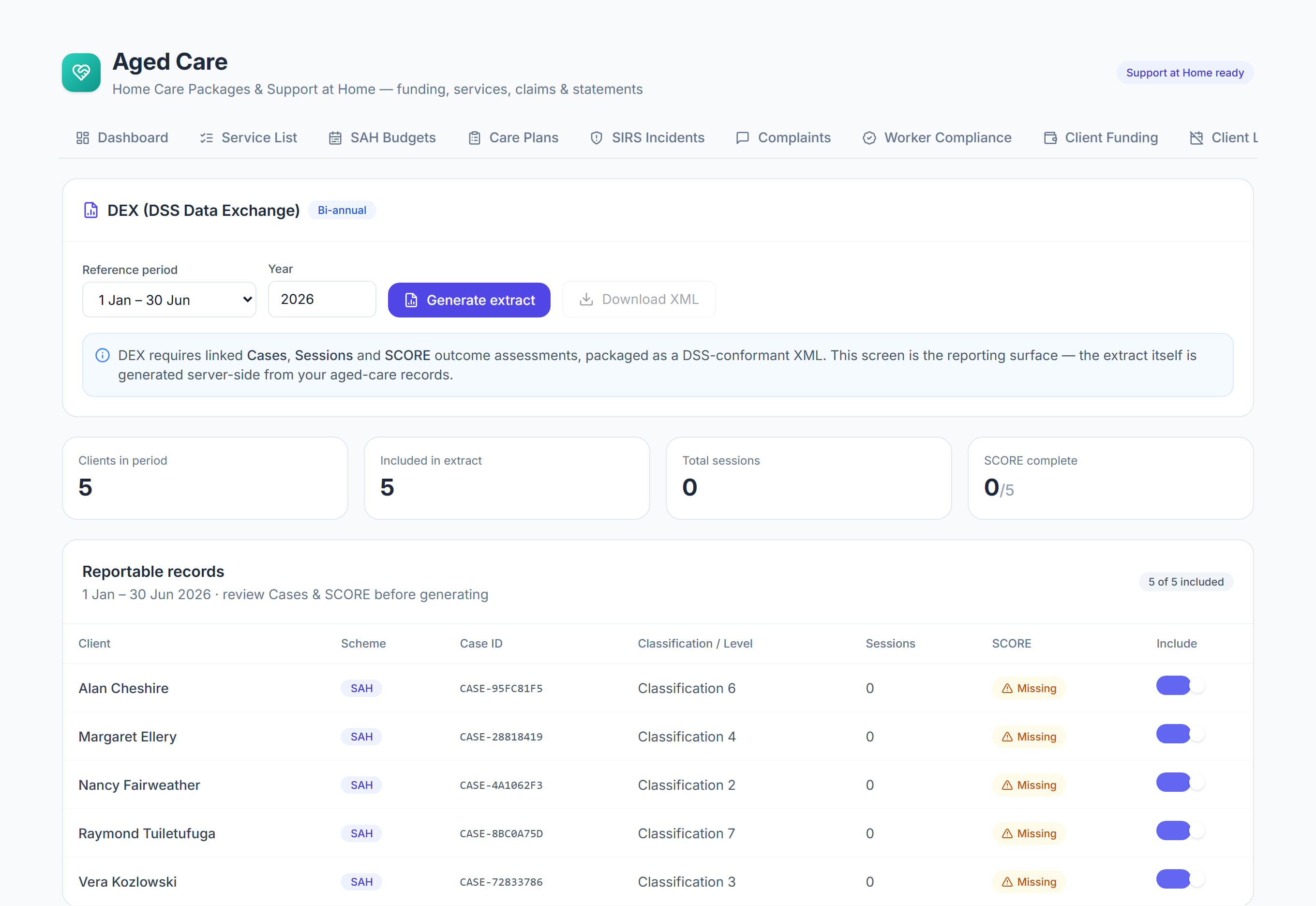
The screen
Did this answer your question?
If not, talk to us — we answer from Australia, in business hours.