
Aged Care
Compliance
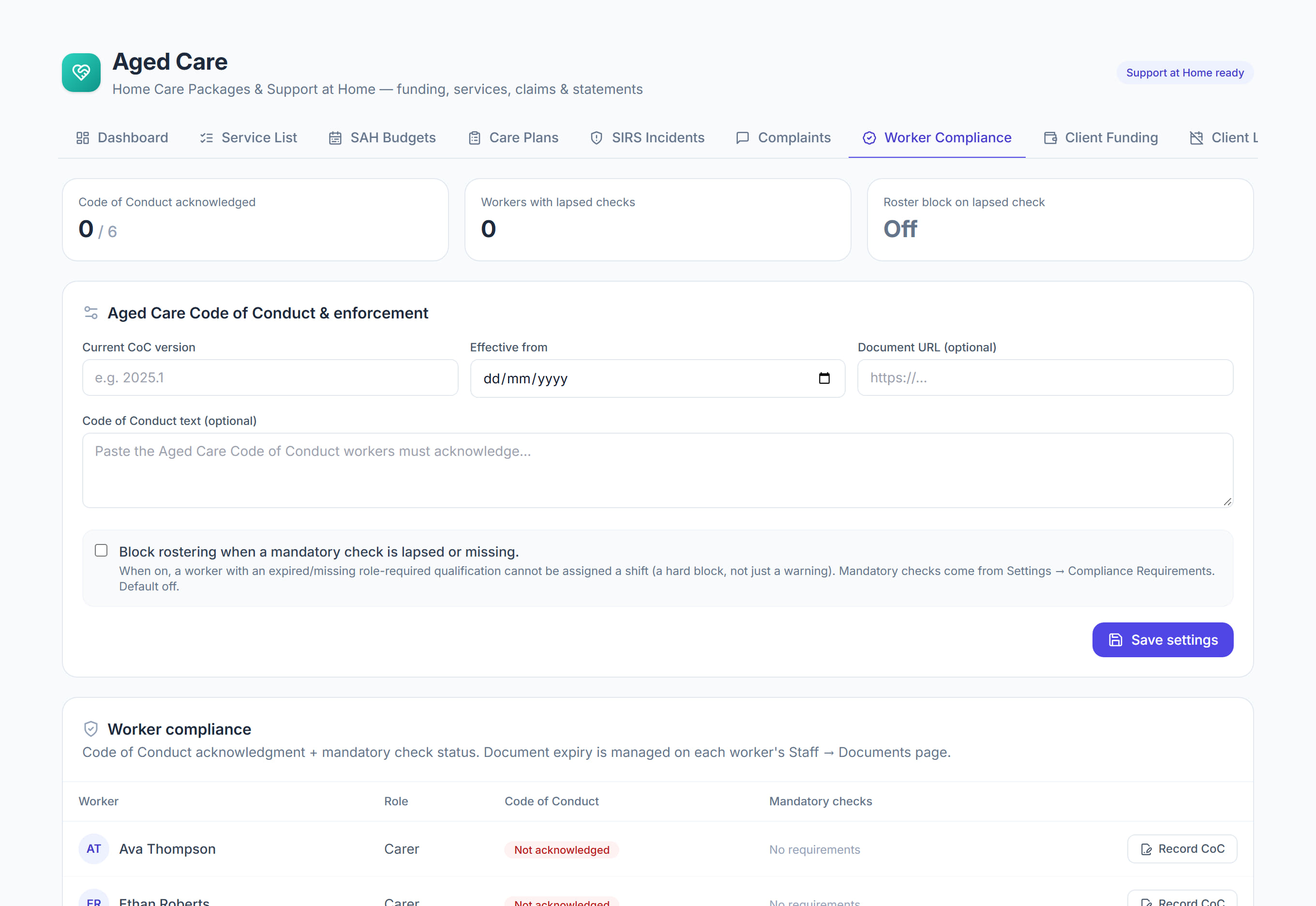
/aged-care?tab=compliance8 stepsWorker compliance shows which care workers have acknowledged the Aged Care Code of Conduct and whose mandatory checks are current. Managers use it to prepare for audits, and can stop a worker with a lapsed check from being rostered.
Step by step
- 1
Work the outstanding items first. Start with Workers with a lapsed check, then any worker who has not acknowledged the current Code of Conduct.

- 2
In the Aged Care Code of Conduct and roster enforcement panel, set the Current version and Effective from date, add the document link or text, then select Save settings.
- 3
Read each worker's row. Code of Conduct shows Acknowledged, Outdated or Not acknowledged, and Mandatory checks shows how many are lapsed or missing.
- 4
Check the Next expiry column for the next check to lapse and when, so you can chase it before it stops the worker being rostered.
- 5
Select Record acknowledgement on a worker, enter the Acknowledged on date and Method, then save. Keep the signed or digital copy with the worker's documents.
- 6
Update an expired check on the worker's Staff documents page, because this screen reads expiry dates from there. Mandatory checks are set under Settings, Compliance requirements.
- 7
Tick Block rostering when a mandatory check is lapsed or missing if the scheduler should refuse those bookings rather than warn. It is off by default.
- 8
Use the screen as your pre-audit check: every worker on the current Code of Conduct version and no lapsed checks.
The screen
Did this answer your question?
If not, talk to us — we answer from Australia, in business hours.