
Aged Care
Providers
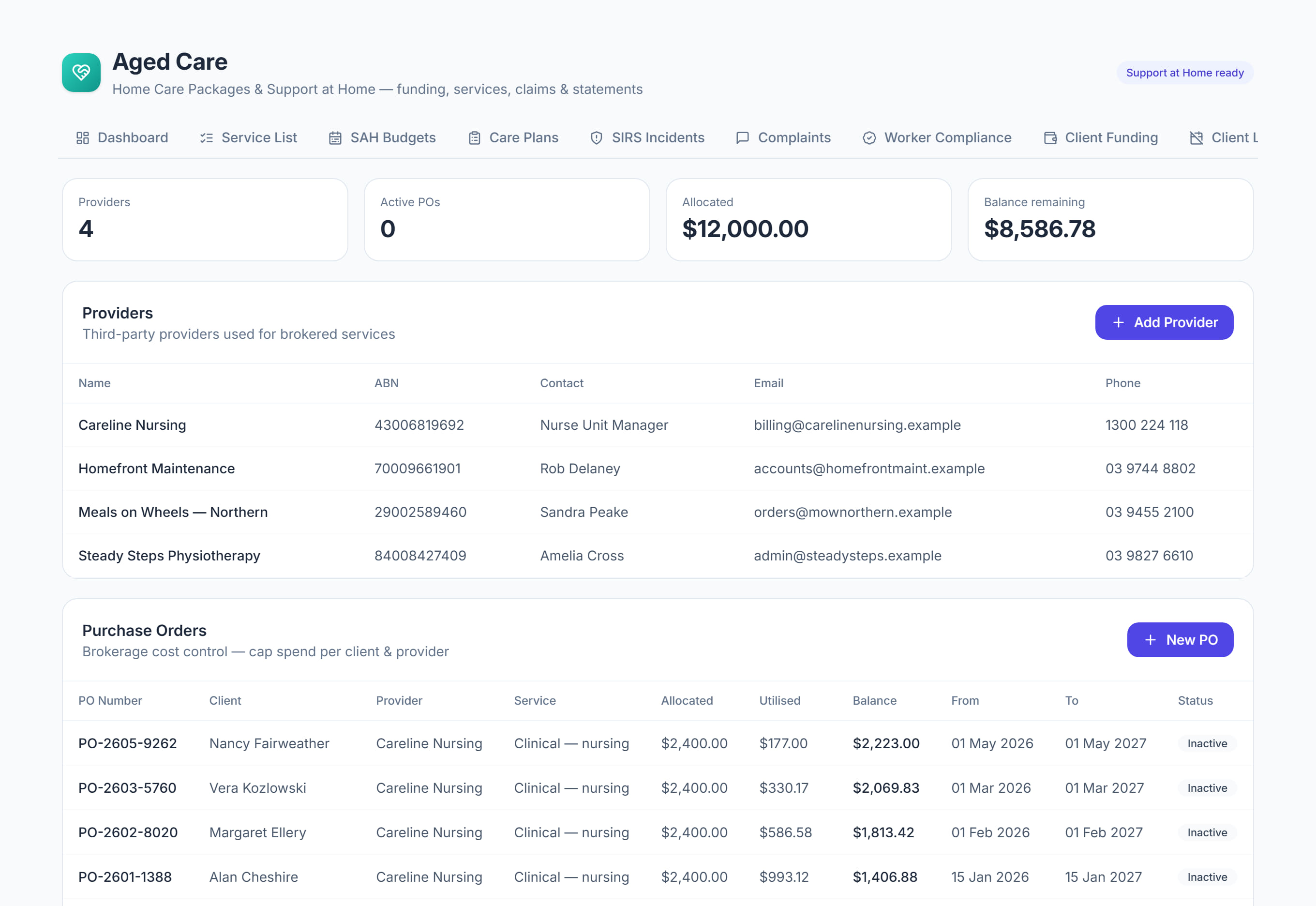
/aged-care?tab=providers7 stepsProviders and purchase orders lists the third-party providers you broker services from, and the purchase orders that cap what each one can bill for a participant over a set period. Administrators use it before approving supplier invoices.
Step by step
- 1
Select Add a provider and enter the provider name, ABN, contact name, email and phone. Keep these details current as providers change.
- 2
Check each provider's ABN in the Providers register against their invoice before you raise an order or approve anything for payment.

- 3
Select Raise a purchase order. Choose the participant and provider, then enter the Purchase order number, the Service type and the Amount authorised.
- 4
Set the Effective from and Effective to dates, then select Create purchase order. The provider cannot bill more than the amount authorised against the order.
- 5
Watch Allocated, Utilised and Balance in the Purchase orders register. An order turns amber once more than 80% is used and red once it is billed past the amount.
- 6
Read the footer for the totals across all orders and how many have been billed past the amount authorised.
- 7
Raise a new order before an old one runs out or ends, so the provider's next invoice still has an active order to match.
The screen
Did this answer your question?
If not, talk to us — we answer from Australia, in business hours.