
Scheduling
Templates
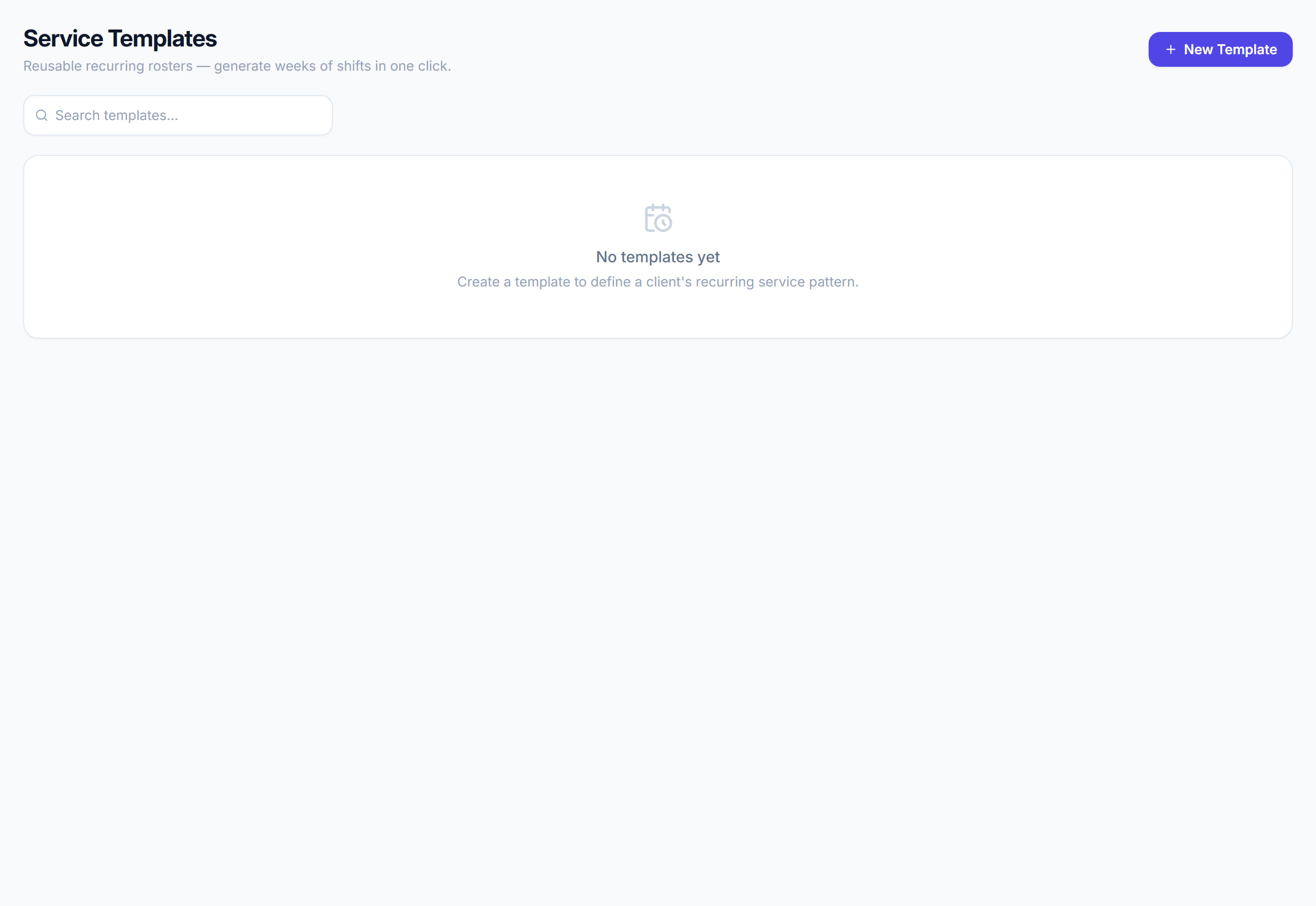
/templates7 stepsService Templates hold a client's regular week of services, built once and turned into real shifts for any date range. Coordinators use them to roster repeating supports, and to push later changes onto the future shifts a template has already created.
Step by step
- 1
Click New Template, enter a Template Name, leave Type as Individual and choose the Client, then click Create & Edit.
- 2
Click Add Line for each regular service. Set the Service Type, times, Recurrence and Days, plus an Assigned Worker if known; Activity, Roster Comments and Tasks copy onto every shift.
- 3
Click Create Service Schedule, pick the From and To dates, and click Preview. Read how many shifts would be created and how many skipped before you go on.
- 4
Leave Skip shifts that clash with the assigned worker ticked, so a worker who already has a shift at that time is not double-booked.
- 5
Click Generate. The shifts are created already published, Booked where the line has a worker and Pending where it does not.
- 6
After you edit a line, click Update Generated, set Apply from date and tick the fields to push. Only future shifts not yet completed or cancelled change.
- 7
Click Copy to start a new template from this one, or use the copy icon on a line to duplicate it. Deleting a template keeps the shifts it made.
The screen
Did this answer your question?
If not, talk to us — we answer from Australia, in business hours.