
Scheduling
Allocate a worker to a shift
Putting the right worker on a shift. You can drag, choose from a list, or let Rostery rank the available workers by how well they fit — qualifications, the participant’s preferences, travel, and what else the worker is already doing that day.
Step by step
- 1
Open the shift by clicking its card.
- 2
Pick the worker from the staff list if you already know who is going.
- 3
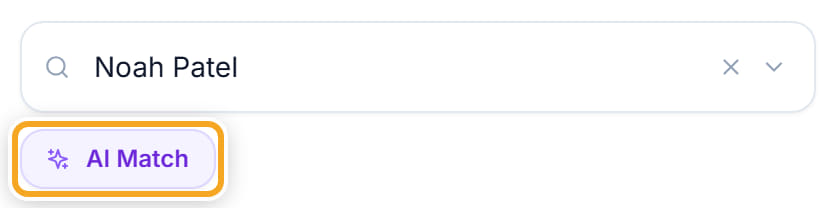
Or click AI Match to see who fits, ranked. The ordering accounts for qualifications, availability, the participant’s preferred and excluded workers, and existing bookings.
- 4
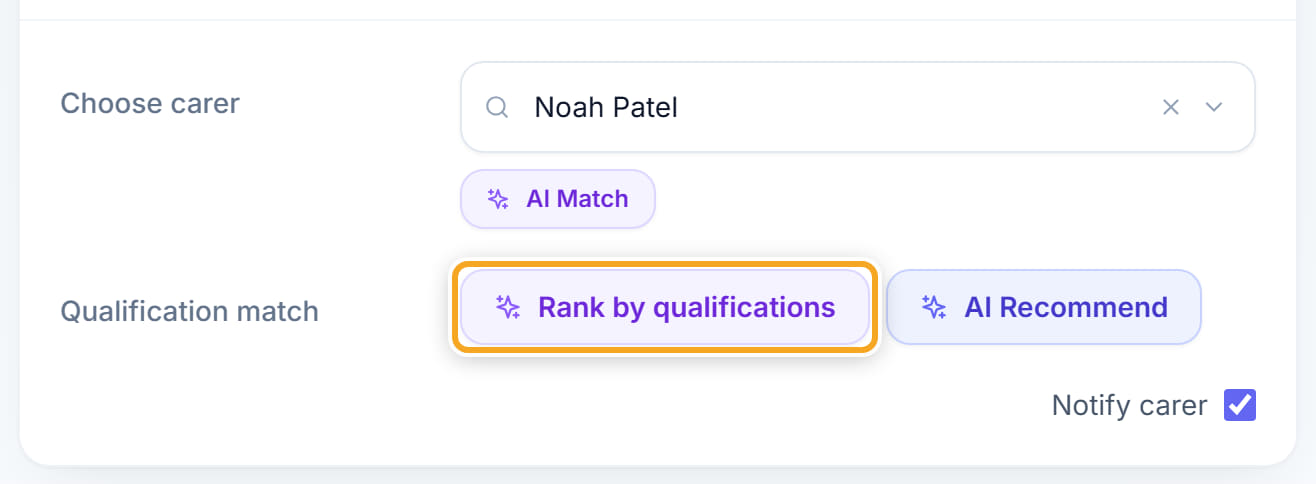
Click Rank by qualifications to sort purely on whether the worker holds what this participant’s supports require.
- 5
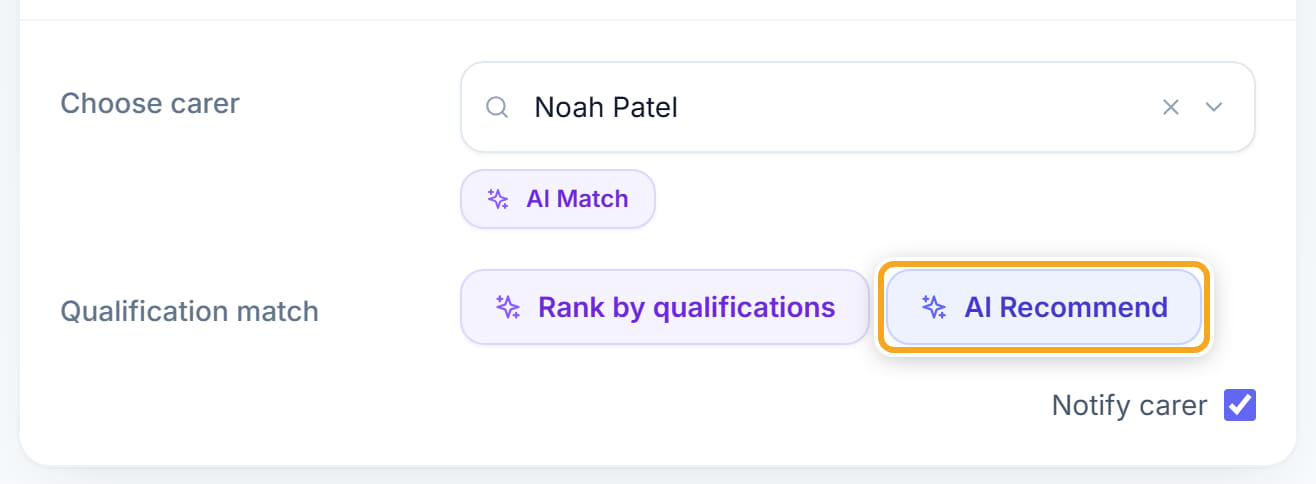
Click AI Recommend for a single suggestion with the reasoning behind it.
- 6
Read any warning before you accept. An unavailability can be overridden with a reason; an overlap with another shift cannot.
- 7
Click Save and Publish to assign and tell the worker, or Save Draft to hold it.

Did this answer your question?
If not, talk to us — we answer from Australia, in business hours.