
Scheduling
Filter what the board shows
A full roster is too much to read at once. Filters narrow the board to the shifts you are working on — everything unassigned, everything cancelled, one service type — and the filter stays on until you reset it.
Step by step
- 1
Click Filter above the board.

- 2
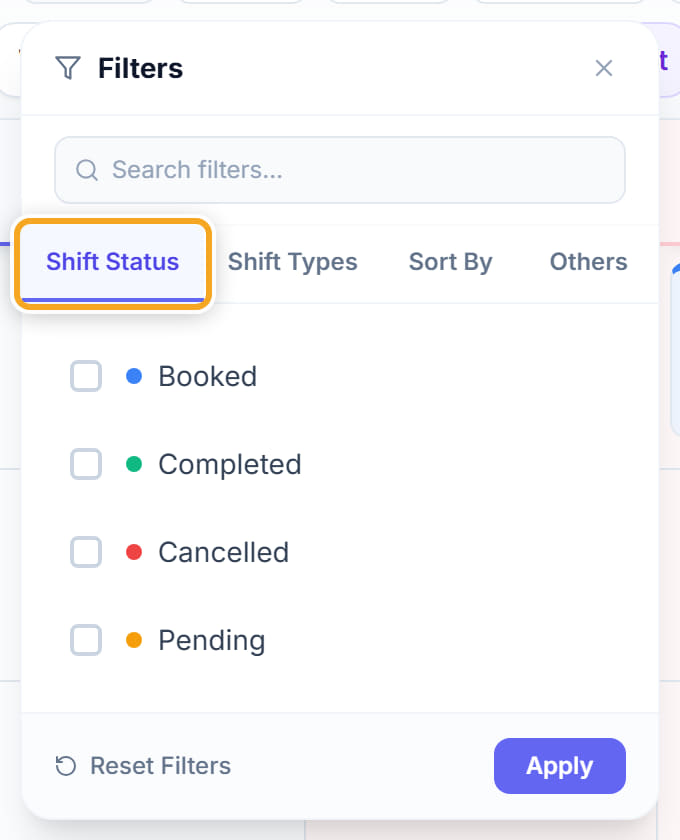
Under Shift Status pick what to show: Booked, Completed, Cancelled or Pending. Pending is the one to use when you are chasing shifts that still need a worker.
- 3
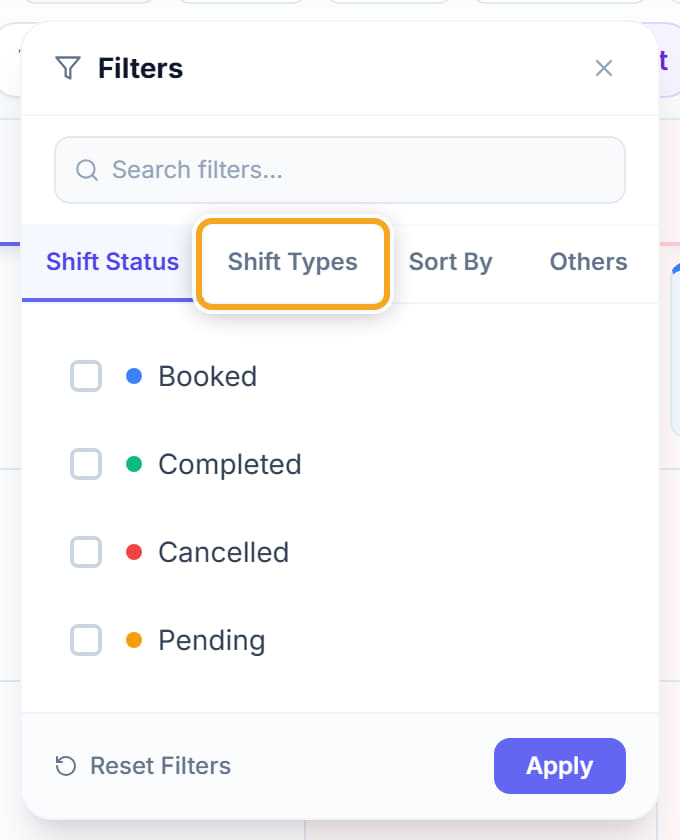
Under Shift Types narrow to a particular kind of support.
- 4
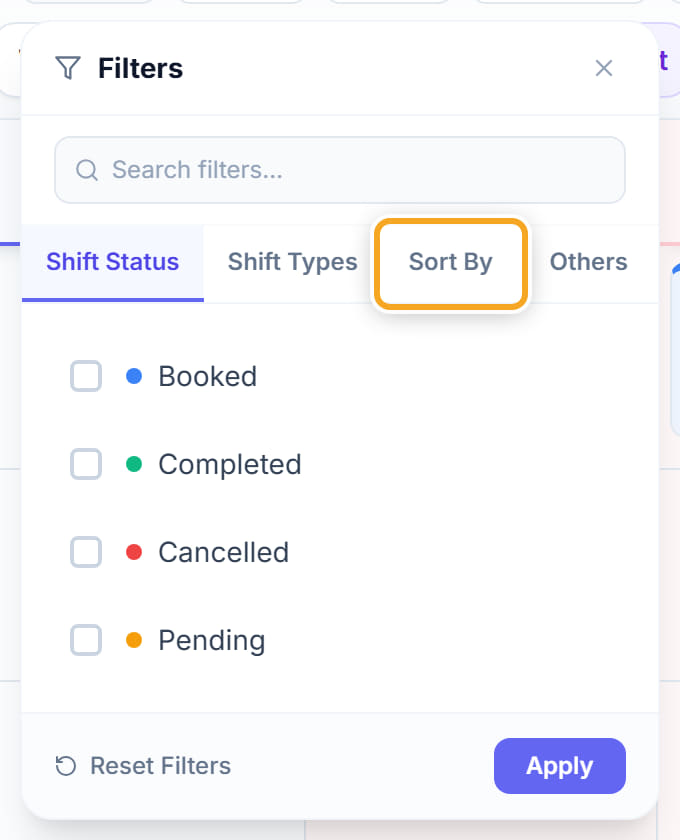
Use Sort By to order the rows, and Others for the remaining options.
- 5
Click Apply.
- 6
Use All rows to switch between every row and only the rows that have something on them — a long staff list is much easier to read with the empty rows hidden.

- 7
Click Reset Filters when you are done. A filter left on is the usual reason a shift appears to have vanished.
Did this answer your question?
If not, talk to us — we answer from Australia, in business hours.