
Scheduling
EVV
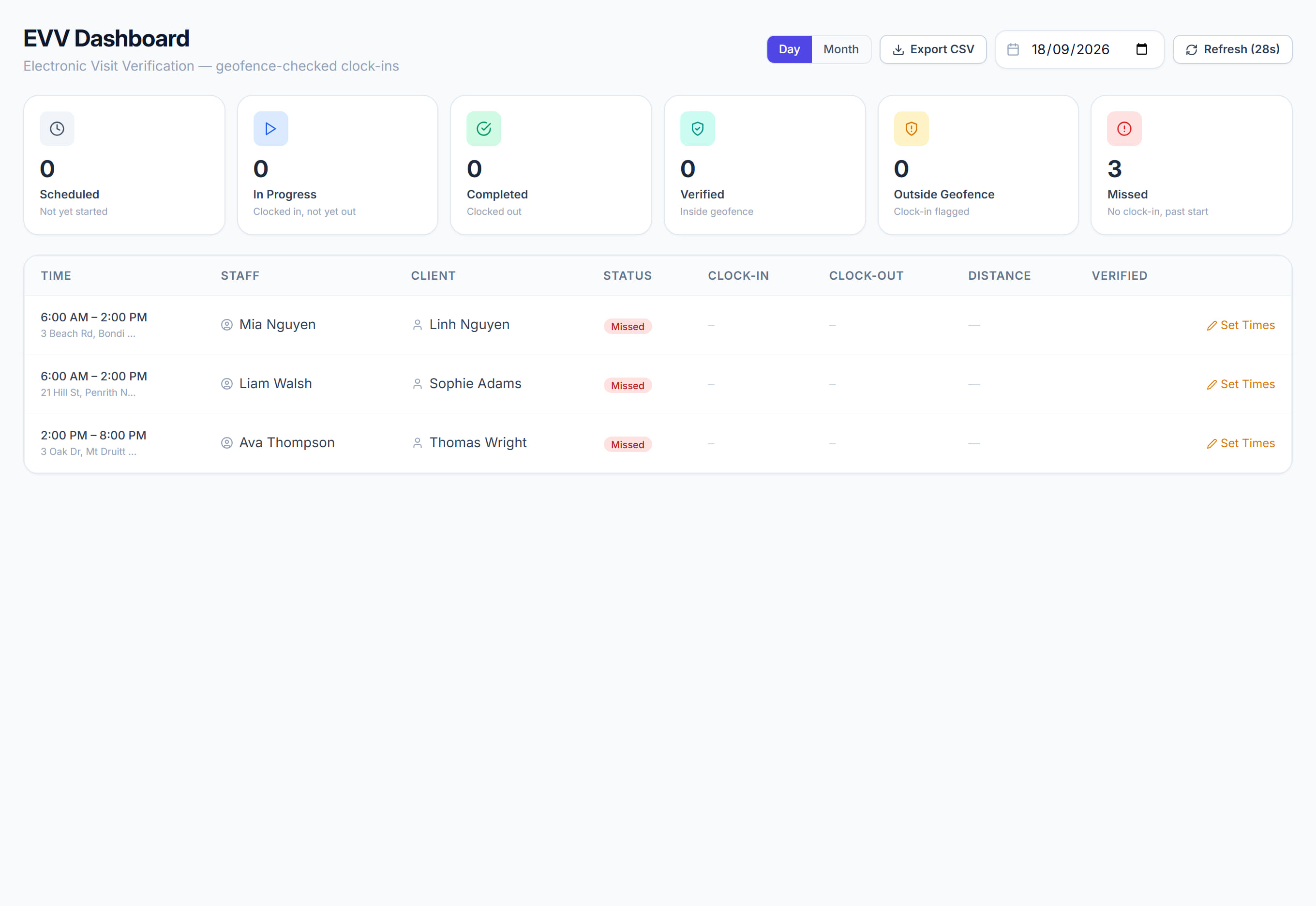
/evv9 stepsThe EVV Dashboard checks each visit's clock-in and clock-out against the client's address, giving you evidence that the visit happened where and when it should. Coordinators use it daily to find missed, flagged and unverified visits and put them right.
Step by step
- 1
Each visit shows the scheduled time and place against the actual clock-in and clock-out, with the worker, client and a status such as Missed.

- 2
Anything outside the geofence is flagged with the distance, and with the worker's stated reason if they gave one when clocking in.
- 3
Work the exceptions rather than the whole list. Click a tile such as Missed, Outside Geofence or No GPS to show only those visits.
- 4
Use the date box to look at another day. The page refreshes itself every 30 seconds, or click Refresh to update it now.
- 5
Click Override in, Override out or Override in + out to mark a flagged or no-GPS clock as verified once you are satisfied the visit was genuine.
- 6
Click Set Times on a missed or unfinished visit, then enter the Clock-In Time, Clock-Out Time and a Reason / Notes and save.
- 7
Approve the timesheet in Timesheets afterwards. Set Times creates or updates the timesheet as Pending Approval; it does not approve it for you.
- 8
Switch to Month to see who clocked in across the month, with missed, verified and coverage figures for each worker. Click a day to open it.
- 9
Click Export CSV to download the day's visits with clock times, distances, verification results and addresses.
The screen
Did this answer your question?
If not, talk to us — we answer from Australia, in business hours.