
The mobile app
Opening a shift
Everything about one visit on one screen: where and when, what to record while they are there, and what has happened with this participant lately.
Step by step
- 1
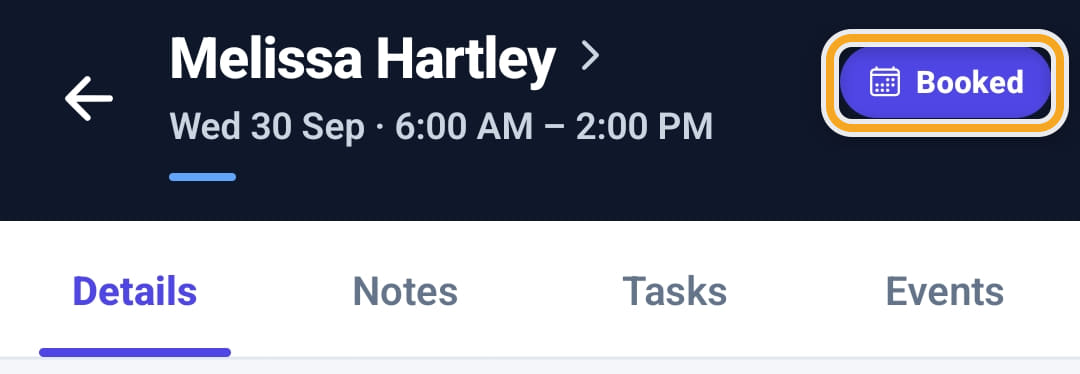
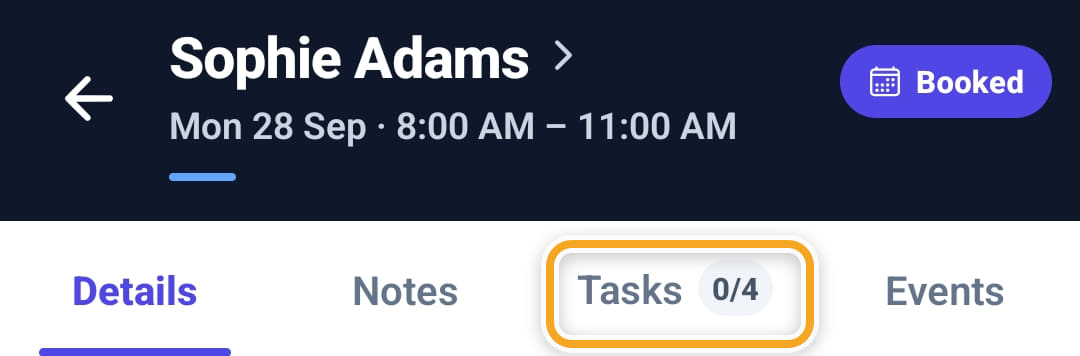
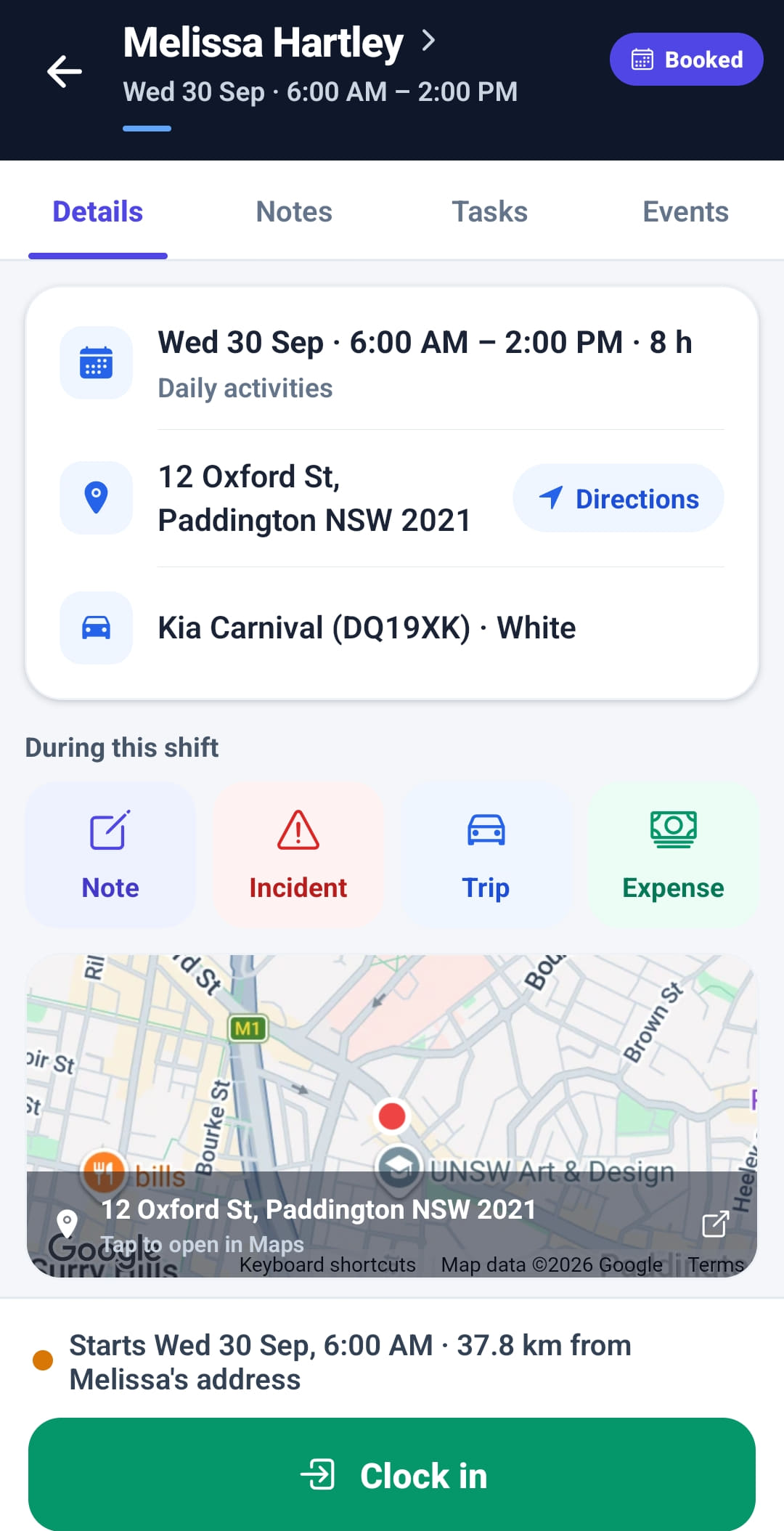
Tap a shift on Home or on the schedule. The header shows the participant, the date and time, and where the shift is up to — Booked here.
- 2
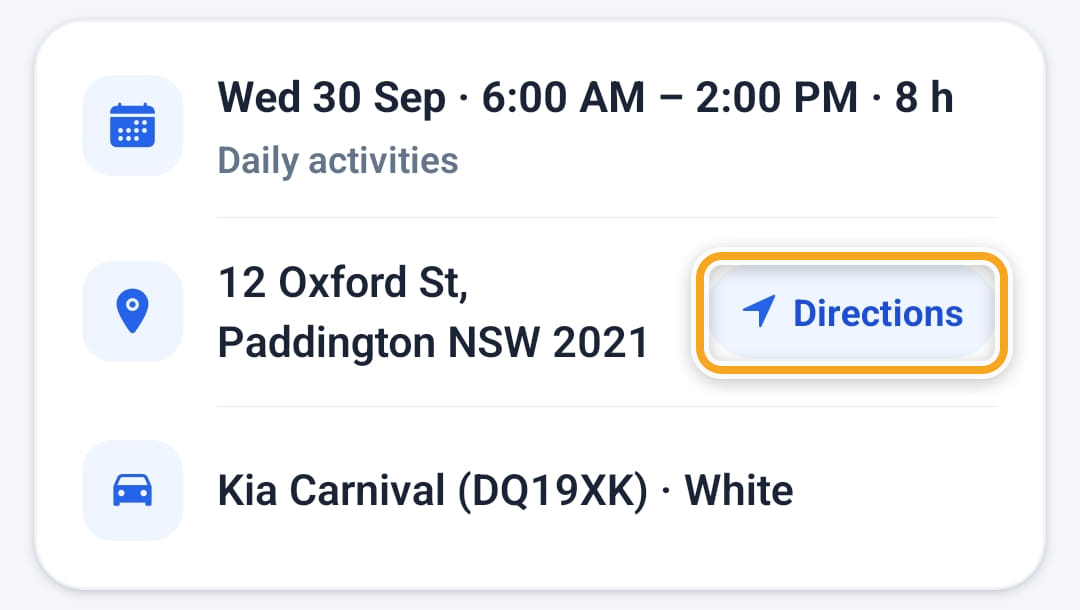
Details carries the time and service, the address with Directions, and the car to take when the office has booked one.
- 3
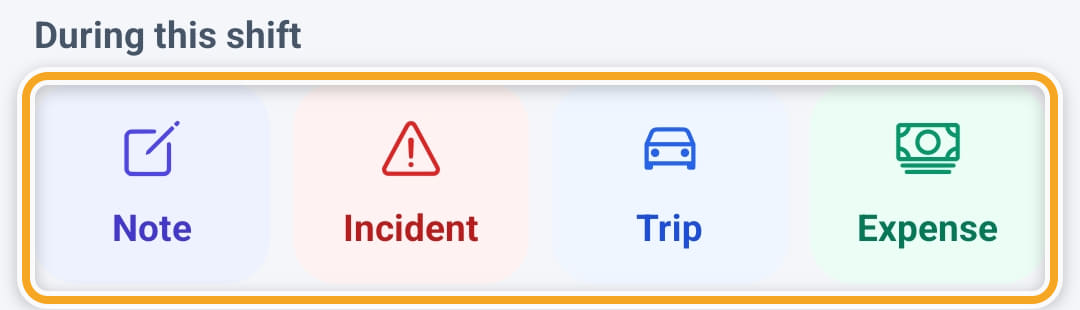
During this shift holds what they record while they are there: Note, Incident, Trip and Expense, plus Chart when the participant has charts.
- 4
Below that, the map shows the address — tap it to open Google Maps — and Clock in sits at the bottom.
- 5
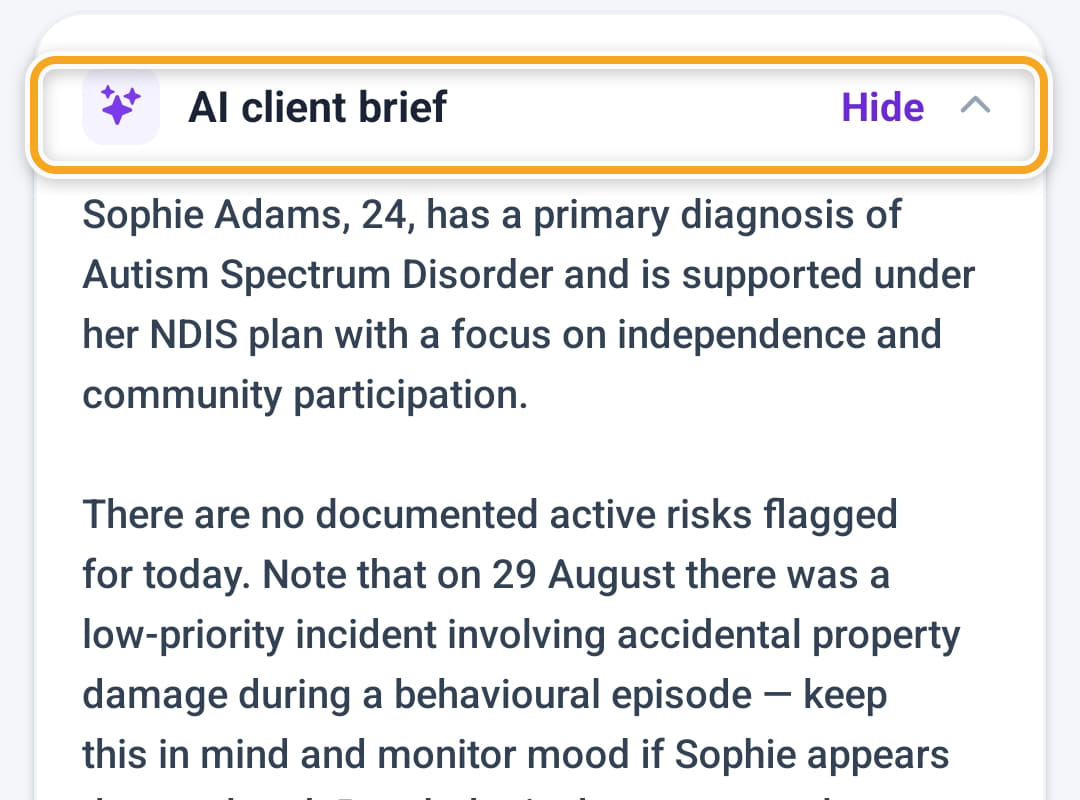
AI client brief writes a short summary of the participant: medical history, risks and support needs. Tap it to write the brief, and Hide to fold it away.
- 6
Notes lists what has been recorded on this shift. Tasks shows what the office wants done — the activity, instructions and roster comments, and the task list with how many are done.
- 7
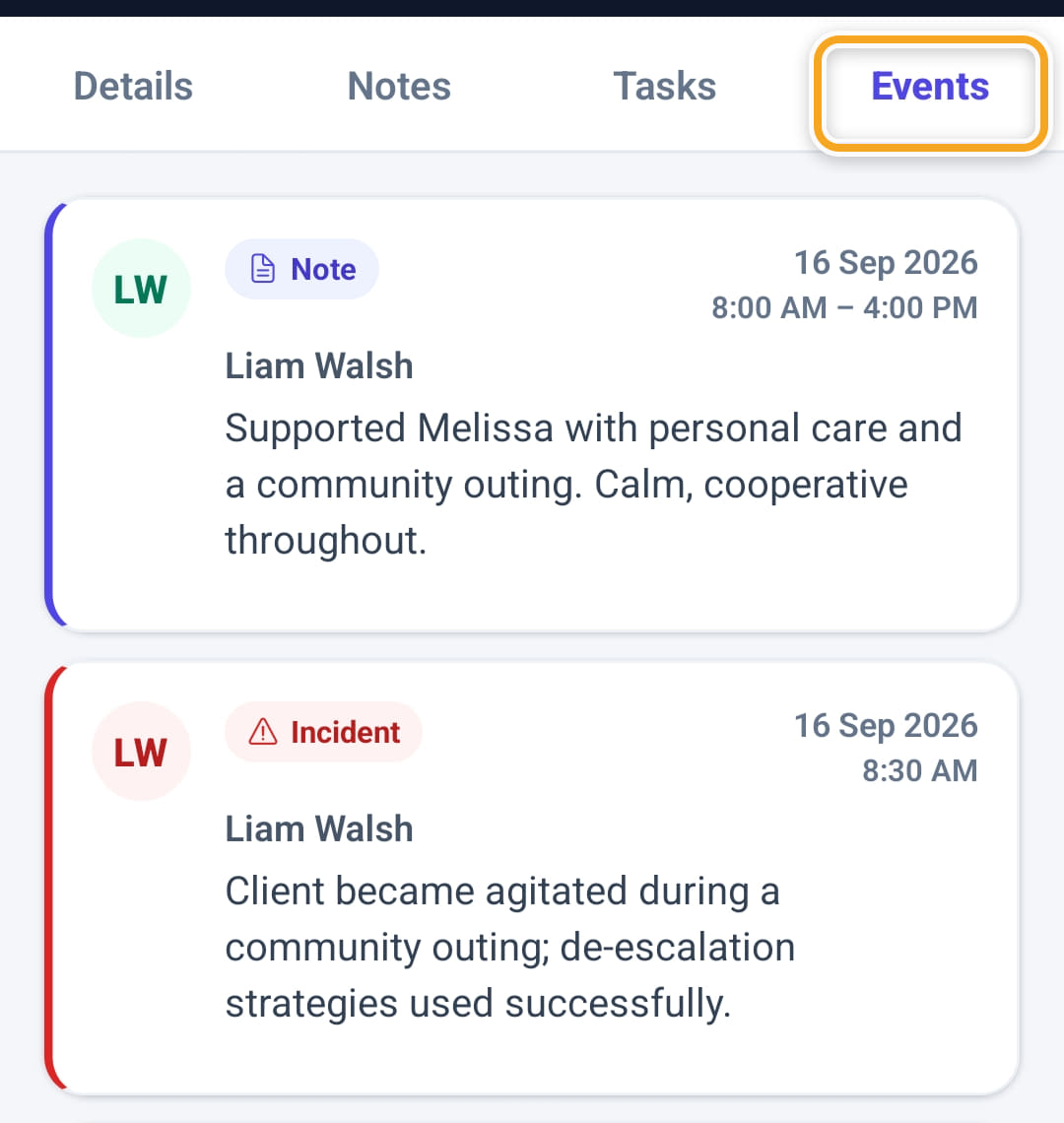
Events shows this participant’s recent progress notes and incidents from every worker, newest first, so they arrive knowing what has happened.
The screen
Did this answer your question?
If not, talk to us — we answer from Australia, in business hours.