
The mobile app
Expenses
Out-of-pocket costs from a shift, claimed back with a photo or PDF of the receipt. The claim goes to the office for approval and payment, and the worker can follow it from Submitted to Approved to Paid on Reimbursements.
Step by step
- 1
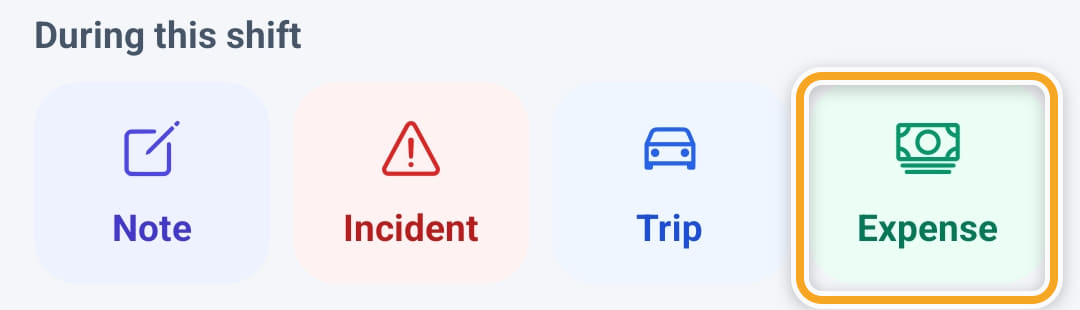
Open the shift and tap Expense under During this shift.
- 2
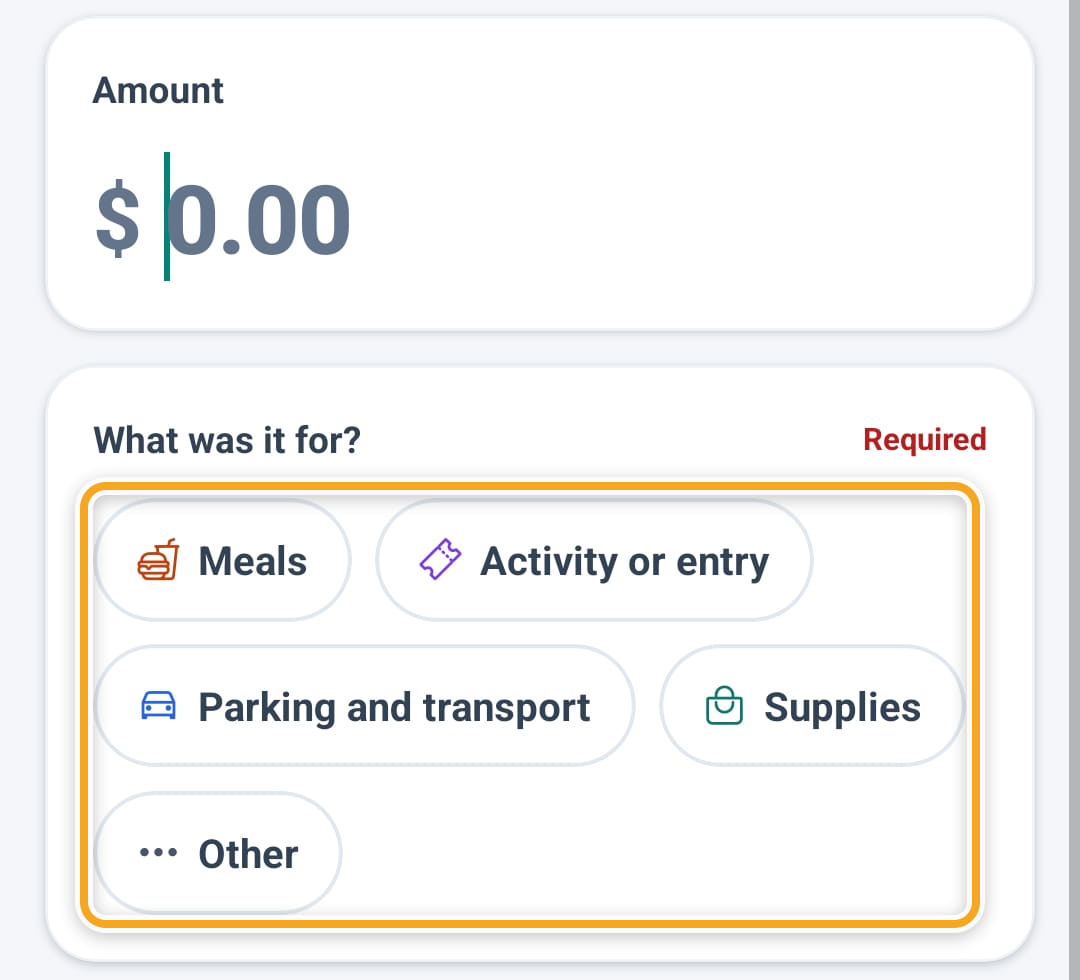
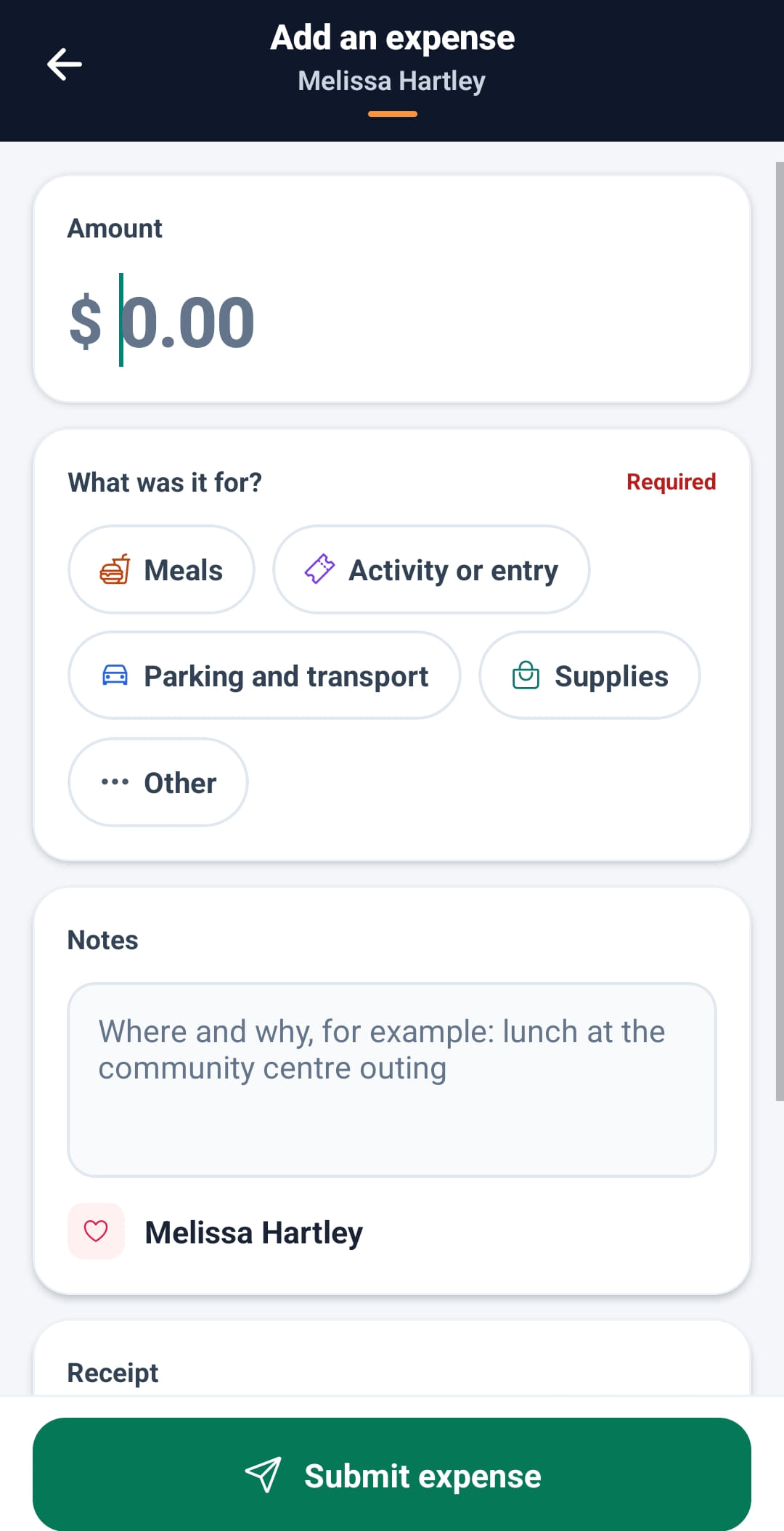
Enter the Amount and choose what it was for: Meals, Activity or entry, Parking and transport, Supplies or Other.
- 3
Add Notes saying where and why.
- 4
Under Receipt, tap Take photo or Upload. The office needs the receipt to approve the claim.
- 5
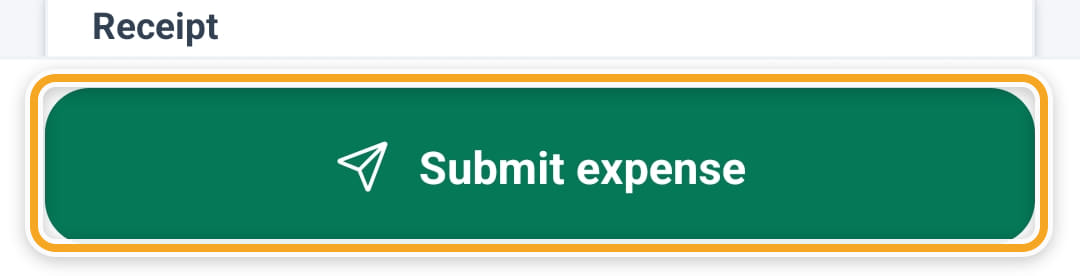
Tap Submit expense. It appears on your Reimbursements screen for approval.
- 6
Upload offers Photo from library or PDF file. Once a receipt is attached, Retake or Replace swaps it and Remove takes it off.
- 7
If the worker leaves before submitting, the amount, category and notes are kept as a draft and restored next time, with a Discard option. The receipt is not kept.
- 8
On Reimbursements, each claim shows its progress: Submitted, Approved, Paid. A rejected claim shows the office’s reason.
The screen
Did this answer your question?
If not, talk to us — we answer from Australia, in business hours.