
The mobile app
Availability
When the worker can and cannot work: a weekly pattern of available days, plus periods of time off such as a holiday or an appointment. The roster tools read it, so they stop offering the worker the wrong shifts.
Step by step
- 1
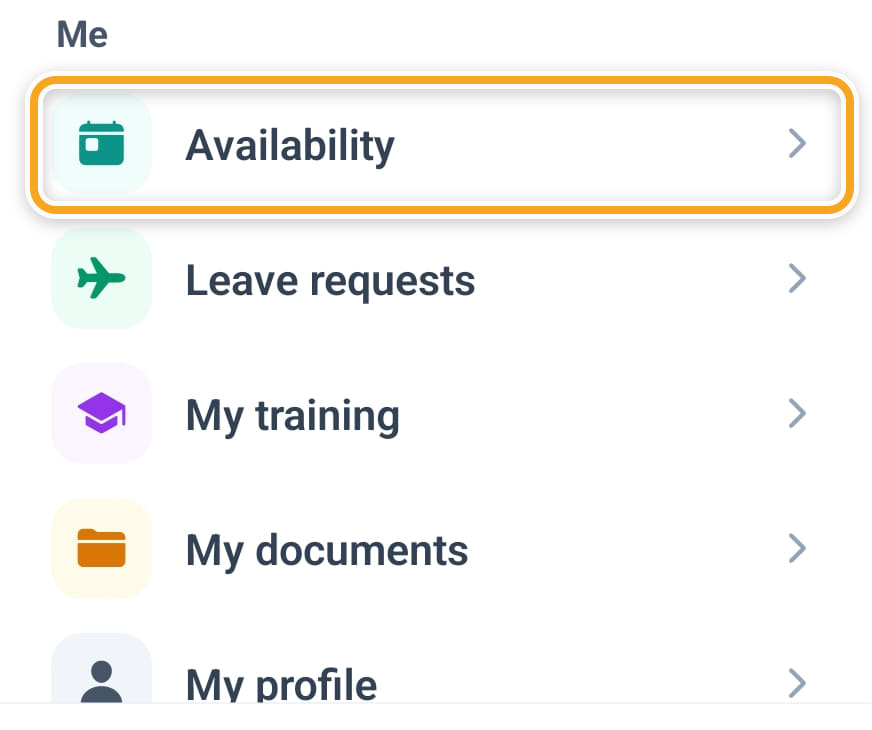
Open Availability from the menu, from Profile, or from Quick actions on Home.
- 2
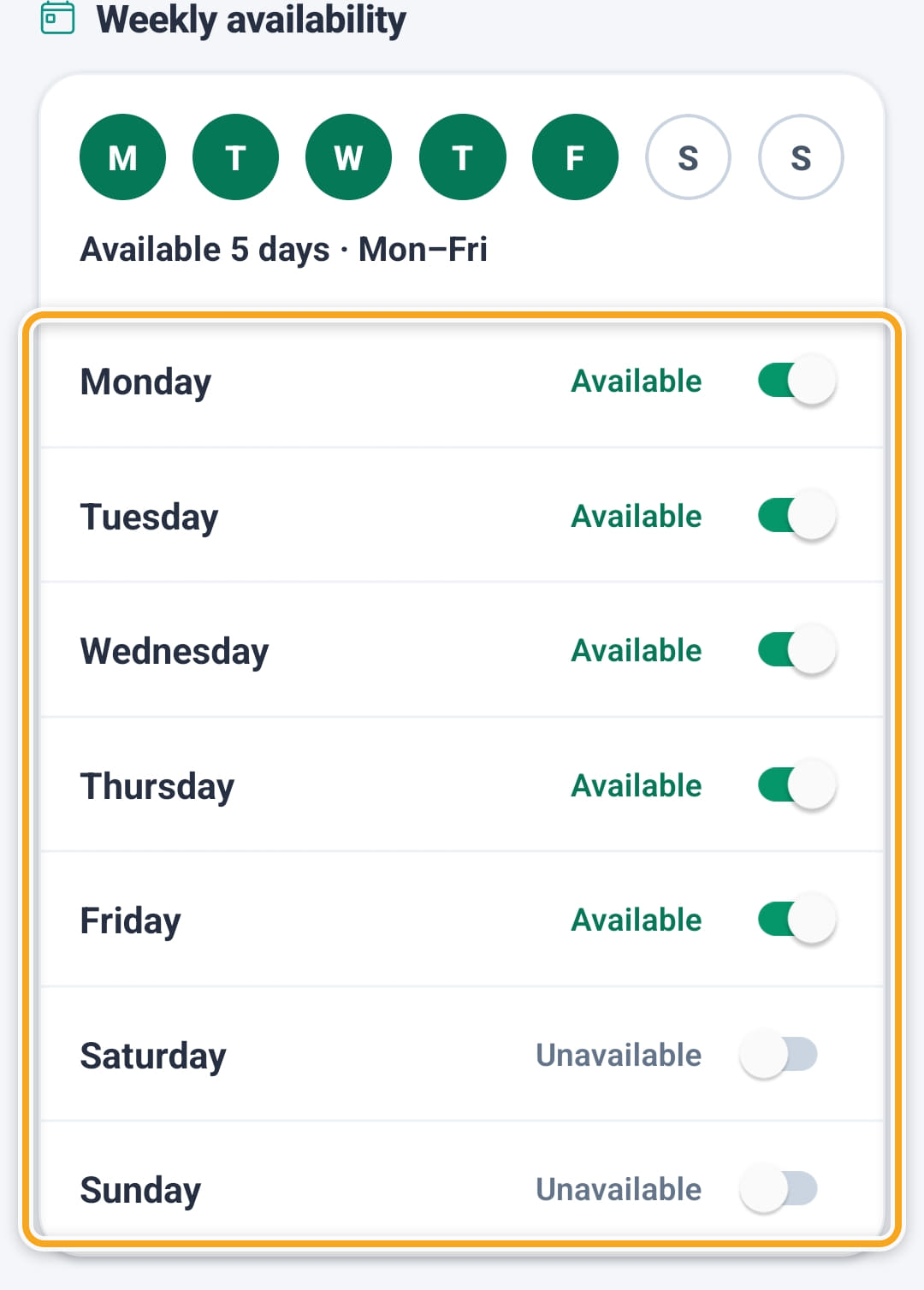
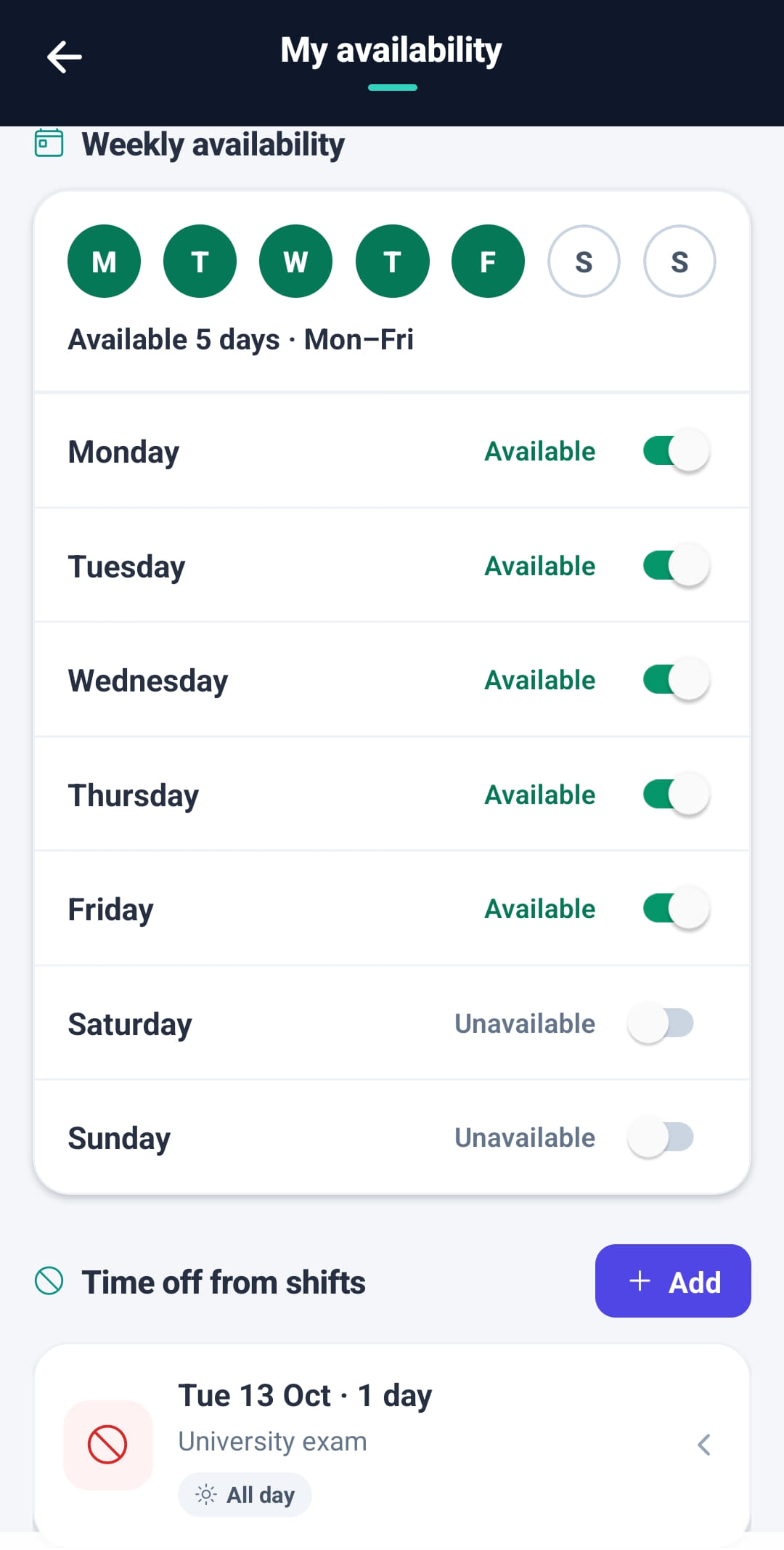
Under Weekly availability, switch each day to Available or Unavailable, then tap Save. The circles at the top sum up the week.
- 3
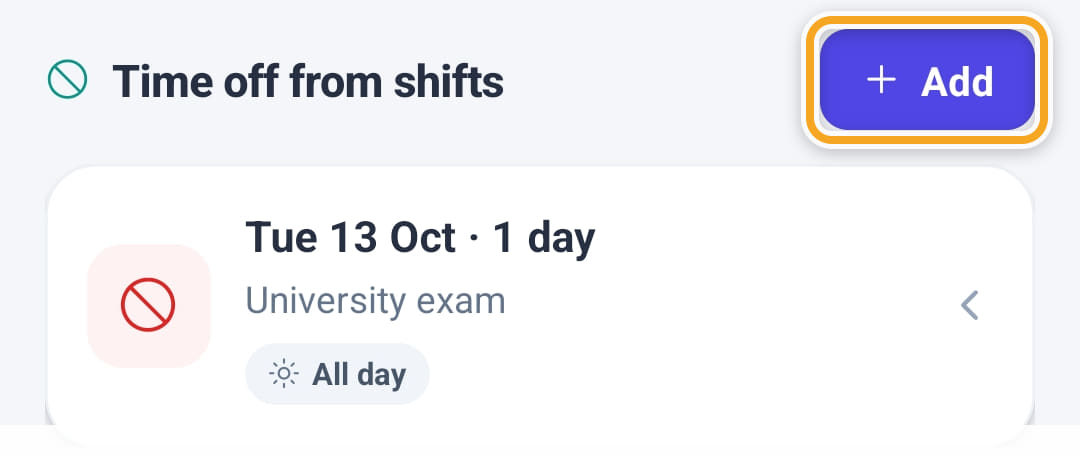
For a stretch they cannot work, tap Add under Time off from shifts, choose when, add a reason if they like, and tap Add period. Each one is listed there.
- 4
AI Auto-Roster and the Scheduling Assistant read this, and the Scheduler warns you before booking someone into a period they marked unavailable.
- 5
Until the week is saved, an Unsaved changes bar shows at the bottom. Undo puts the days back as they were.
- 6
When adding a period, tap the first day and then the last day on the calendar. For a single day, tap just that day.
- 7
Swipe a period to the left, or long press it, to Remove it. Past periods are tucked under Show past periods.
The screen
Did this answer your question?
If not, talk to us — we answer from Australia, in business hours.