
The mobile app
My profile
The worker’s own record: their photo, their numbers, and their qualifications as the office has verified them.
Step by step
- 1
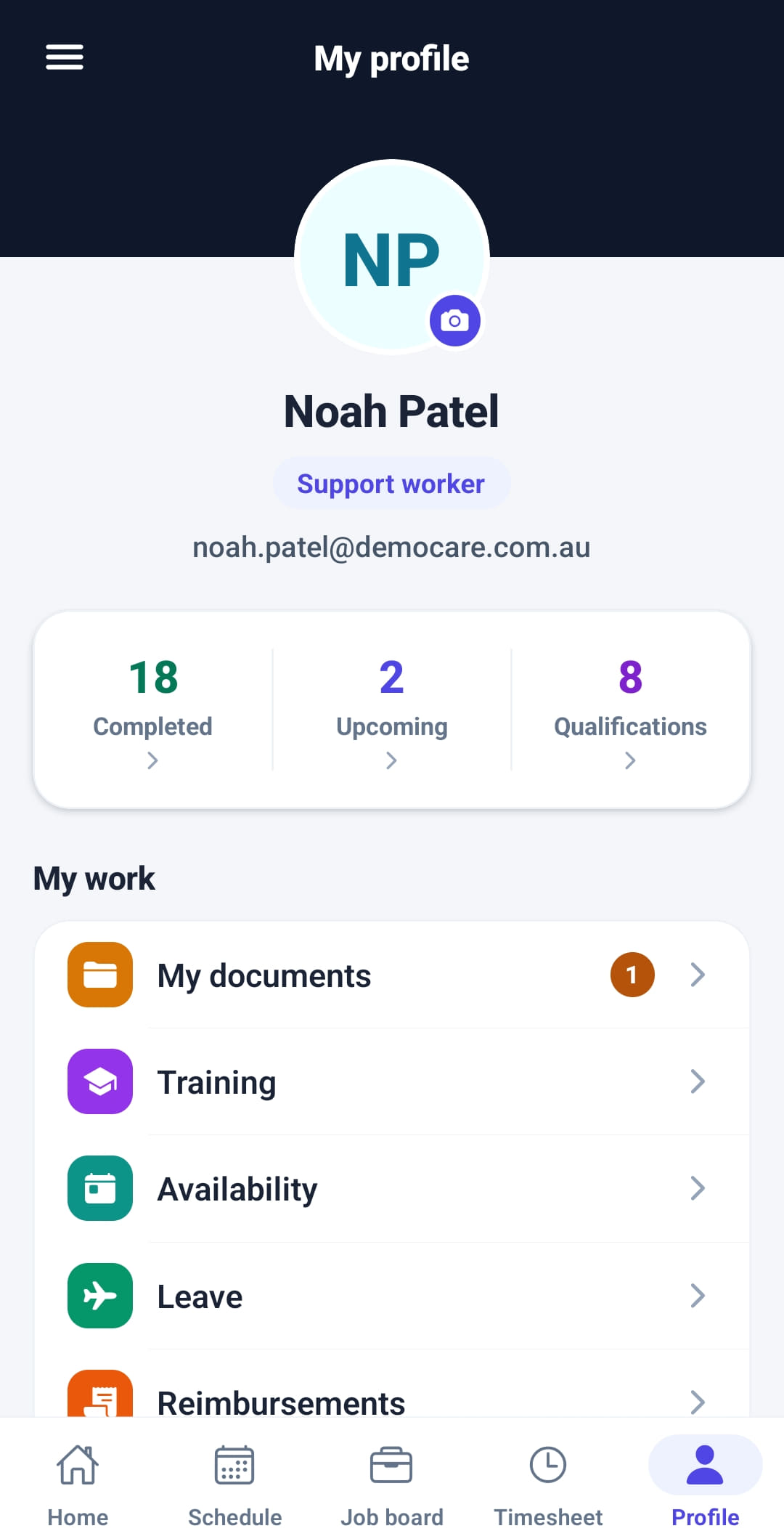
Tap Profile in the bar at the bottom, or My profile in the menu.
- 2
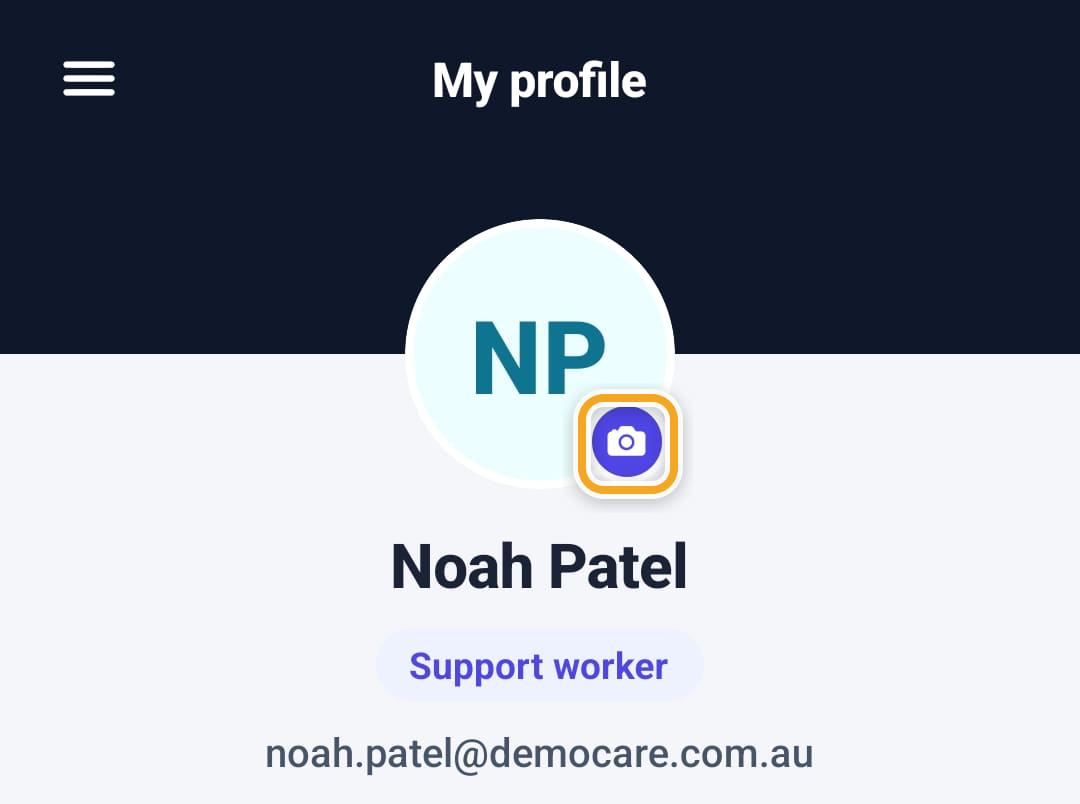
Tap the camera on the photo to take a new one or choose one from the phone.
- 3
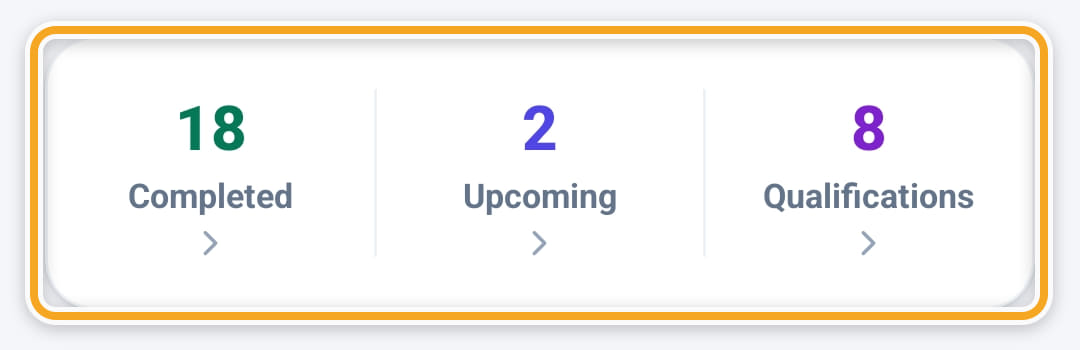
The numbers are shifts Completed, shifts Upcoming and Qualifications. Tap one to open the list behind it.
- 4
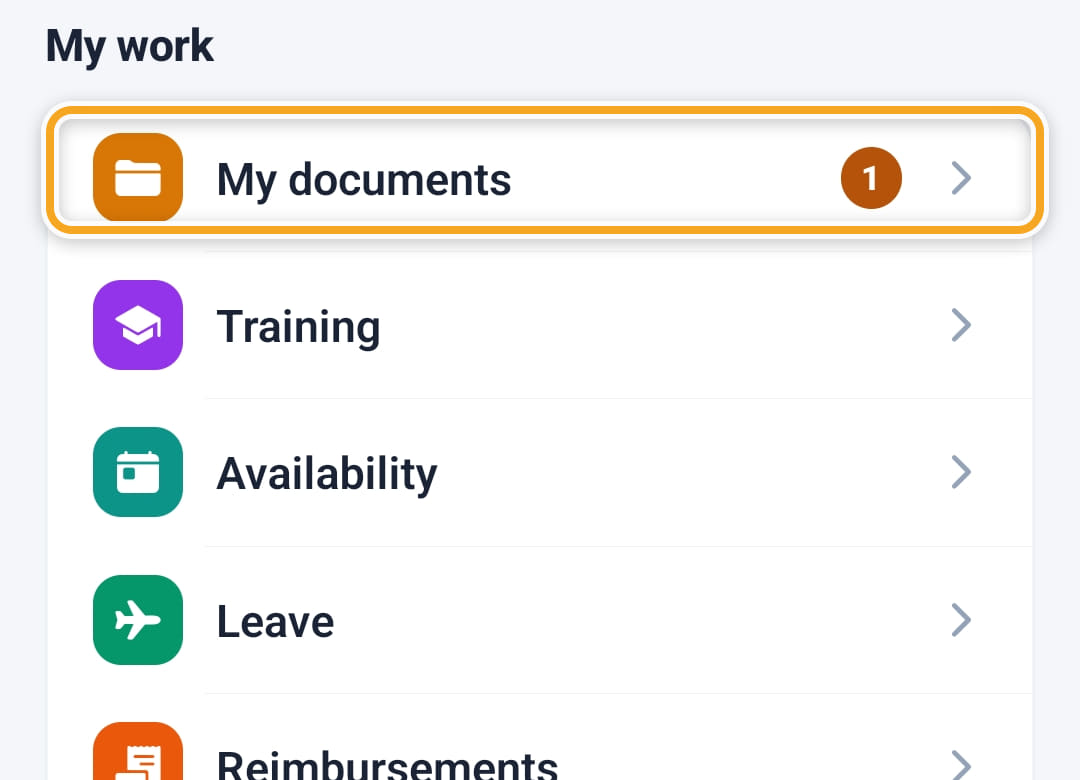
My work leads to My documents, Training, Availability, Leave and Reimbursements. A number beside My documents or Training is how many are expired or about to expire.
- 5
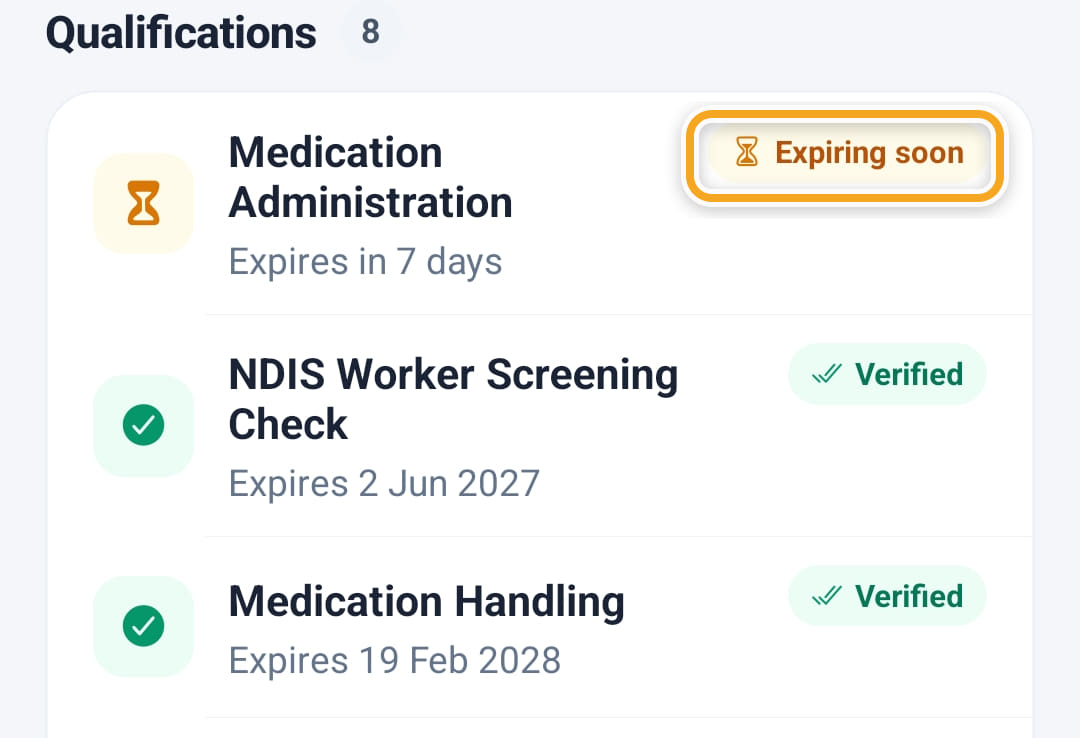
Further down, Qualifications lists each one with its expiry — Verified once the office has checked it, Expiring soon as the date comes close.
The screen
Did this answer your question?
If not, talk to us — we answer from Australia, in business hours.