
The mobile app
Messages
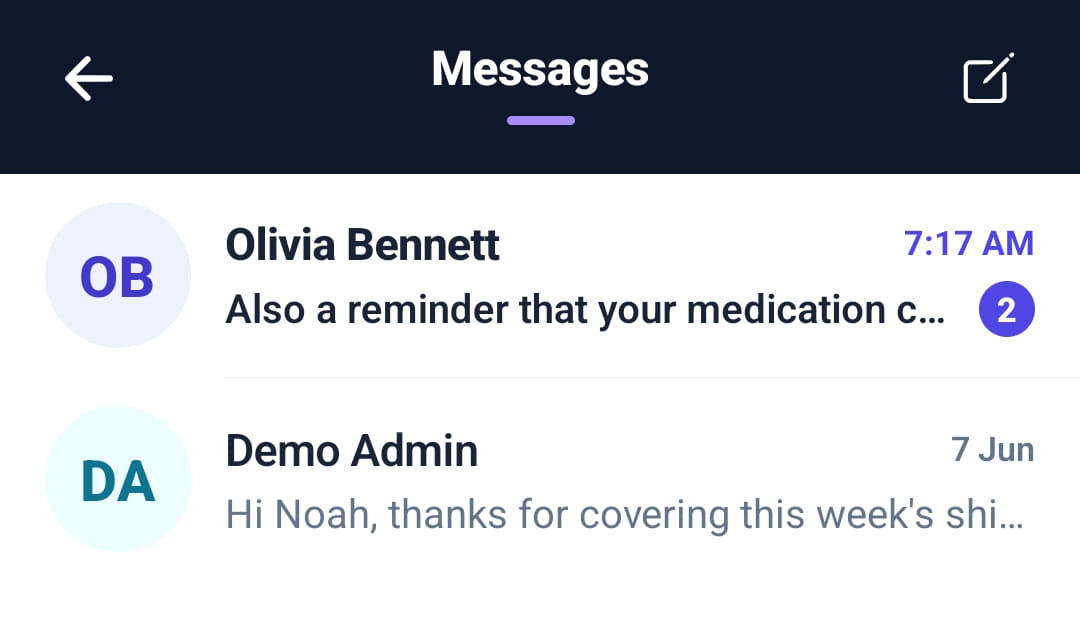
One-to-one messages between the worker and the office or their team, on the phone. Messages sent from the web Messages screen arrive here, a push notification announces each new one, and each message shows whether it was delivered and read.
Step by step
- 1
Open Messages from Quick actions on Home or from the menu. The number beside a conversation is how many are unread.
- 2
Tap a conversation to read and reply.
- 3
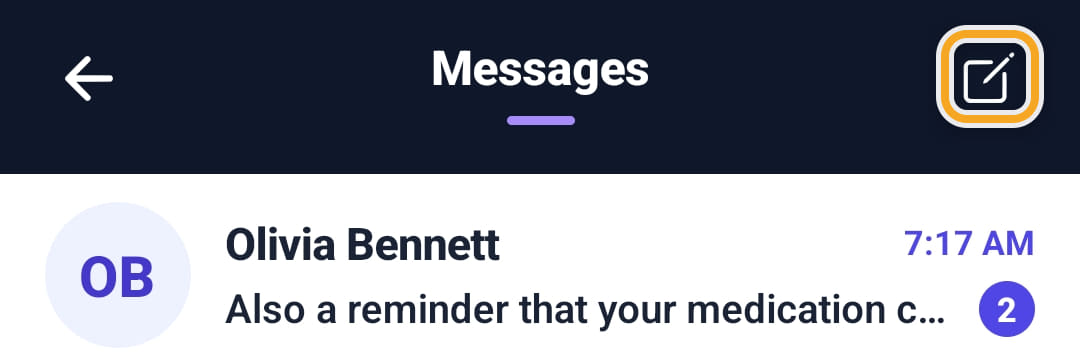
Tap the pencil at the top right to start a new message and choose who it goes to.
- 4
Anything sent from the web Messages screen arrives here.
- 5
Under each message you send, Sending, Delivered or Read shows how far it got. If one shows Not delivered, tap it to try again.
- 6
Tapping a new-message notification opens that conversation directly. An open conversation also checks for replies every few seconds.
- 7
In New message, search your team by name. A support worker sees the people who work with the same participants; an administrator sees all active staff.
The screen
Did this answer your question?
If not, talk to us — we answer from Australia, in business hours.