
AI across Rostery
Connect Claude or ChatGPT to Rostery
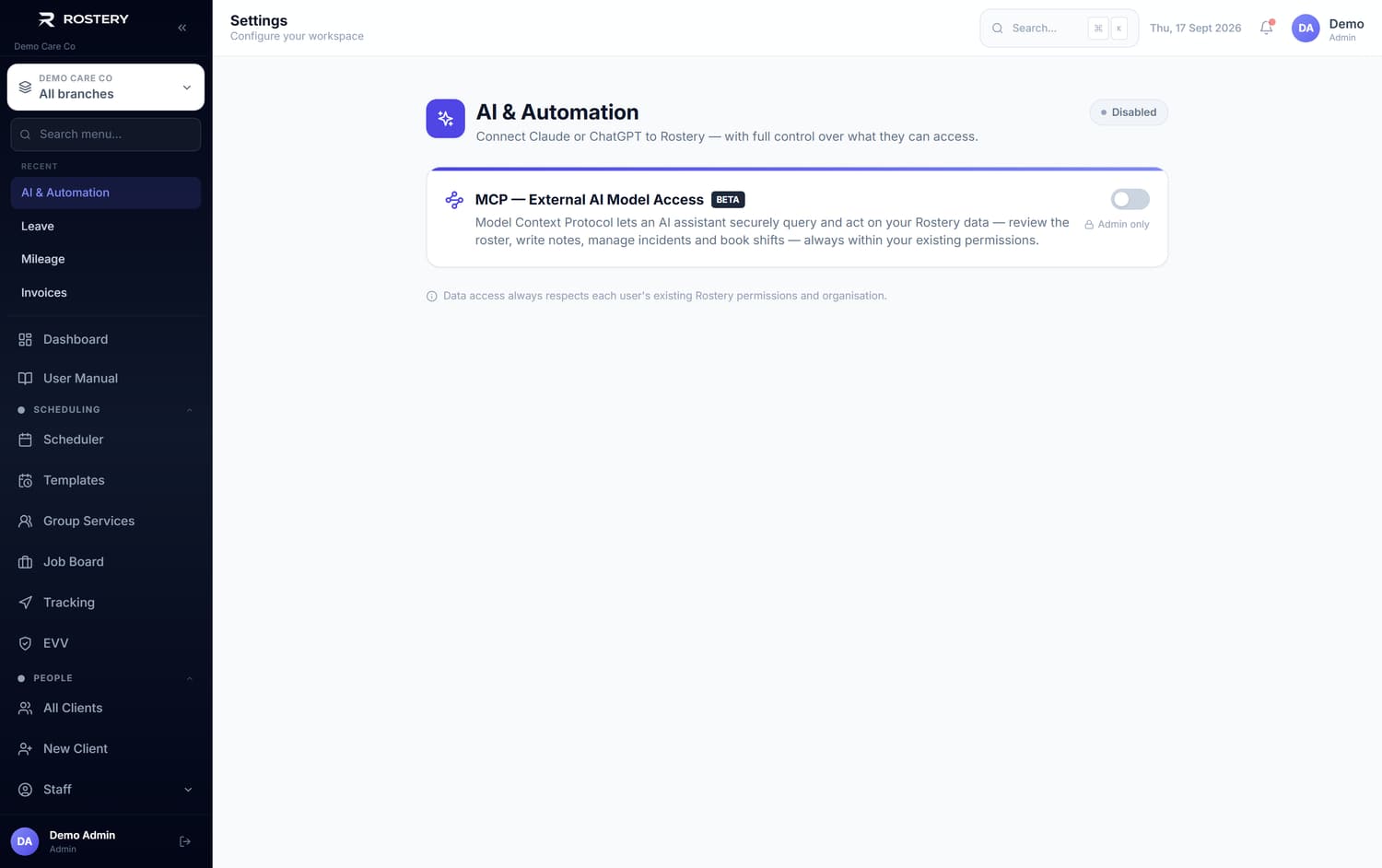
Settings → AI & Automation7 steps
Letting your own Claude or ChatGPT account read and, if you allow it, write operational data — so you can ask it questions in plain language.
Step by step
- 1
Go to Settings, then AI & Automation.
- 2
Switch the connection on. It is off until you do.
- 3
Choose Claude or ChatGPT.
- 4
Decide whether to allow writes. Read-only is the safer starting point and is enough for asking questions.
- 5
Connect your AI account using the link shown.
- 6
You can now ask it about your roster, participants, notes and incidents in ordinary language.
- 7
Revoke a connection at any time from the same screen.
Did this answer your question?
If not, talk to us — we answer from Australia, in business hours.