
Support Coordination
Provider Directory
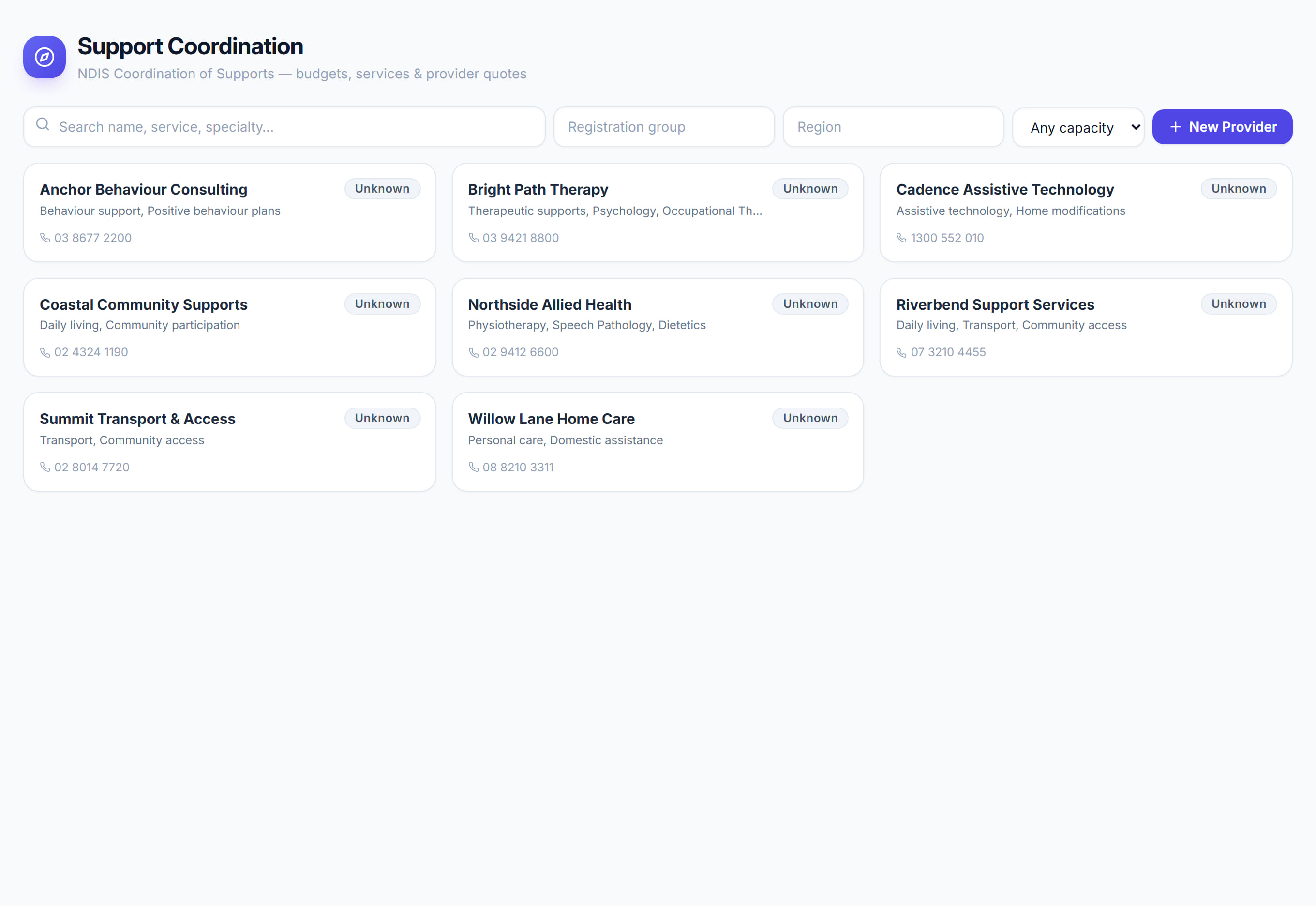
/support-coordination?view=directory6 stepsThe Providers directory is your record of the providers you source supports from, with their capacity, registration groups, regions, your rating and the contact history. Support coordinators use it to shortlist providers and send them requests for quote.
Step by step
- 1
Search by name, service or specialty, then filter by Registration group, Region and capacity to find providers who can take on the work.
- 2
Read each card: capacity (Accepting, Waitlist, Full or Unknown), registration groups, regions, your star rating, phone and the number of contacts logged.
- 3
Select New provider to add one. Enter the name, capacity, ABN, NDIS registration number, contact details, registration groups, service regions, service types and specialties.
- 4
Select a provider to open their record, update the Capacity, Your rating and notes, then select Save provider.
- 5
Open the Contact history tab, type a note about a call, email or meeting, and select Log contact to keep a record of every conversation.
- 6
To request quotes, open the participant's engagement and go to Providers. Add a request under Provider Sourcing (RFQ), tick providers or use AI match, then select Broadcast.
The screen
Did this answer your question?
If not, talk to us — we answer from Australia, in business hours.