
Support Coordination
Insights
/support-coordination?view=dashboard6 stepsInsights shows how the coordination practice is tracking: coordinator hours, oversight alerts, case-note history, standard reports and six-month trends. Team leaders and managers use it to find engagements that need attention and to report on the caseload.
Step by step
- 1
Review budget utilisation across the caseload. Open the Analytics tab for Budget utilisation (active engagements), alongside billable hours, amount billed, goals, levels and complaints.
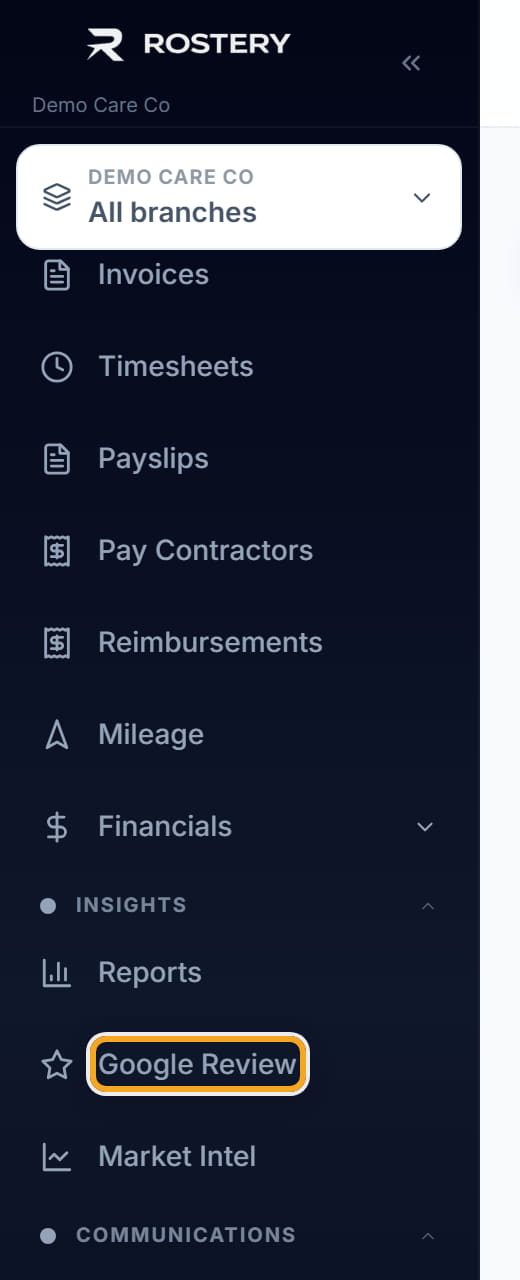
- 2
Open the Oversight tab to find engagements needing attention: Missing notes, Overdue tasks, Reports due, Budgets at risk, Open complaints and Consents expiring. A tile turns rose when it has items.
- 3
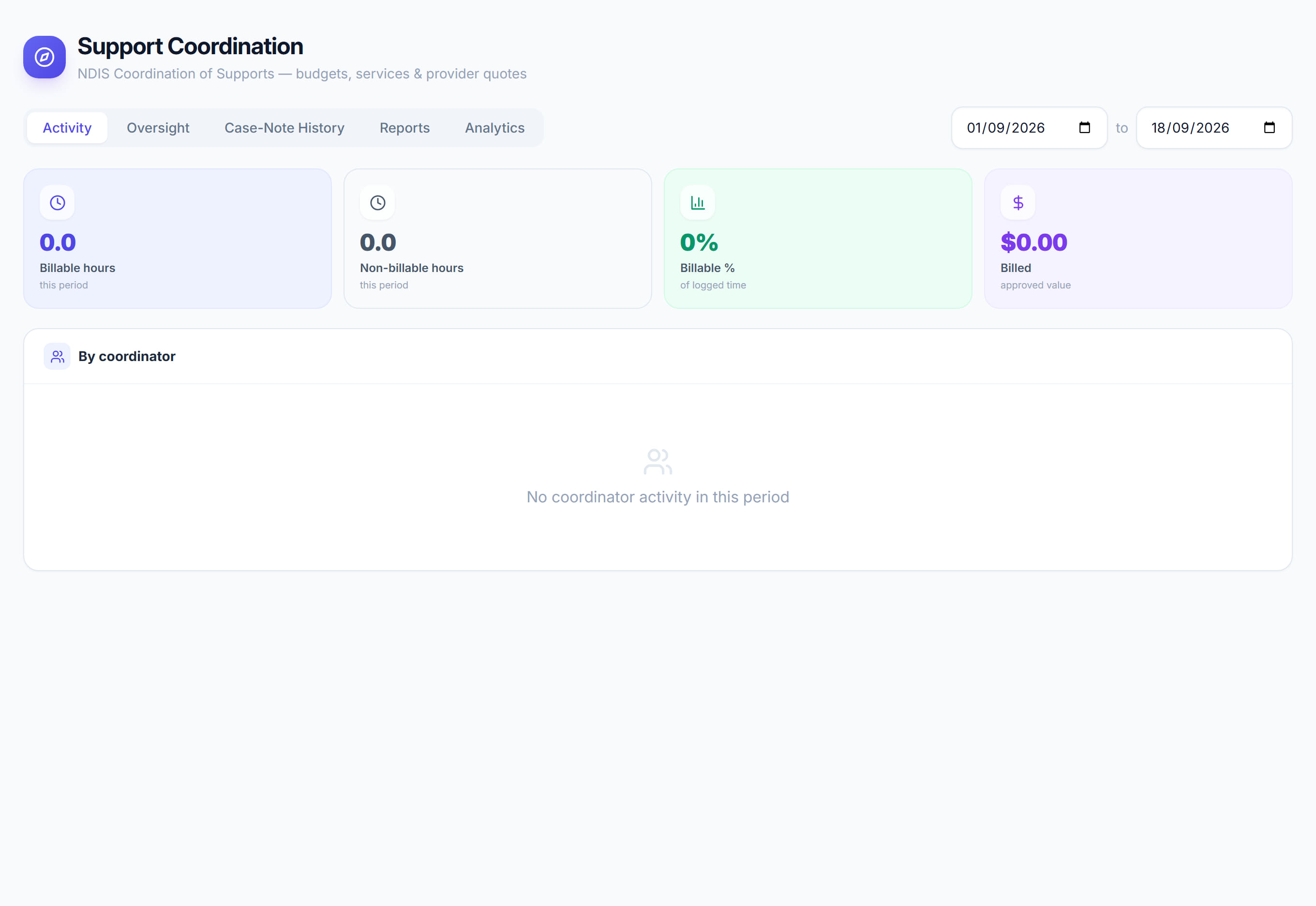
On the Activity tab, set the date range to see Billable hours, Non-billable hours, Billable % and Billed, with a chart of hours by coordinator.
- 4
Check the By coordinator table for each coordinator's billable hours, billable percentage, billed amount and active clients in the period.
- 5
Open Case-note history and filter by coordinator, participant or billable status to review each note's hours, total and status.
- 6
On the Reports tab, select a standard report to run it for the date range, then select Export CSV or the download icon to save it.
The screen
Did this answer your question?
If not, talk to us — we answer from Australia, in business hours.