Rostery
OperationsShift Automations

NDIS Shift Automation: Reminders & Clock-Outs

Session reminders for families, clock-in nudges for workers and rules for forgotten clock-outs, running every few minutes so the office only handles exceptions.

  • SMS reminders for families
  • Review requests
  • Late clock-in alerts
  • Forgotten clock-out rules
Automations that run the repetitive parts of the roster

7 years

Employers must keep records of the hours their employees work, and keep them for 7 years.

Source: Fair Work Ombudsman

Routine shift admin that can run itself

Each of these used to take a phone call or a text from the office.

Session reminders

Families want to know the day before, and again on the day.

No-shows

A reminder two hours out catches a session nobody remembered.

Reviews

Happy families rarely leave a review unless someone asks.

Late clock-ins

The office needs to know when a shift may not have started.

Forgotten clock-outs

A timesheet left open overnight turns into a payroll problem.

Tomorrow's shifts

Workers do better with a reminder the morning before.

Some shift admin should never need a person: texting a family the day before a session, nudging a worker who hasn't clocked in, closing a timesheet someone forgot to finish. Rostery runs these jobs every few minutes, so the office only deals with the exceptions.

How NDIS shift automation works in Rostery

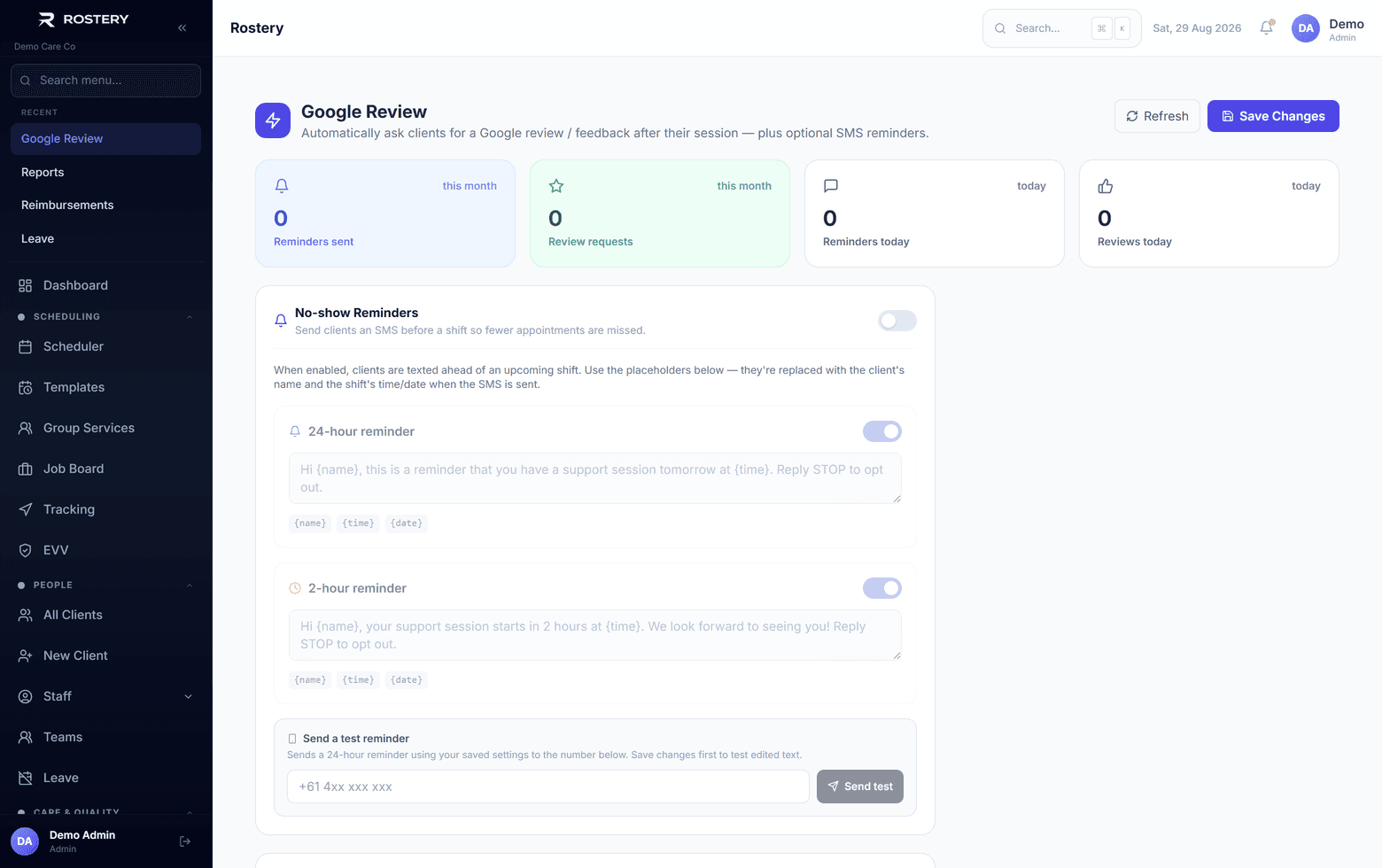
The Reminders & reviews page sends SMS to a participant's primary contact: a reminder 24 hours before a session and another 2 hours before, in your own words with the name, date and time filled in. After a completed session it can send a request for a Google review. Each shift is only messaged once, and the page shows what was sent this month and today.

In Settings, then Notifications, you choose the rest: a shift-tomorrow reminder and a clock-in reminder for workers, an alert to the office when someone is late to clock in, and the forgotten clock-out rules. By default those remind the worker 15 minutes after the rostered finish, alert the office after an hour and, only if you turn it on, clock the worker out after two hours. An automatic clock-out never goes straight to pay: the timesheet is flagged for a manager to review.

How Rostery runs them

1

SMS reminders to families

Texts to the participant's primary contact 24 hours and 2 hours before a session. Write the wording yourself, with {name}, {date}, {time} and {url} filled in.

2

Review requests

After a completed session, an SMS asking for a Google review, sent after the delay you set (2 hours by default).

3

Clock-in watch

Workers get a clock-in reminder just before the shift starts. If they still haven't clocked in after the minutes you choose, administrators and office staff get a push and an email.

4

Forgotten clock-out rules

Remind the worker after the rostered finish, alert the office later, and optionally clock them out at the rostered finish or when GPS shows they left. Every automatic clock-out is flagged for review and isn't paid or billed until approved.

Who it helps

Office and rostering

Fewer calls to chase, and alerts only when something needs a person.

Support workers

Reminders before work and a nudge if they forget to clock out.

Participants and families

A text the day before and on the day, so sessions aren't missed.

What to switch on first

Nothing here runs until you turn it on.

  • SMS session reminders at 24 hours and 2 hours
  • The missed clock-in alert, with your own threshold
  • The forgotten clock-out reminder and office alert
  • Automatic clock-out, once you're comfortable with the alerts
  • Review requests, after you've added your review link
  • A look at the send log after the first week

The rule behind it

Employers must keep records of the hours their employees work, and keep them for 7 years. When a worker forgets to clock out, an automatic clock-out that a manager then reviews keeps the hours accurate, instead of someone guessing them weeks later.

Record-keeping and pay slips (Fair Work Ombudsman)

Set up automation in four steps

  1. 1

    Turn on Reminders & reviews

    Available on the Growth plan and above.

  2. 2

    Connect SMS

    Add your SMS account details, or use Rostery's.

  3. 3

    Write and test

    Edit the reminder wording and send yourself a test SMS.

  4. 4

    Set clock-in and clock-out rules

    Settings, then Notifications, with the timings that suit you.

See Shift Automations on your own data

A guided demo with your participants, staff and price book. No obligation.

Book a Demo

Shift Automations: questions

Not as a rule builder. Rostery's automations are a set of ready-made jobs (session reminders, review requests, clock-in reminders and alerts, forgotten clock-out rules) that you switch on and adjust.

Ready when you are

Ready to transform your NDIS operations?

See Rostery running on your own rosters, funding and award rules โ€” not a canned tour.

Guided walkthroughYour own dataNo obligation

No setup fees ยท No obligation ยท Australian data storage