Rostery
OperationsEVV + Live GPS TrackingNDIS Required⭐ Core

Electronic Visit Verification for NDIS Providers

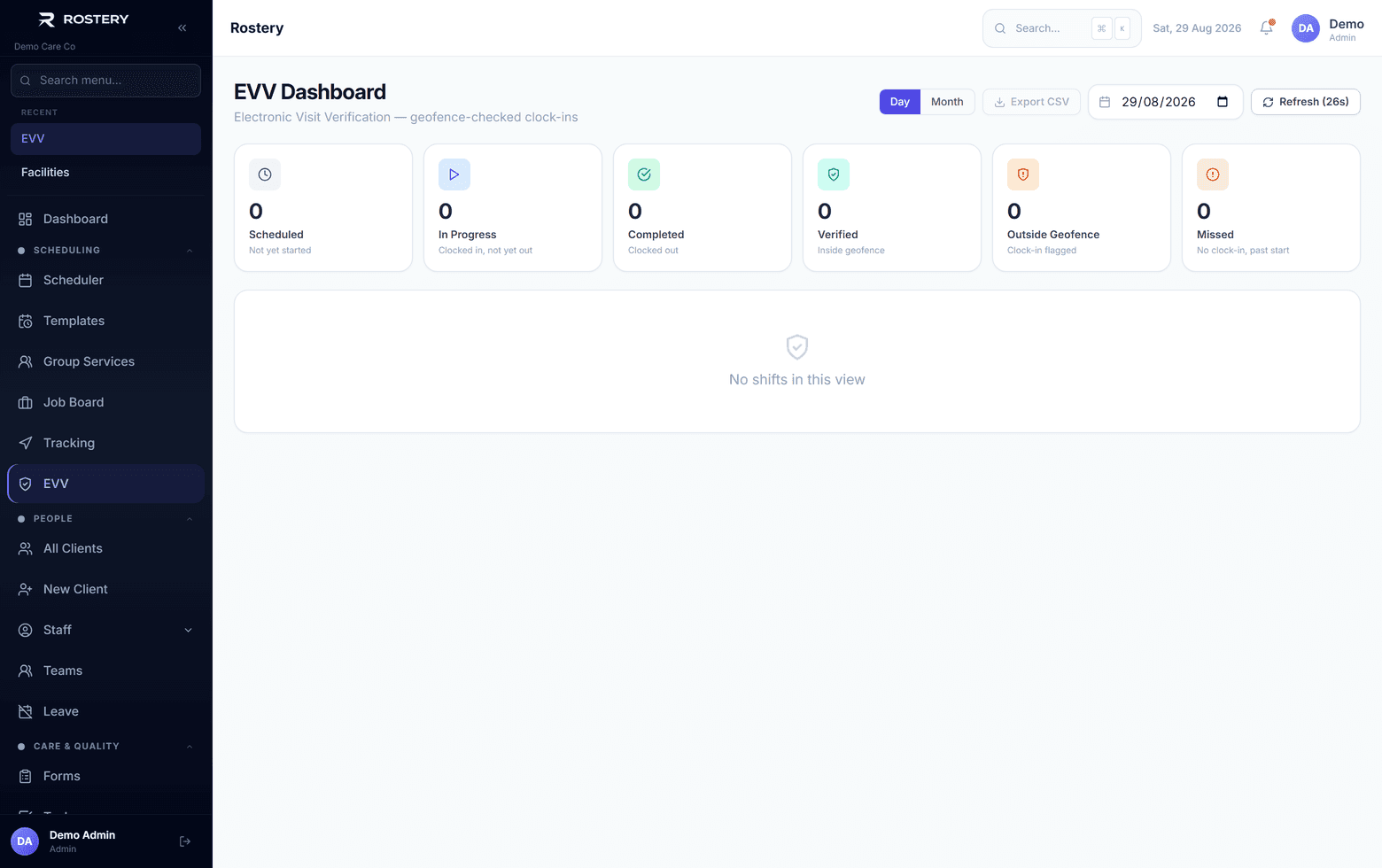
Workers clock in with GPS at the support address, and the office sees which visits were verified, missed or outside the geofence.

  • GPS clock-in
  • Server-stamped times
  • A daily EVV dashboard
  • Live map and routes
Electronic visit verification — who attended, where and when

What proving a visit involves

Every claim rests on a support that actually happened.

Arrival

The worker was at the right place, at the right time.

Departure

How long the support really ran.

Missed visits

Shifts that never started.

Exceptions

Clock-ins without a location, or far from the address.

Corrections

Times fixed by the office, and who fixed them.

Evidence

A record you can show a plan manager or auditor.

A shift that was rostered isn't proof a support was delivered. Electronic visit verification records that the worker was there, when they arrived and when they left, so pay and claims rest on what happened.

How electronic visit verification works in Rostery

In the Rostery app, the assigned worker clocks in from the shift. The app takes a GPS fix and Rostery checks it against a geofence round the shift address, the group home or the participant's address (400 metres by default, adjustable down to 50). Clock-in opens 60 minutes before the start and closes 240 minutes after, both adjustable, and is refused outside the geofence. If no location can be found, the worker can clock in without one and the visit is flagged. Clock-out records the distance, can require a progress note first, and marks the shift completed. Clock times are stamped by the server, not the phone.

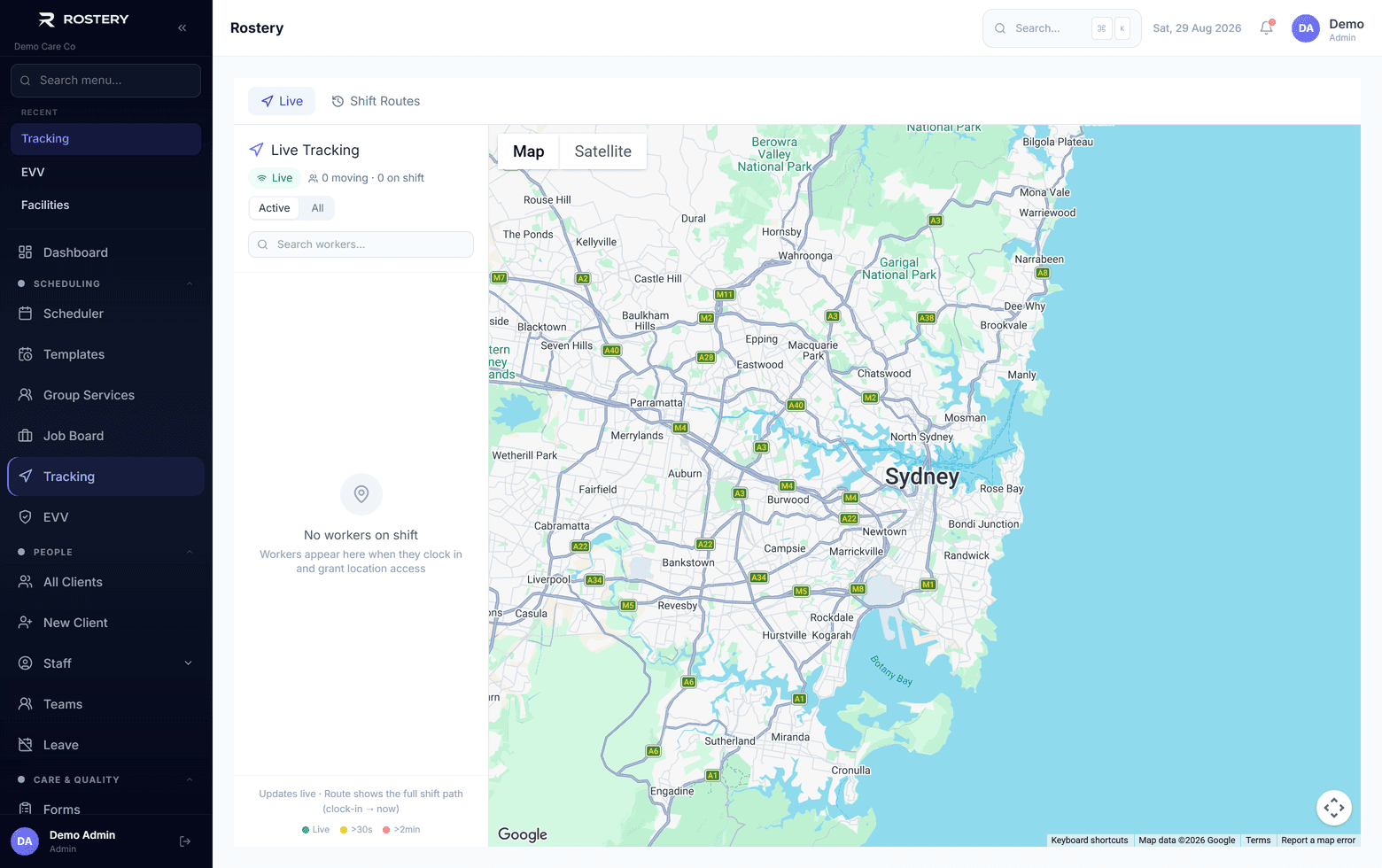
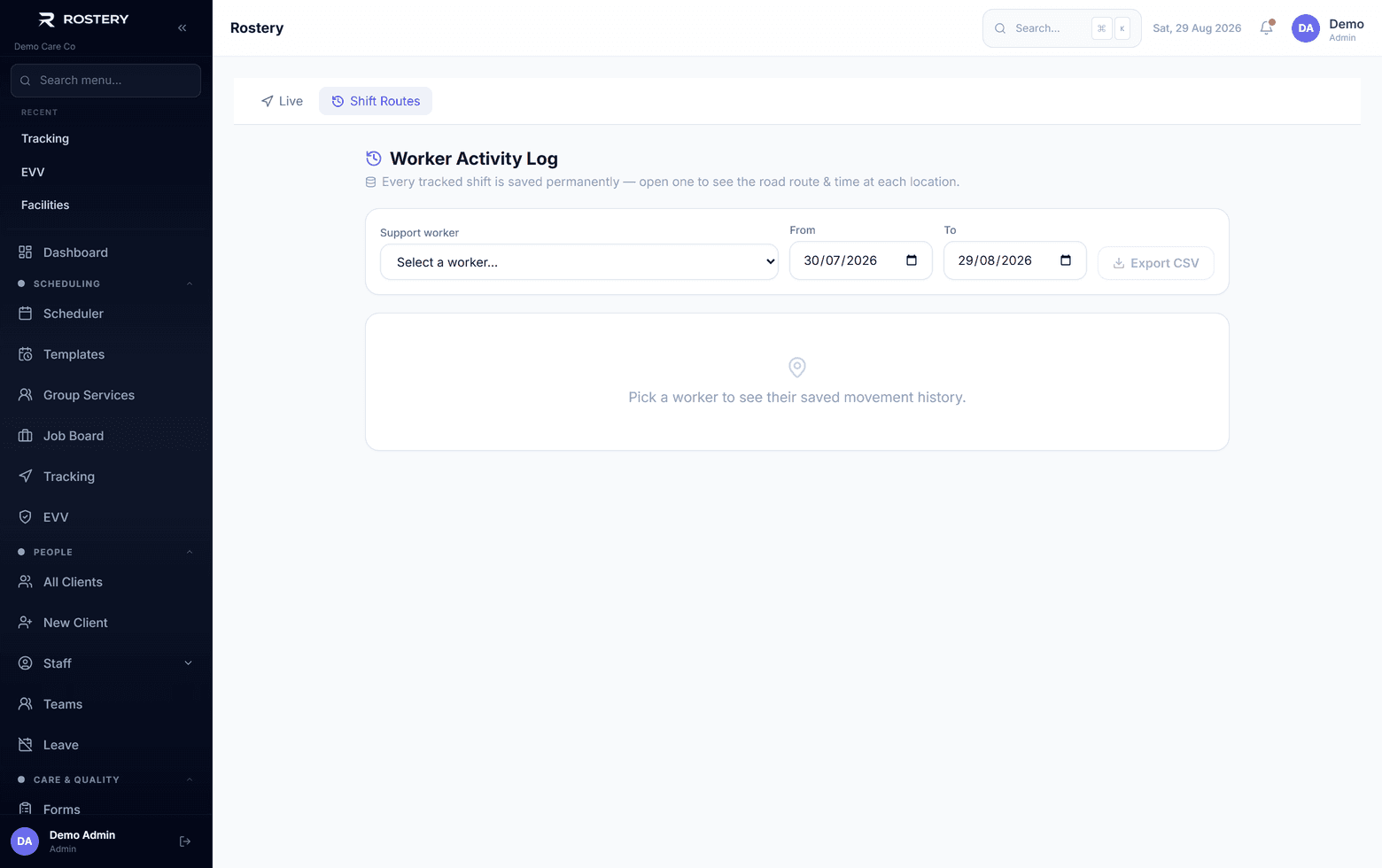
During the shift, the app records the worker's position every few seconds while they move. The office sees workers on a live map and each shift's route, and the EVV dashboard shows the day's scheduled, in progress, completed, verified, outside-geofence, no-GPS and missed visits, with a month view and a CSV export. Office staff can verify a visit or enter a clock time by hand, and those entries are marked as admin overrides.
How Rostery verifies visits

1

Clock in at the address

GPS checked against a geofence round the shift, group home or participant address, inside a clock-in window. Outside the geofence, clock-in is refused.

2

Clock out with the record

The distance is recorded, a progress note can be required first, and the shift is marked completed.

3

The EVV dashboard

Daily tiles for scheduled, in progress, completed, verified, outside geofence, no GPS and missed, a month view by day and staff, and a CSV export.

4

Live tracking

A live map of workers on shift and each shift's route, recorded while the shift runs.

See EVV + Live GPS Tracking in action

Live view of who is on shift right now
Worker activity across the day, from clock-in to clock-out

Who uses it

Support workers

Clock in and out in the Rostery app.

Rostering and operations

Watch the EVV dashboard and follow up missed and flagged visits.

Finance

Bill and pay from visits that were verified.

A daily EVV routine

  • Follow up missed visits
  • Check clock-ins without a location
  • Review any visit outside the geofence
  • Record a reason for every manual clock entry
  • Export the day if a plan manager asks

Start verifying visits in four steps

  1. 1

    Check addresses

    Make sure participant and shift addresses are right.

  2. 2

    Set the geofence

    The radius and clock-in window that suit you.

  3. 3

    Get workers on the app

    Clock-in happens in the Rostery app.

  4. 4

    Watch the dashboard

    Follow up anything missed or flagged.

See EVV + Live GPS Tracking on your own data

A guided demo with your participants, staff and price book. No obligation.

Book a Demo

EVV + Live GPS Tracking: questions

Rostery checks the worker's GPS against the shift address, the group home or the participant's address. The radius is 400 metres by default and can be set down to 50.

Ready when you are

Ready to transform your NDIS operations?

See Rostery running on your own rosters, funding and award rules — not a canned tour.

Guided walkthroughYour own dataNo obligation

No setup fees · No obligation · Australian data storage