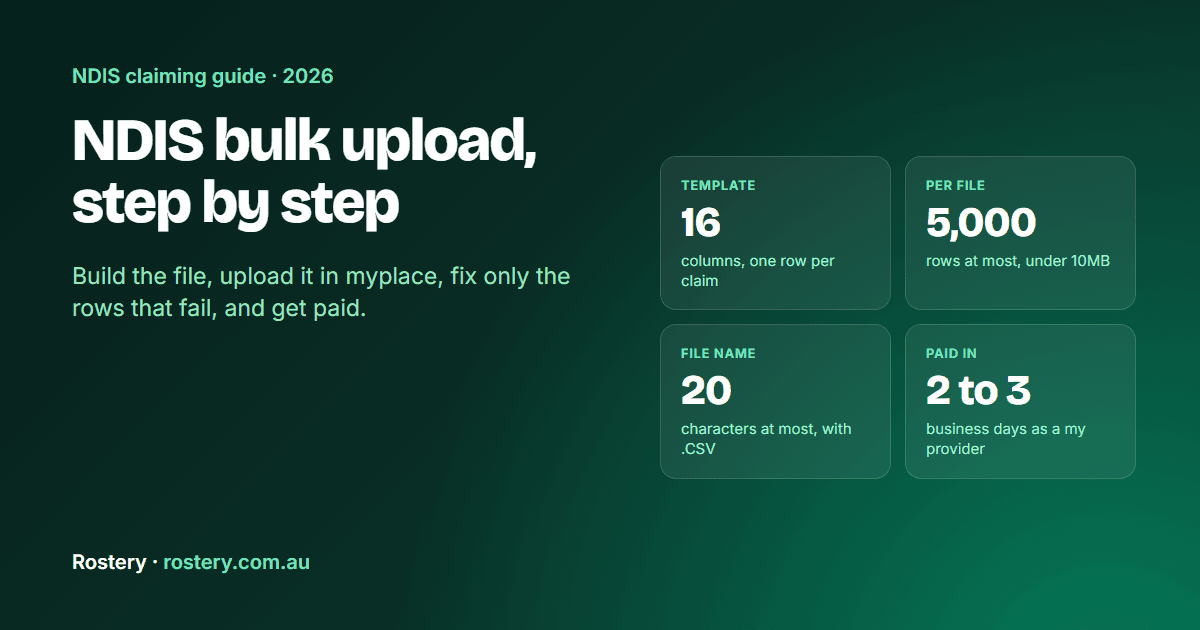
An NDIS bulk payment request is a single CSV file, uploaded in the myplace provider portal, that claims many supports at once. Every row in the file becomes its own payment request. Registered providers use it to claim NDIA-managed supports, and for participants whose plans are in the NDIA's new computer system it is the way to claim. This guide follows the NDIA's own bulk payment request guide (December 2025) and its payment pages, checked on 21 October 2026. It covers what to set up first, all 16 columns, the file rules, the upload, fixing rejected rows without creating duplicates, and when the money arrives.
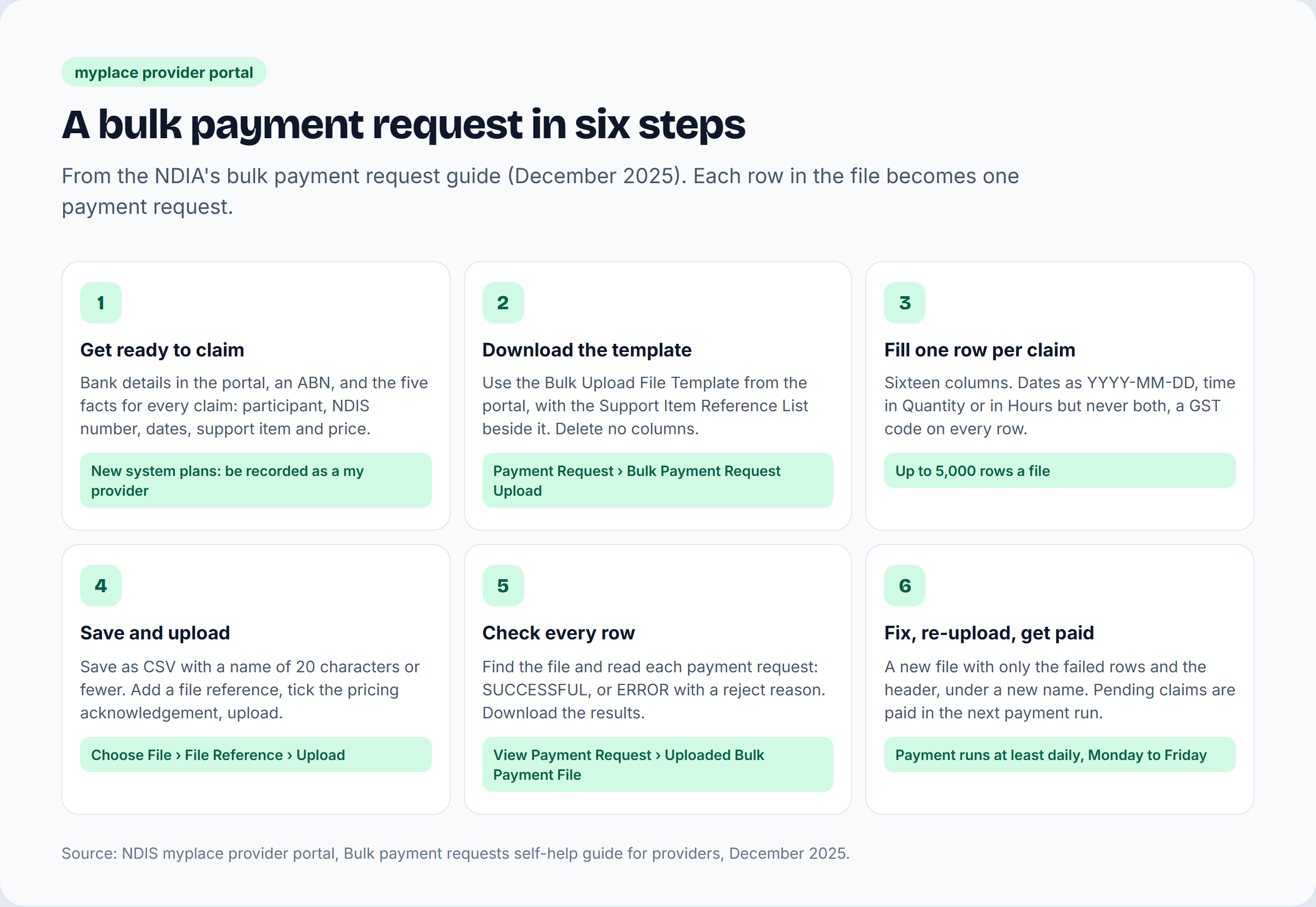
Who claims with a bulk payment request
How the participant manages their NDIS budget decides how you are paid, and only one of the three is claimed from the NDIA by you.
| Funding | How you get paid |
|---|---|
| NDIA-managed | You claim from the NDIA in the myplace provider portal, either one payment request at a time or many at once in a bulk file. |
| Plan-managed | You send your invoice to the participant's plan manager, with a valid ABN (or the ATO's statement by a supplier form if you are exempt). The plan manager claims it, often in a bulk file of their own with your ABN on each row. |
| Self-managed | You invoice the participant. They pay you and claim it themselves through the participant portal. |
The NDIA's own example shows why the bulk route exists. Ten participants with one support a week for a month is 40 payment requests keyed one by one through the Payment Request tile. As a bulk payment request it is a single upload.
Before you start
- Your bank account details must be recorded with the NDIA. A payment request cannot be created without them.
- Everyone who uses the portals signs in with their own myID, linked to your business in Relationship Authorisation Manager (RAM). Your principal authority has to link first and then authorise the rest of the team.
- For participants whose plans are in the new computer system, whether NDIA-managed or plan-managed, you need to be recorded as a my provider. For NDIA-managed plans still in the old system, a service booking has to exist before you can claim.
- For every claim you need the participant's name, their NDIS number, the dates of the support, the support item number and the price.
- Claims must be made within 2 years of the support. The NDIA asks for them within 90 days, because later claims get extra checks.
- Keep the records behind each claim, including your service agreement. If the NDIA reviews a claim it asks in writing, and you have at least 14 days to answer.
Step 1: Open the Bulk Upload screen and download the template
In the myplace provider portal, select the Payment Request tile on the Home screen, then the Bulk Payment Request Upload tile. The Bulk Upload screen has three reference files: the instructions for the file (View Information on Bulk File Upload), the Bulk Upload File Template itself, and the Support Item Reference List.
The Support Item Reference List is an Excel file of the support items active in service bookings with your participants, with the code to type into the SupportNumber column. A linen service under Daily Activity, for example, is 01_021_0120_1_1. To check what each item may be charged at in 2026-27, use our free NDIS price guide.
Download the template and keep every column in it, including the ones you will leave blank. Save it as a comma-delimited CSV.
Step 2: Fill in the 16 columns
One row is one payment request, so 100 rows under the header create 100 requests. These are the columns in the order the template has them.
| # | Column | What goes in it | Format | Needed |
|---|---|---|---|---|
| 1 | RegistrationNumber | Your Organisation ID, shown in your portal profile | Numbers only, starting with 405 | Every row |
| 2 | NDISNumber | The participant's NDIS number | 9 digits starting with 43 | Every row |
| 3 | SupportsDeliveredFrom | The first day of the support | YYYY-MM-DD (DD-MM-YYYY also accepted) | Every row |
| 4 | SupportsDeliveredTo | The last day of the support | YYYY-MM-DD (DD-MM-YYYY also accepted) | Every row |
| 5 | SupportNumber | The support item number, such as 01_011_0107_1_1 | Up to 60 characters, underscores allowed | Every row |
| 6 | ClaimReference | Your own reference for the claim, usually the invoice | Up to 50 characters: letters, numbers, / _ - | Optional, but use it |
| 7 | Quantity | Number of units, or hours as a decimal (2.5) | Up to 5 characters: NNNNN or NNN.NN | When Hours is blank |
| 8 | Hours | How long the support took, in hours and minutes | HHH:MM, such as 2:30 | When Quantity is blank |
| 9 | UnitPrice | The price per unit, or per hour, without a $ sign | Up to 8 digits and 2 decimals | Every row |
| 10 | GSTCode | P1 (10% GST), P2 (GST free) or P5 (out of scope) | P1, P2 or P5 | Every row |
| 11 | AuthorisedBy | Legacy field | Leave blank | No |
| 12 | ParticipantApproved | Legacy field | Leave blank | No |
| 13 | InKindFundingProgram | Not used | Leave blank | No |
| 14 | ClaimType | Blank for a direct service, or CANC, REPW, TRAN, NF2F, THLT or IRSS | Capitals | Blank means a direct service |
| 15 | CancellationReason | NSDH, NSDF, NSDT or NSDO | Capitals | Only when ClaimType is CANC |
| 16 | ABN of Support Provider | The ABN of the provider who delivered the support, or REIMB or EXCLS | 11 digits, REIMB or EXCLS | Plan-managed bookings only; blank otherwise |
Time goes in one place only. Two and a half hours can be claimed as 2.5 in Quantity, or as 2:30 in Hours. The NDIA's guide warns against mixing the two formats on one claim, and against writing 2:30 in Quantity or 2.5 in Hours.
ClaimType is blank for an ordinary direct service. The codes are CANC for a short notice cancellation, REPW for a report the NDIA asked for, TRAN for provider travel, NF2F for non-face-to-face work, THLT for telehealth and IRSS for irregular SIL supports. A short notice cancellation also needs a CancellationReason: NSDH (no show for a health reason), NSDF (family issues), NSDT (no transport) or NSDO (other). Provider travel non-labour costs, such as kilometres, are claimed as a direct service with ClaimType left blank. Our travel and kilometre claiming guide explains which travel you can bill.
ClaimReference is optional, but it is the only thing that ties each result back to your own invoice, so put one on every row and make each one unique. The NDIA also limits how often a single reference can be claimed (rejection P05).
The ABN column is only for plan-managed service bookings, where it holds the ABN of the provider who delivered the support. If there is no ABN, REIMB marks a reimbursement to the participant and EXCLS a supply excluded from the ATO's withholding rules. A blank or any other value is refused on a plan-managed claim. On a standard booking, leave it blank.
What three rows look like
One participant, three supports in October 2026, claimed at the 2026-27 national price limits: two hours of weekday self-care, three hours on a Saturday, and a two-hour community access shift cancelled at short notice because the participant was unwell. The four columns left blank on every row (AuthorisedBy, ParticipantApproved, InKindFundingProgram and the ABN) are left out here to fit the page.
| RegistrationNumber | NDISNumber | SupportsDeliveredFrom | SupportsDeliveredTo | SupportNumber | ClaimReference | Quantity | Hours | UnitPrice | GSTCode | ClaimType | CancellationReason |
|---|---|---|---|---|---|---|---|---|---|---|---|
| 405123456 | 431234567 | 2026-10-05 | 2026-10-05 | 01_011_0107_1_1 | INV1042L1 | 2 | 73.58 | P2 | |||
| 405123456 | 431234567 | 2026-10-10 | 2026-10-10 | 01_013_0107_1_1 | INV1042L2 | 3 | 103.54 | P2 | |||
| 405123456 | 431234567 | 2026-10-12 | 2026-10-12 | 04_104_0125_6_1 | INV1042L3 | 2 | 73.58 | P2 | CANC | NSDH |
The Organisation ID and NDIS number are made up. Most NDIS supports are GST free, hence P2 on every row.
Step 3: Check the file rules before you save
- The file name can be 20 characters at most, counting the dot and the extension. BULKUPLOAD2.CSV is 15.
- No special characters in the name: \ ? / : * < > | or ".
- A name can be used once only, even when the upload failed, so a corrected file needs a new name.
- One file holds up to 5,000 rows and must be under 10MB. Split a bigger claim across two or more files.
- Nothing may sit outside your data. If your claims end on row 47 and a stray character sits in row 102, the whole file will not load.
- In-kind items cannot be claimed in a bulk file.
Spreadsheets cause a lot of the trouble here. Excel can rewrite dates and numbers when it saves a CSV, so look at the dates again after saving. One tip in the NDIA's list of errors sounds odd but is theirs: keep the CSV open on your device while you upload it, because uploading a closed file can change the date formatting.
Our free NDIS bulk claim file checker tests a CSV against the NDIA format in your browser before you upload it. The file never leaves your computer.
Step 4: Upload the file in myplace
- From the Home screen, select the Payment Request tile.
- Select the Bulk Payment Request Upload tile.
- In Choose File, select your CSV. In File Reference, enter a reference for the file.
- Tick the acknowledgement that the payment requests are consistent with the NDIS Pricing Arrangements and Price Limits.
- Select Upload.
If the file passes the upload checks, the portal says it has been submitted and is pending payment validation. Processing may take a while. If it fails, the portal says file validation failed and offers an error file that lists each problem in column A. Fix those in your original file, give it a new name and upload it again.
Step 5: Check the result of every row
- From the Home screen, select the Payment Request tile, then the View Payment Request tile.
- In the Find screen, set View By to Uploaded Bulk Payment File.
- Search by File name, or by Duration with a from and to date, and select Get Files.
| Status | What it means |
|---|---|
| SUCCESSFUL | The payment request was created and goes on to payment validation. It then shows as pending payment in the View Payment Request tile. |
| ERROR | The payment request was not created. Select its Payment Request Number to read the Reject Reason, then fix the row. |
Download Results gives you the file back with the outcome of every row. It also has a Capped column. When a row claimed more than the price limit for the item, the NDIA pays up to the limit and marks it Capped YES, so the line is paid short without being rejected. Compare what was paid with what you claimed, line by line, or the difference disappears into a bank deposit.
Step 6: Fix rejected rows without creating duplicates
A rejected payment request cannot be fixed in the portal. It stays rejected for good, and a new request has to be made. The NDIA's instructions for doing that:
- Do not upload the whole file again. Rows that already succeeded would be claimed twice and come back as duplicates (P04).
- Make a new file that holds the header row and only the rows that failed, corrected.
- You can keep the same claim reference on a corrected row.
- Save it under a new file name and upload it the same way.
If the same rejections keep coming back, our guide to bulk payment requests without rejections covers the checks to run before a file leaves your system.
The rejection codes you will see most
The NDIA lists its bulk payment rejections roughly from most to least common. These are the ones most providers meet. Our free NDIA claim rejection codes list has all 62, with what each means.
| Code | What it means | What to do |
|---|---|---|
| MB1 | More than one field on the row is wrong | Check every field on the row, since more than one is wrong |
| M01 | The start or end date is not valid | Use real dates in YYYY-MM-DD |
| M04 | Wrong participant, service booking or provider | Check the NDIS number, and the booking for old system plans |
| M05 | The quantity or unit price is wrong | Dollars and cents with no $ sign, such as 98.06 |
| M06 | The GST code is not valid | P1, P2 or P5 |
| P03 | The amount is more than the participant's budget | Tell the participant; the funding has run out |
| P04 | A payment request with the same details already exists | Usually a row already claimed. Combine same-day lines for one item into one request |
| P05 | The claim reference has been used too many times | Give every row its own reference |
| S01 | No plan matches the NDIS number | Use the participant's own number, not a parent's or nominee's |
| C01 | No service booking exists (old system plans) | Create a service booking inside the plan period |
| C09 | More than 90 days after the service booking ended | Contact the NDIA |
When a bulk claim is paid
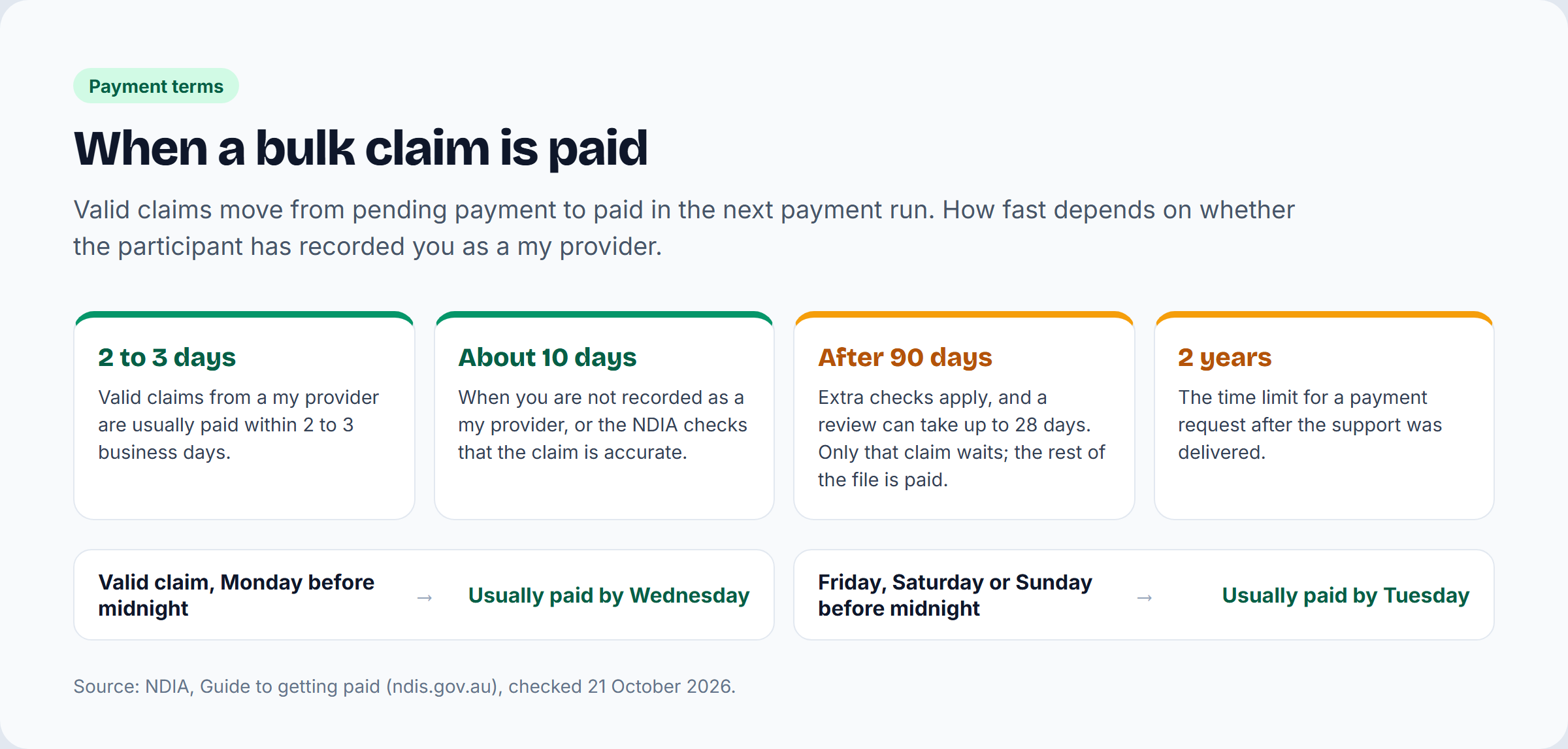
A pending payment request is paid in the next payment run, and the NDIA runs payments at least once a day, Monday to Friday. A request created after the last run on a Friday goes into the next business day's run, usually Monday.
Valid claims from a my provider are usually paid within 2 to 3 business days. Submit a valid claim on Monday before midnight and it is generally in your bank account by Wednesday; Friday, Saturday or Sunday before midnight, generally by Tuesday. Expect about 10 business days if the participant has not recorded you as a my provider, or if the NDIA checks that a claim is accurate.
The NDIA does not email you while a claim is open or pending. To find bulk claims not yet paid, go to View Payment Request, set View By to Submitted Payments Request, search by the date you submitted the file, add Status with Pending Payment to the criteria and select Search. To ask about one, open it and select Create payment enquiry, which takes you to the my NDIS provider portal, where claim and payment enquiries are handled.
A claim made more than 90 days after the support may be held for review, which can take up to 28 days. Only that claim waits; the rest of the bulk upload is paid on the usual terms. If the NDIA needs more information it asks in writing and gives you at least 14 days, and you can ask in writing for longer. If you cannot use the portal at all, registered providers can send the NDIA's registered provider manual claim form instead.
How Rostery builds the bulk file
Rostery is our product, so here is plainly what it does. Completed, approved shifts become invoices, and the PRODA export on the Invoices page writes the 16-column bulk upload file from your NDIA-managed invoices. Before it writes anything, it checks every line against the rules in this guide: an Organisation ID starting with 405, a 9-digit NDIS number starting with 43, a support item, Quantity or Hours but never both, a unit price above zero, a valid GST code, claim type and cancellation reason. If a line fails, you get the list of lines and what is wrong with each, instead of a file the portal would turn away. Claim references are letters and numbers only, so the results can be matched back, and the file name stays inside the 20-character limit.
For SIL claimed weekly, you upload the NDIA's results file and each line is marked paid, part paid or rejected, with the funding put back on the plan for a rejected line. More on NDIS billing and invoicing in Rostery.
Frequently asked questions
What is an NDIS bulk payment request?
A CSV file uploaded in the myplace provider portal that claims many supports in one go. Each row is one payment request, with the participant's NDIS number, the dates, the support item, the quantity or hours and the price. It is the way to claim for participants whose plans are in the NDIA's new computer system.
How many claims can one NDIS bulk upload hold?
Up to 5,000 rows, in a file under 10MB. Split anything bigger into two or more files, each with its own name.
Can I reuse a file name after an upload fails?
No. A file name can only be used once, whether the upload worked or not, so give a corrected file a new name of 20 characters or fewer.
How long does the NDIA take to pay a bulk claim?
Valid claims from a my provider are usually paid within 2 to 3 business days, and the NDIA runs payments at least once a day, Monday to Friday. If you are not recorded as a my provider, or the claim is checked, allow about 10 business days.
What is the time limit for NDIS claims?
Payment requests must be made within 2 years of the support being delivered. Claims made more than 90 days after the support get extra checks and can be held for review for up to 28 days, so claim as soon as you can.
Why was I paid less than I claimed?
Most often the unit price was above the price limit for that support item. The NDIA pays up to the limit and marks the line Capped YES in the results file, so the claim is paid short rather than rejected. Check the item's price in the NDIS price guide.
Should I upload the whole file again after some rows are rejected?
No. Rows that were accepted would be claimed a second time. Make a new file with the header and only the rejected rows, corrected, and upload it under a new name.
Sources
- NDIA: NDIS myplace provider portal, Bulk payment requests self-help guide for providers (December 2025)
- NDIA: Guide to getting paid
- NDIA: How to make a payment request
- NDIA: How to use the provider portals
- NDIA: Pricing arrangements and price limits
Checked 21 October 2026. The NDIA updates its portal guides from time to time, so check the reference files on the Bulk Upload screen before your first upload. This guide explains the NDIA's published process and is not financial or legal advice.