Rostery
FinanceNDIS Billing & Invoicing

NDIS Invoicing Software: Bulk Invoices

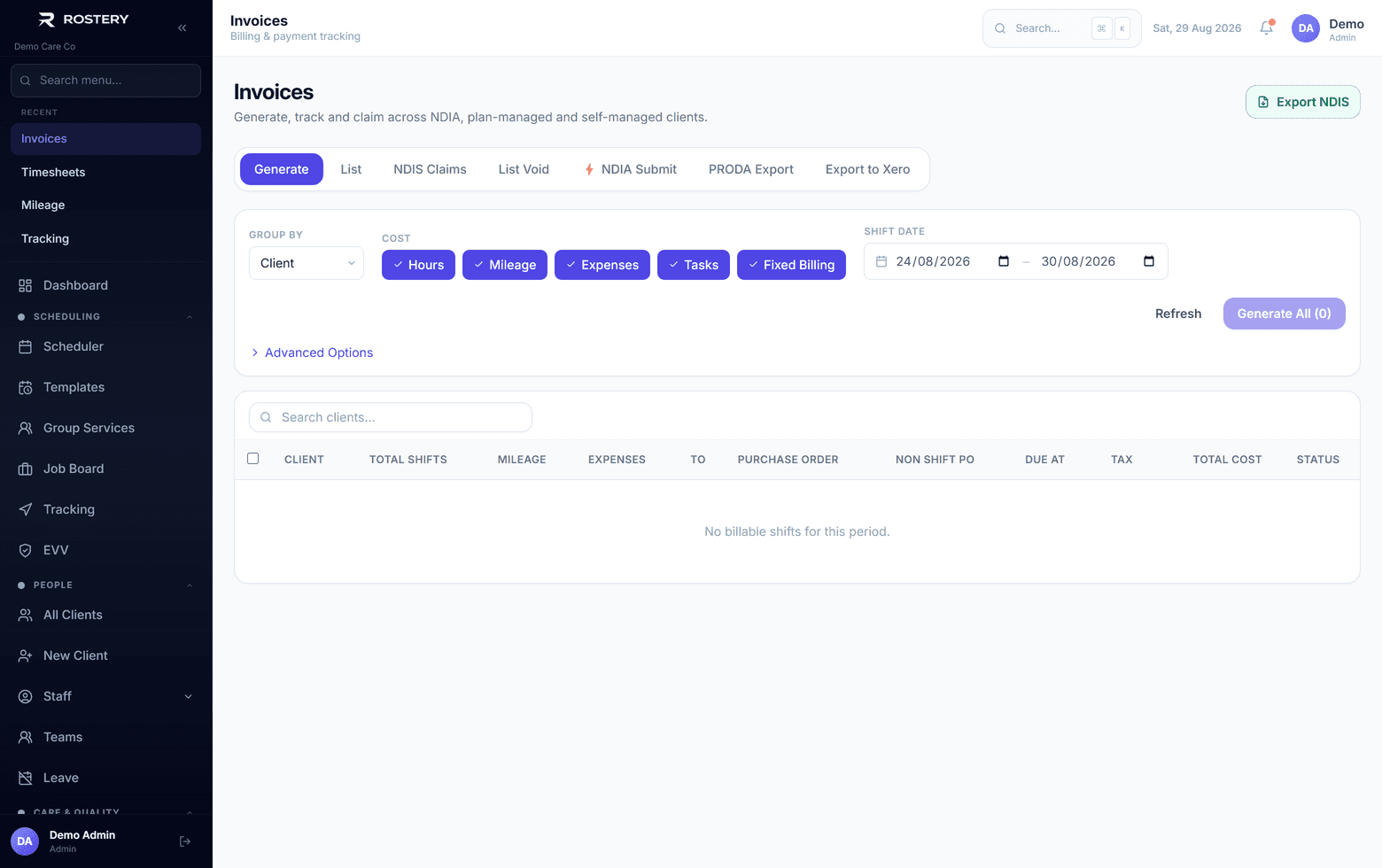
Approved timesheets become invoices priced to the NDIS limits in force on the day, with a checked bulk claim file ready to upload.

  • Invoices from timesheets
  • Priced to the rules
  • Checked claim file
  • Right payer, right GST
Invoices raised from delivered, approved work

Price limits

The NDIS Pricing Arrangements and Price Limits set the most a registered provider can charge for each support item.

Source: NDIA

What a billing run involves

Each step is a chance for a claim to come back rejected.

Pricing each support

The right item, time band and price limit for every line.

Public holidays

Which state's holidays apply to each support.

The payer

NDIA, a plan manager or the participant.

The claim file

A bulk file in exactly the NDIA's format.

Payments

Recording what was paid and chasing what wasn't.

The books

Getting it all into your accounting software.

NDIS billing is where small errors become rejected claims: the wrong time band, a public holiday missed, a rate above the limit, a line sent to the wrong payer. Rostery prices each line from the rules and checks the claim file before you upload it.

How NDIS billing works in Rostery

When a timesheet is approved, Rostery creates or adds to a draft invoice, one for each participant, funding source, month and payer. Each line is priced from the price book version in force on the date of the support, split into weekday, evening, night, Saturday, Sunday and public holiday time using the public holidays of the state where the support was delivered. A rate above the price limit is billed at the limit, except for self-managed participants. You can also generate invoices for a date range, with a preview and options for kilometres, expenses, cancellations and grouping by support item.

For NDIA-managed participants, Rostery builds the NDIA bulk claim file in its 16-column format. If any line fails the checks, the whole file is refused with a list of what to fix, so you never upload a half-good file. You upload the file in the NDIS provider portal yourself; Rostery doesn't connect to PRODA. Plan-managed invoices are emailed to the plan manager, payments are recorded against each invoice, and invoices sync to Xero or export to MYOB.
How Rostery handles billing

1

Drafts from approved timesheets

Approving a timesheet creates or adds to a draft invoice for that participant, funding source, month and payer. Or generate invoices for a date range, with a preview.

2

Priced to the rules

The price book version in force on the support date, weekday to public holiday bands by state, remote limits where your price book has them, and rates capped at the limit except for self-managed participants.

3

A claim file that passes

The NDIA bulk claim file is built in the 16-column format. If any line fails, the whole file is refused with a list of errors. Cancellations and kilometres are coded the way the NDIA expects.

4

Sent, paid and synced

Email invoices (plan-managed ones go to the plan manager), record payments, and sync to Xero with paid status coming back, or export to MYOB or QuickBooks.

See NDIS Billing & Invoicing in action

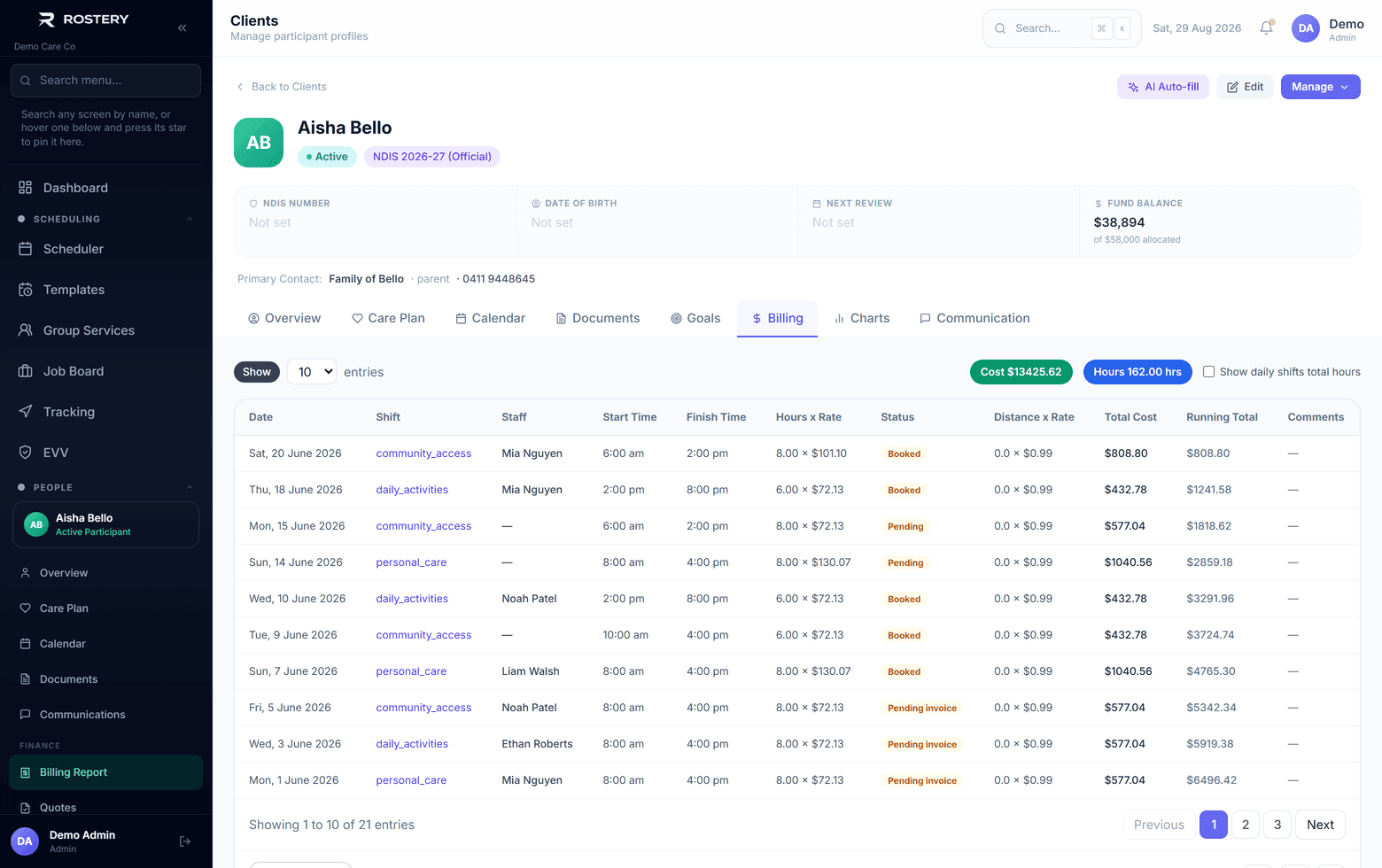
What a participant was billed, and against which fund

Who uses it

Finance

Review drafts, build the claim file, record payments and sync to the books.

Coordinators

Approve timesheets, which is what creates the invoice lines.

Owners

See what is invoiced, paid and overdue.

Before you send a billing run

  • Timesheets for the period are approved
  • The price book is current
  • Each participant's payer and funding are right
  • Kilometres have been approved
  • The claim file has passed its checks
  • Changes to sent invoices have a reason recorded

The rule behind it

The NDIS Pricing Arrangements and Price Limits set the most a registered provider can charge for each support item, and the rules for time of day, public holidays, cancellations and travel. Rostery prices each line from the price book in force on the support date and bills anything above the limit at the limit.

Pricing Arrangements and Price Limits (NDIS)

Start billing in four steps

  1. 1

    Fill in Invoice Settings

    ABN, NDIS registration number, NDIA provider number and payment terms.

  2. 2

    Check the price book

    Make sure your prices and items are current.

  3. 3

    Approve timesheets

    Draft invoices build as you approve.

  4. 4

    Review, send and claim

    Send invoices, then build and upload the bulk claim file.

See NDIS Billing & Invoicing on your own data

A guided demo with your participants, staff and price book. No obligation.

Book a Demo

NDIS Billing & Invoicing: questions

No. Rostery builds the NDIA bulk claim file and checks every line, and you upload it in the NDIS provider portal. There is no PRODA connection.

Ready when you are

Ready to transform your NDIS operations?

See Rostery running on your own rosters, funding and award rules โ€” not a canned tour.

Guided walkthroughYour own dataNo obligation

No setup fees ยท No obligation ยท Australian data storage