Rostery
FinanceMileage Tracking

Mileage Tracking for NDIS Workers

Workers log each trip in the Rostery app, the office approves the kilometres, and approved kilometres flow to pay and to the NDIS invoice.

  • Trips logged in the app
  • Road distance
  • KM approved separately
  • Rates per vehicle type
Kilometres captured on shift, priced and passed to pay and billing

Where kilometres come from in a normal week

Each kind of trip is paid and billed differently.

Client transport

Driving a participant to an appointment, work or an activity.

Travel between clients

Getting from one participant's home to the next.

Community access

Outings where the worker drives the participant around.

Training and meetings

Work travel that isn't tied to a participant.

Company cars

Trips in your vehicle, where the worker isn't reimbursed.

Commuting

Home to the first shift, which is never paid or billed.

Kilometres are money twice over. You pay the worker for using their car, and you charge the participant for travel and transport within the NDIS price limits. Both only work if the distance is right and someone has checked it. Rostery captures each trip in the app, measures it by road, and lets the office approve the kilometres before they reach pay or an invoice.

How mileage tracking works in Rostery

On the shift screen in the Rostery app, the worker taps Start trip to pin the pickup, then pins the drop-off on arrival. Rostery works out the road distance, saves the trip straight away, and picks an unfinished trip back up if the app is closed. Each trip has a purpose (work travel, client transport, travel between clients, training or meeting, or other), and trips can't be added after the worker has clocked out.

In the office, kilometres sit on the timesheet beside the hours. Tick Approve KM and the worker is paid for them and the participant is charged. Leave it unticked and the hours go through while the kilometres are held. Travel and transport lines go onto the NDIS invoice with the item number from your price book, and caps for each service type stop over-claiming.

How Rostery handles kilometres

1

Trips logged in the app

Pin the pickup and the drop-off on the shift. Rostery measures the road distance, saves the trip at once and restores an unfinished trip if the app closes.

2

Approve KM separately

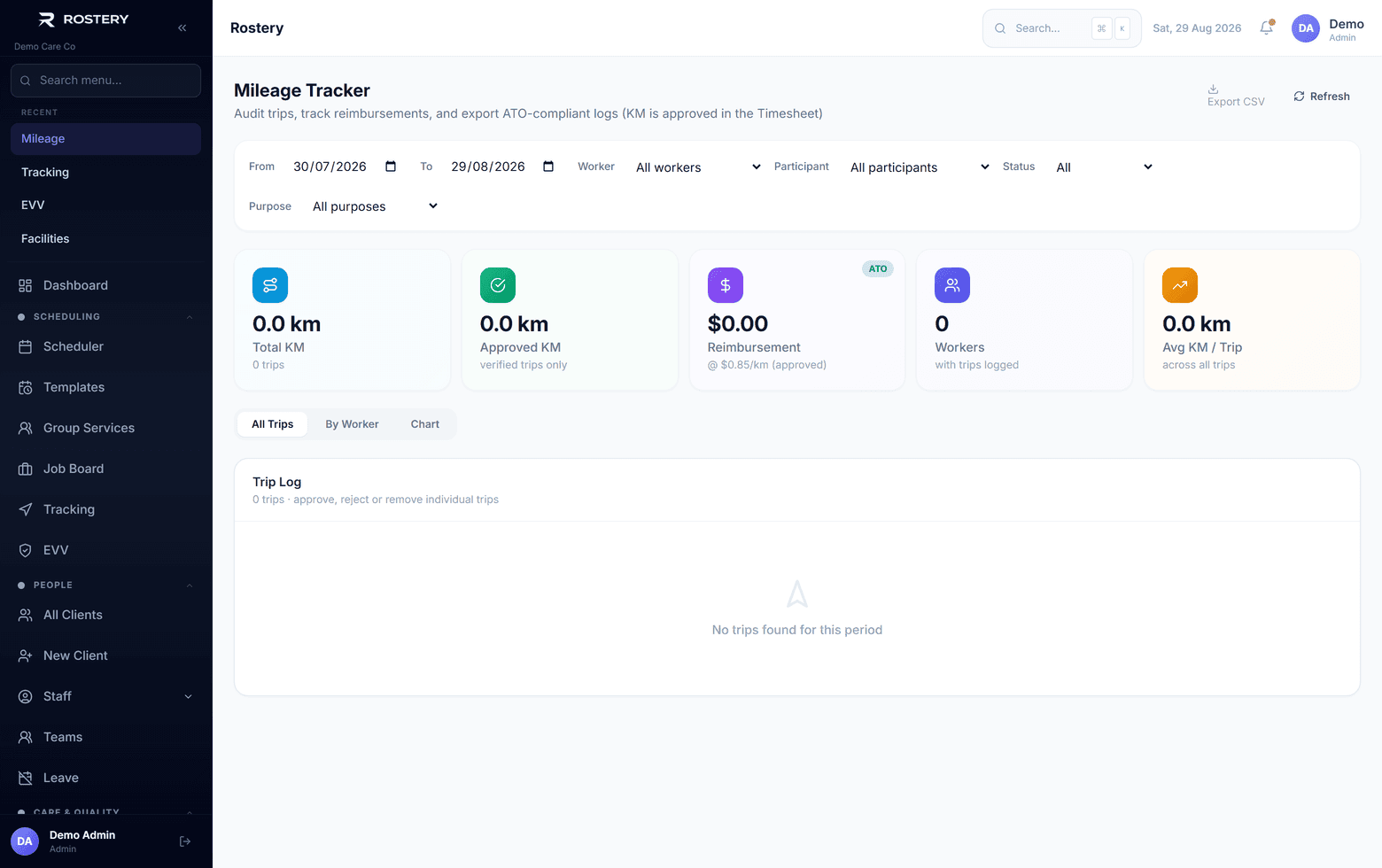
On the timesheet, Approve KM decides whether the kilometres are paid and charged. Unticked kilometres are held, not lost. The Mileage page lets you approve or reject individual trips and export them to CSV.

3

The right rate, every time

Workers are paid at your per-kilometre rate, and not at all in a company car. Participants are charged at your rate for the vehicle used: own car, modified vehicle or company van.

4

Onto the NDIS invoice

Travel and transport lines use the item number from your price book and draw on the transport funding. Caps for each service type, and locked financial periods, are respected.

Who uses it

Support workers

Log trips on the shift screen in the Rostery app and see their own trips.

Rostering and payroll

Approve kilometres on timesheets and review trips by worker on the Mileage page.

Finance and billing

See approved kilometres on NDIS invoices with the right item and rate.

Before kilometres reach an invoice

  • Each trip has the right purpose recorded
  • Commuting is left out
  • The kilometres have been approved on the timesheet
  • The right vehicle type is set, for the right rate
  • The service type's travel and transport caps are set
  • Travel claiming has been agreed with the participant

The rule behind it

The NDIS Pricing Arrangements and Price Limits allow providers to claim provider travel and activity-based transport by the kilometre, up to set limits and where it has been agreed with the participant. Recording each trip with its purpose, and approving it before it's billed, is what makes those claims hold up.

Pricing Arrangements and Price Limits (NDIS)

Set up mileage in four steps

  1. 1

    Set your rates

    Set your per-kilometre pay rate and the charge rate for each vehicle type.

  2. 2

    Check the caps

    Set travel and transport caps on each service type.

  3. 3

    Log trips in the app

    Workers pin the pickup and drop-off on the shift screen.

  4. 4

    Approve on timesheets

    Tick Approve KM when the kilometres check out.

See Mileage Tracking on your own data

A guided demo with your participants, staff and price book. No obligation.

Book a Demo

Mileage Tracking: questions

On the shift screen in the Rostery app: Start trip pins the pickup, and they pin the drop-off on arrival. The trip is saved straight away.

Ready when you are

Ready to transform your NDIS operations?

See Rostery running on your own rosters, funding and award rules โ€” not a canned tour.

Guided walkthroughYour own dataNo obligation

No setup fees ยท No obligation ยท Australian data storage