Rostery
FinanceShift to Payment Revenue FlowComplete Pipeline⭐ Core

NDIS Billing Software for Providers

From rostered shift to clock-in, approval, invoice, claim and payment, without retyping anything along the way.

  • One record, start to finish
  • Priced on approval
  • The right payer
  • A checked claim file
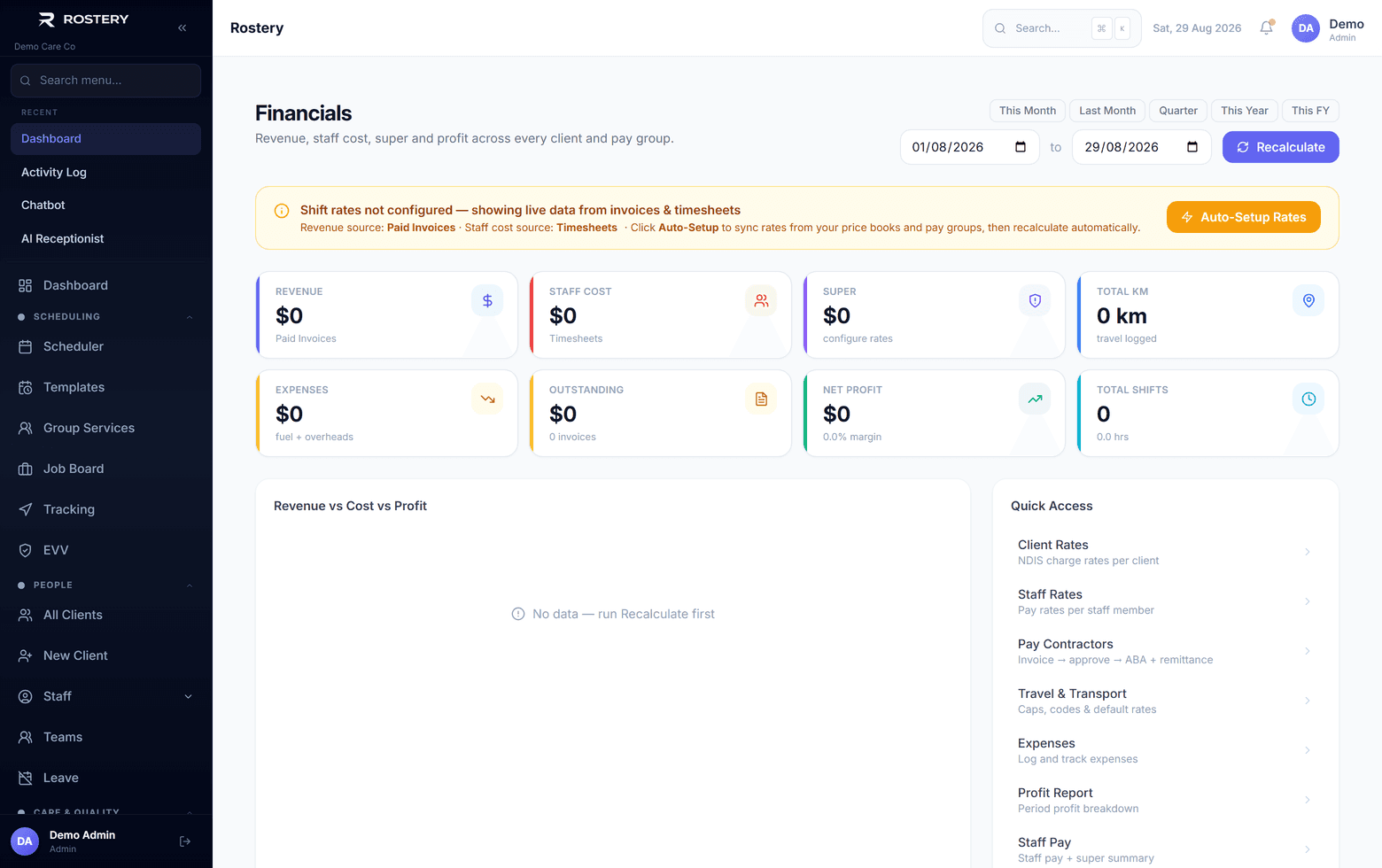
Revenue, cost and margin from the delivery record

Where revenue leaks

Each hand-off is a chance to lose money.

Unbilled shifts

Delivered but never invoiced.

Wrong prices

The wrong item or time band.

Wrong payer

An invoice sent to the wrong place.

Rejected claims

Lines the NDIA won't pay.

Unpaid invoices

Payments never chased.

Unknown margin

Not knowing which shifts lose money.

Revenue leaks in the gaps between systems: a shift delivered but never invoiced, an invoice sent to the wrong payer, a claim with the wrong price. Rostery runs the whole path on one record, from the roster to the payment.

How the revenue flow works in Rostery

A shift is rostered on the web and delivered by a worker who clocks in and out in the Rostery app. When the office approves the timesheet, Rostery works out the worker's pay and adds the shift to a draft invoice for that participant, funding source and month, priced from the support item and day and time band, with public holidays for the state where the support was delivered.

The payer follows the funding: NDIA-managed lines go into the NDIA bulk claim file you upload in the provider portal, plan-managed invoices are emailed to the plan manager, and self-managed invoices go to the participant. Payments are recorded against invoices, invoices sync to Xero or QuickBooks or export for MYOB, and Financials shows each shift's charge, cost and margin.
How Rostery closes the gaps

1

Clocked delivery

Workers clock in and out in the app, so the shift that was delivered is the one that is billed.

2

Invoice on approval

Approving a timesheet prices the shift and adds it to a draft invoice, so nothing waits to be typed in.

3

Payer from funding

NDIA-managed lines to the claim file, plan-managed invoices to the plan manager, self-managed to the participant.

4

Paid and reconciled

Payments recorded, invoices synced to Xero or QuickBooks or exported for MYOB, and margin per shift.

See Shift to Payment Revenue Flow in action

Profitability by client, service and period

Who uses it

Coordinators

Approve timesheets, which starts the invoice.

Finance

Review drafts, claim, record payments and sync.

Owners

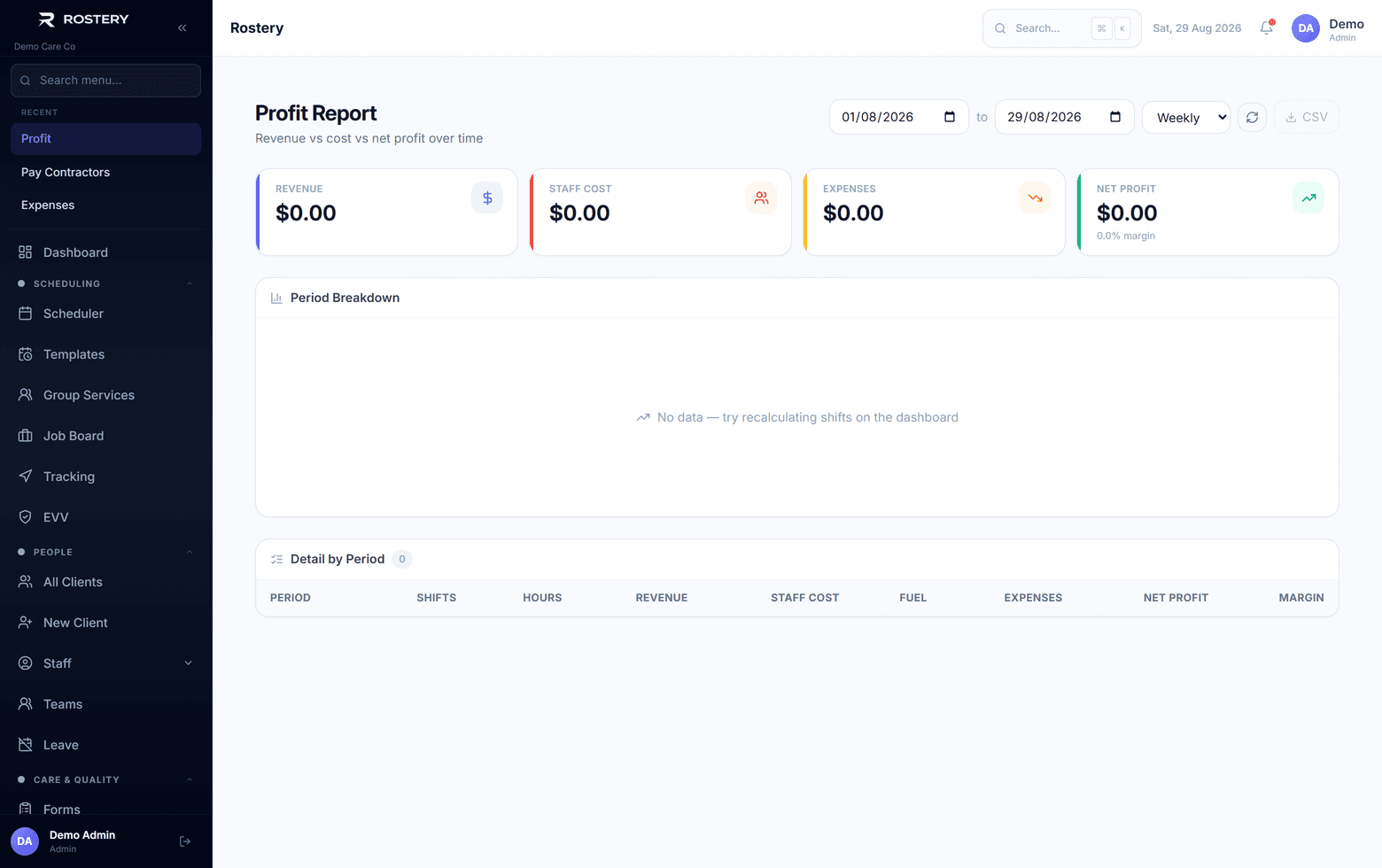
See revenue and margin per shift.

Keep revenue flowing

  • Approve timesheets promptly
  • Review draft invoices before sending
  • Upload the NDIA claim file each cycle
  • Record payments as they arrive
  • Check margin on loss-making shifts

The rule behind it

The NDIS Pricing Arrangements and Price Limits set the most a registered provider can charge for each support, by time of day and day of the week. Pricing each shift on approval, from the price book in force on the day, keeps every claim within those limits.

Pricing Arrangements and Price Limits (NDIS)

Set up the flow in four steps

  1. 1

    Set up service types and prices

    Each service mapped to its support item.

  2. 2

    Add funding

    Each participant's funding and payer.

  3. 3

    Approve timesheets

    Invoices build as you approve.

  4. 4

    Claim and sync

    Upload the claim file and connect your accounts.

See Shift to Payment Revenue Flow on your own data

A guided demo with your participants, staff and price book. No obligation.

Book a Demo

Shift to Payment Revenue Flow: questions

No. Approving the timesheet adds the shift to a draft invoice.

Ready when you are

Ready to transform your NDIS operations?

See Rostery running on your own rosters, funding and award rules — not a canned tour.

Guided walkthroughYour own dataNo obligation

No setup fees · No obligation · Australian data storage