
Insights
Worker Activity
/worker-activity8 stepsA permanent history of each support worker's tracked shifts, built from the GPS trail the mobile app records. Admins and office users use it for supervision and to answer questions about a specific day, such as travel, stops and time spent with the client.
Step by step
- 1
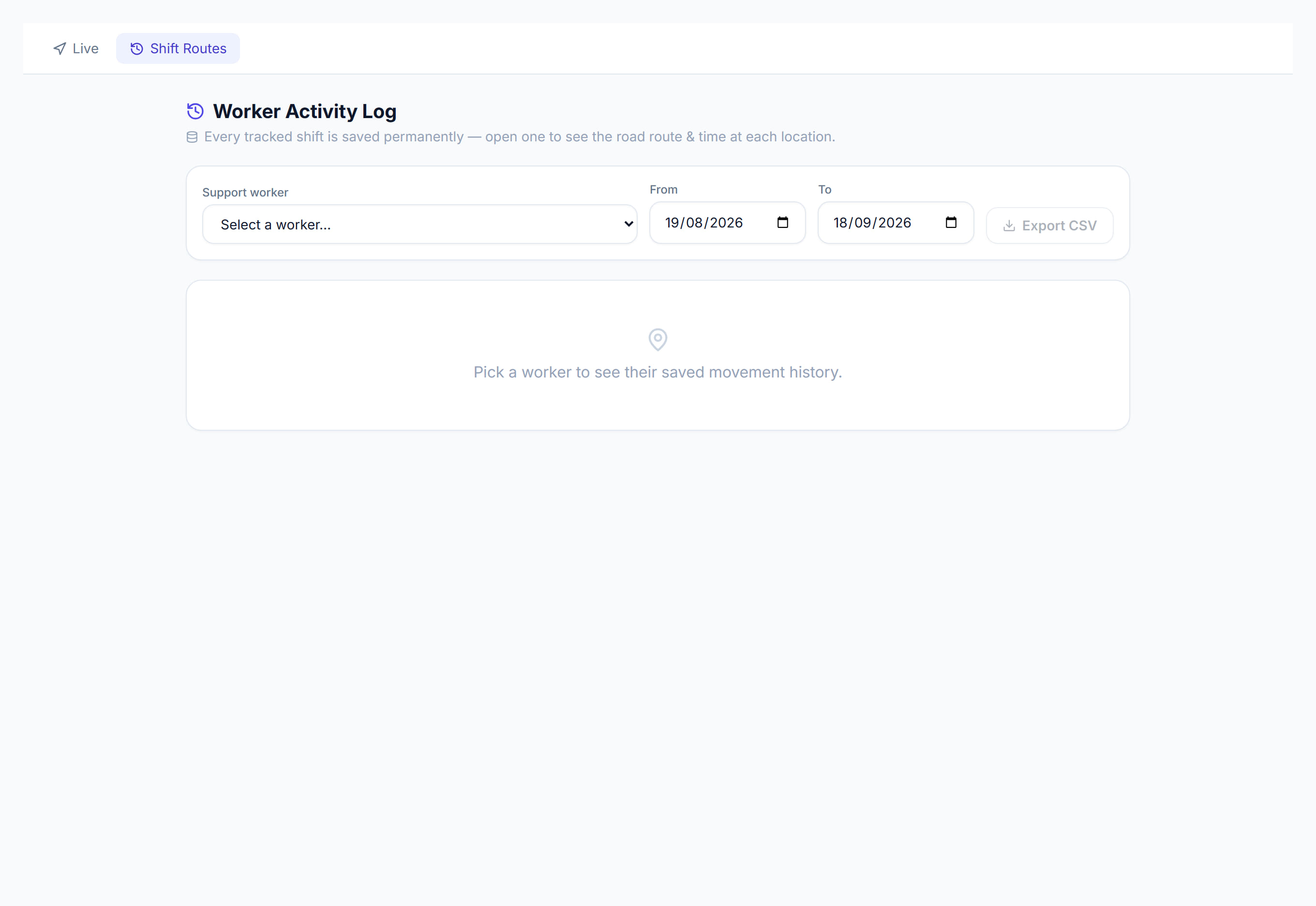
Open Tracking from the sidebar and select the Shift Routes tab. The Worker Activity link opens this tab directly.
- 2
Choose the worker under Support worker. Their tracked shifts from the last 30 days are listed straight away.
- 3
Change the From and To dates to look at another period, such as the day you have been asked about.
- 4
Read each shift row: date, client, start and end times, time tracked and GPS points, with badges for time at the client, time in the community, kilometres and stops.
- 5
Select a shift to open its panel, with totals for At client, Community, Stops and Distance, a Timeline of each stop, and a map of the route.
- 6
Look for rows marked No route. The worker clocked in, but the phone sent no GPS points for that shift, so there is no route to show.
- 7
Select Export CSV to download the worker's shifts for the period, with times, minutes at the client and in the community, distance and stops.
- 8
Switch to the Live tab to see workers currently on shift and the route they have travelled so far.
The screen
Did this answer your question?
If not, talk to us — we answer from Australia, in business hours.